macOS 15 set to get a revamped and smarter Calculator app that looks like the one on iOS
According to a new report, the upcoming macOS 15 update is set to include a revamped and smarter Calculator app that looks like the one on iOS.

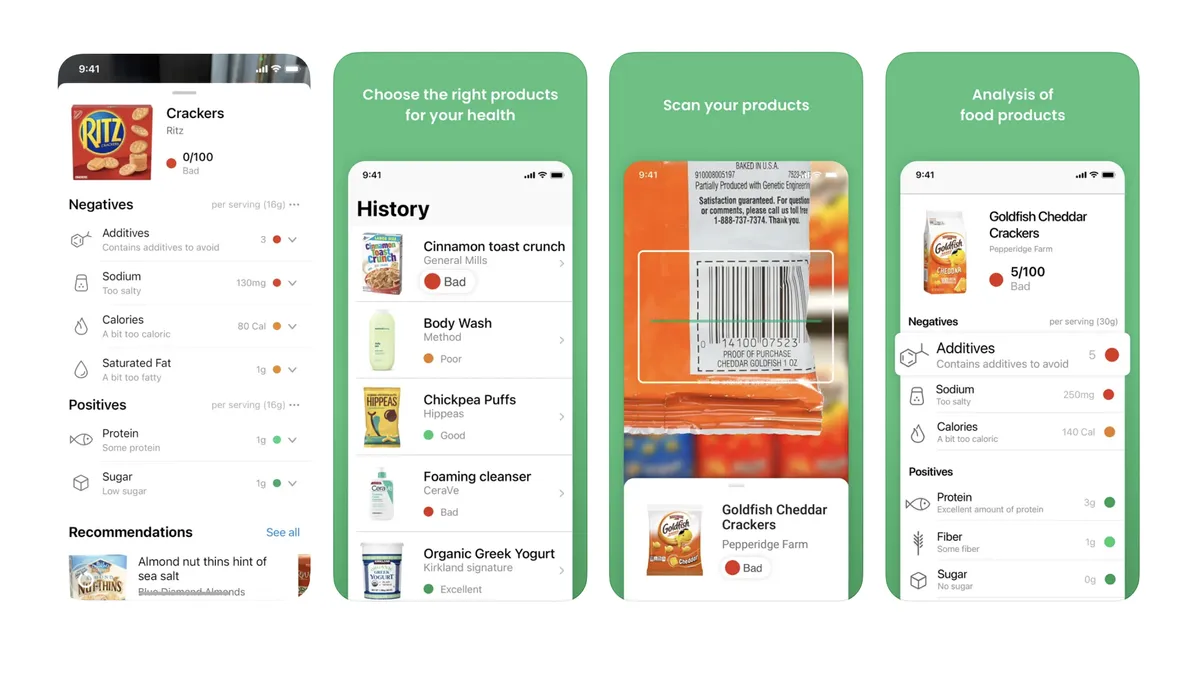
App of the day Yuka gives you more info about your groceries and flags healthy choices, ideal if you can't decide what to buy.
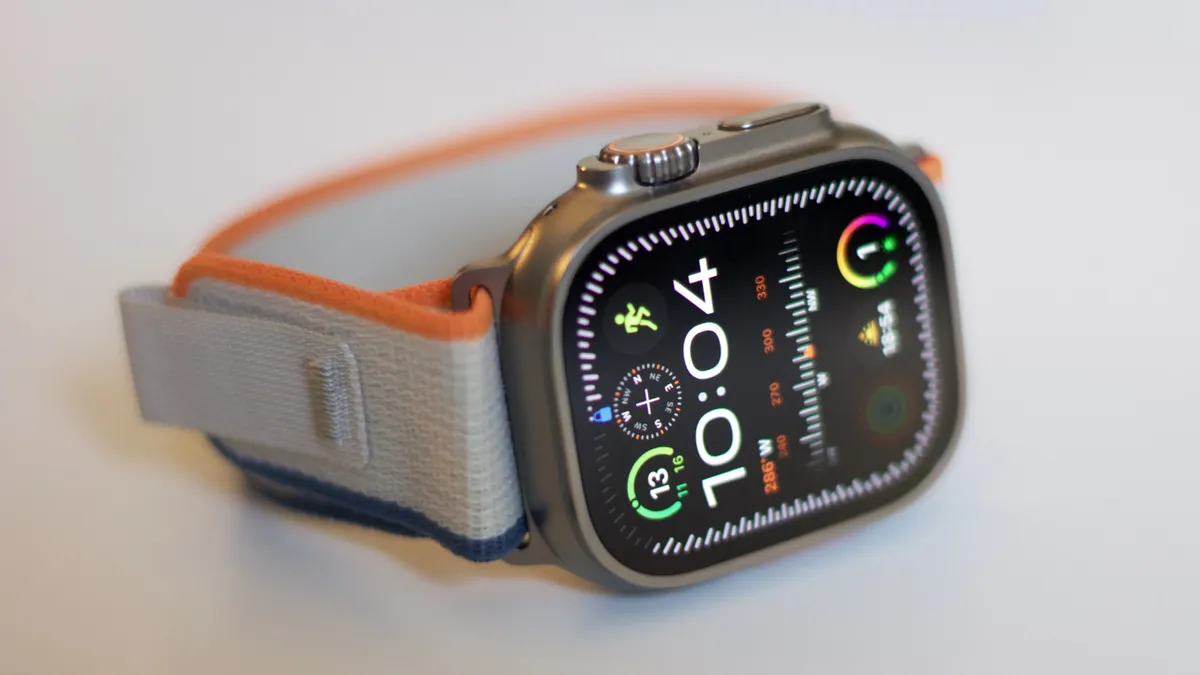
Buying an Apple Watch Ultra 2 just got cheaper in China after Apple started rolling out refurbished models in the country.

It's inevitable that the iPad Air lineup will get a refreshed model and here's what we've been hearing so far.

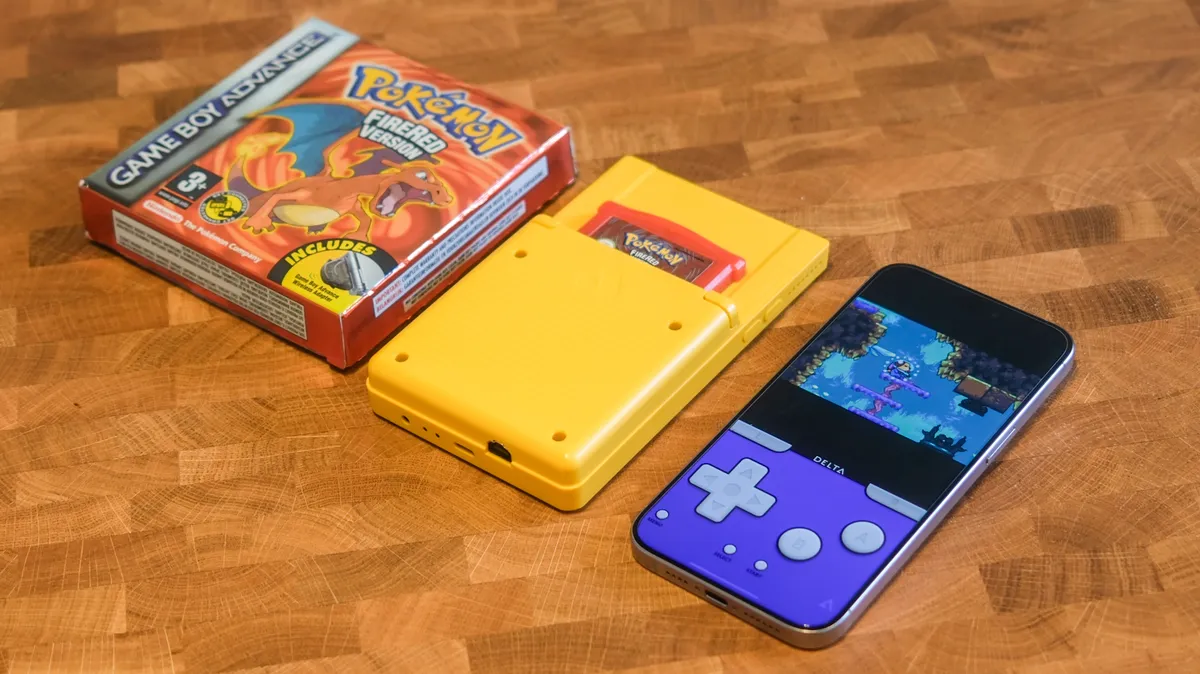
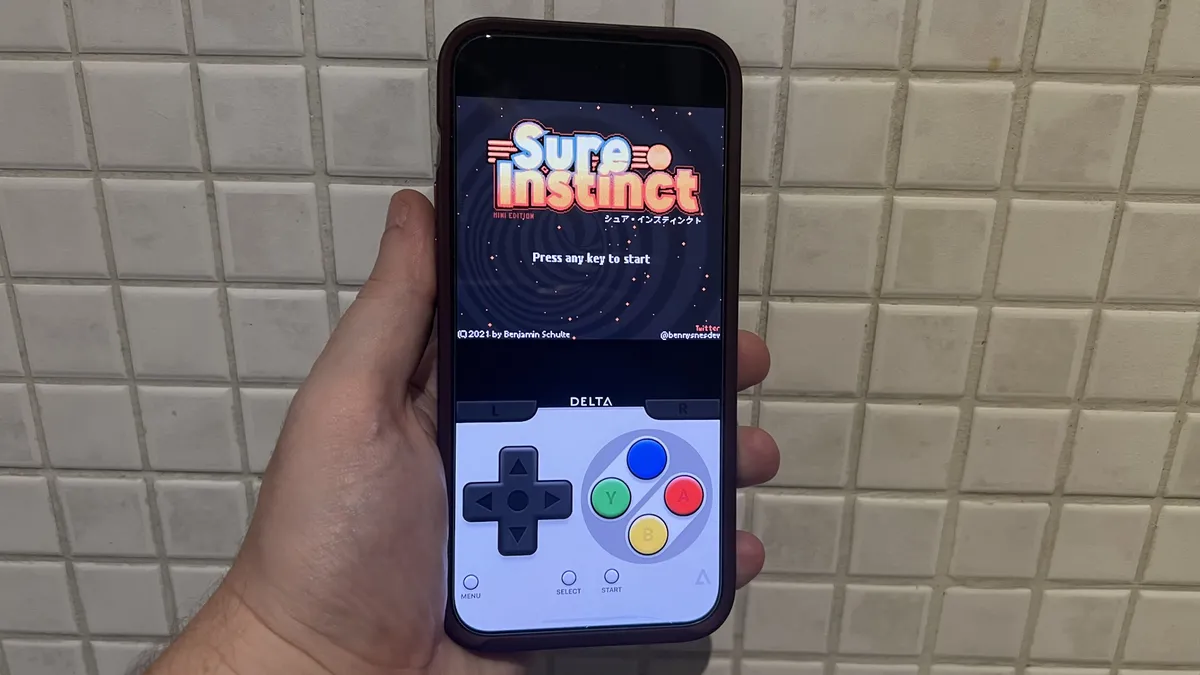
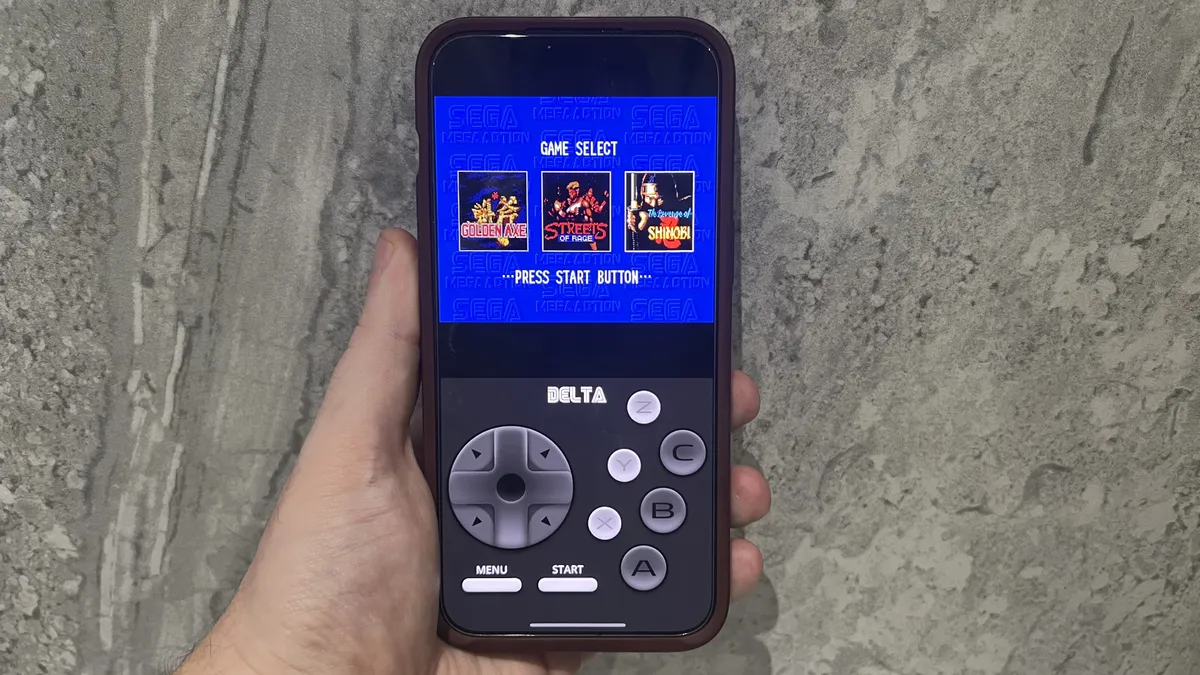
Delta has been found to work on Apple Vision Pro, as well as a Mac, but you’ll have a hard time using it without a controller.

Apple's iPhone 16 is fast approaching, but what about Apple's future plans for iPhone next year?
Quick Tips Your iPhone has a hidden sound library with calming noises like white noise and rain.
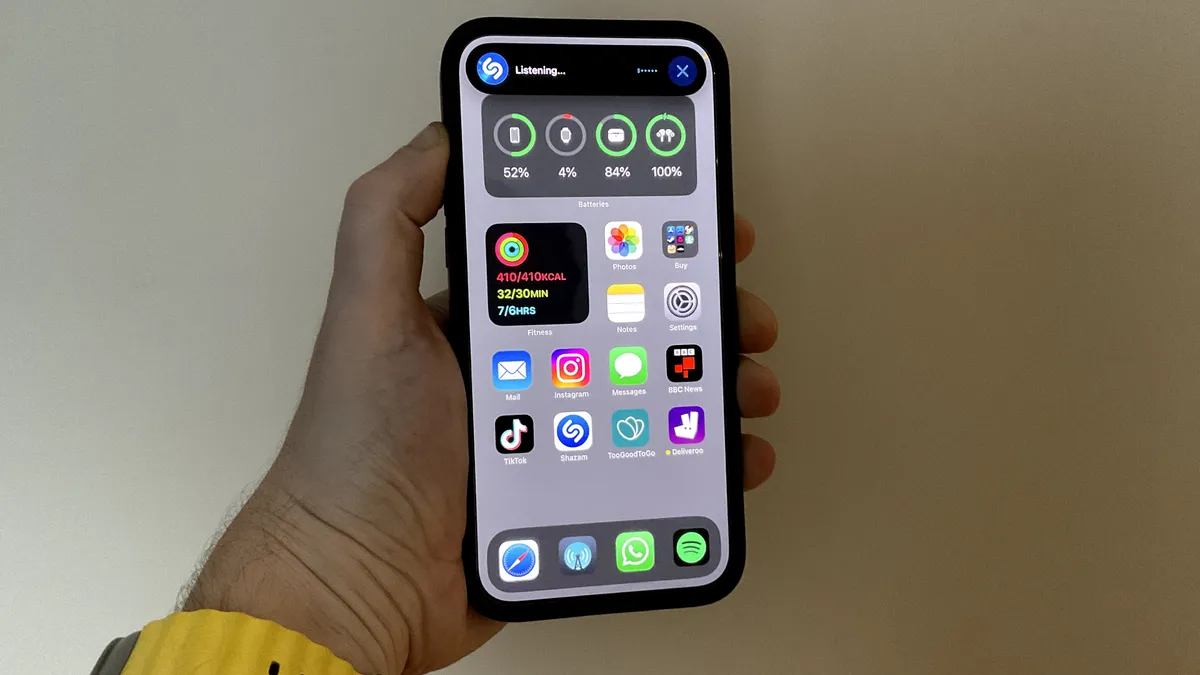
According to a new report, the iPhone 17 may offer a new display size that sits between the regular and Pro models.
It's inevitable that the iPad Air lineup will get a refreshed model and here's what we've been hearing so far.
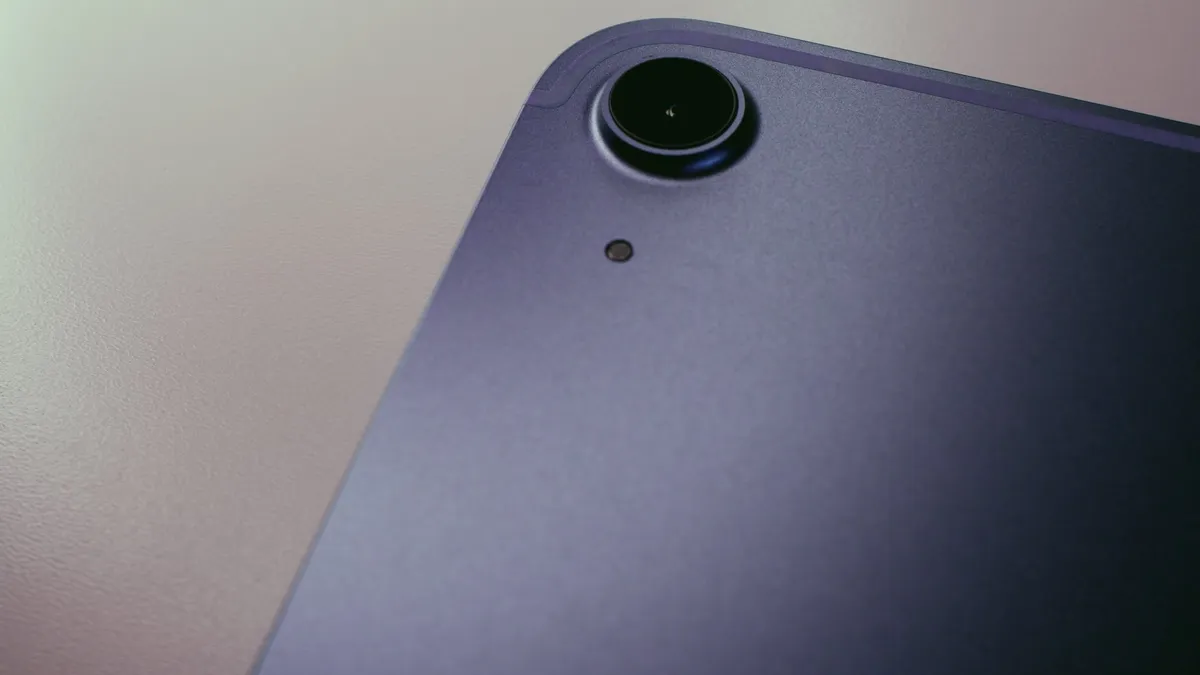
The iPad Air 6 is tipped to receive new upgrade, giving it a much nicer screen.
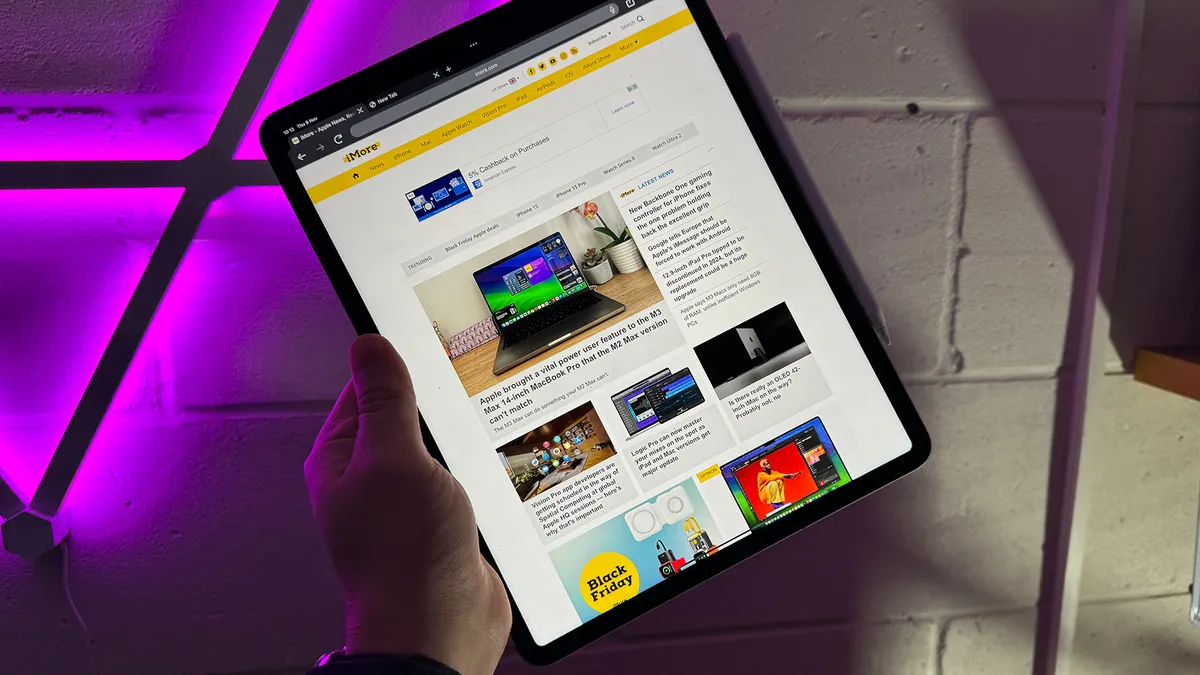
Each iPad lineup offers different storage configurations, so let's run through all of them for you.

Apple's OLED iPad Pro is close at hand, but several well-established Android rivals already have devices on the market.

With the advent of Apple silicon, gaming on Mac is better than ever. But what's the best gaming MacBook you can buy right now?
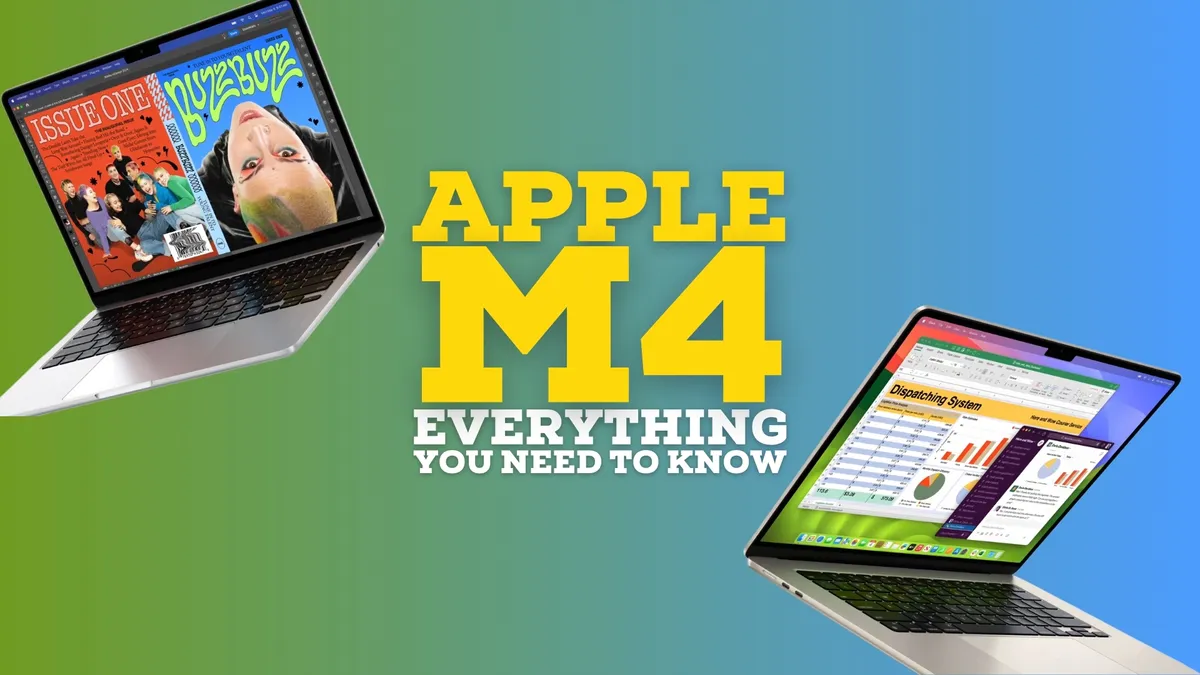
2024 could herald the first wave of M4 Macs, what do we know about the next generation of Apple silicon?

Qualcomm says its Snapdragon X Elite bests Apple's M3 Mac in some benchmark tests, but other results are missing...

Transfer photos, music, and watch movies with our pick of the best CD and DVD drives for Mac.
Buying an Apple Watch Ultra 2 just got cheaper in China after Apple started rolling out refurbished models in the country.
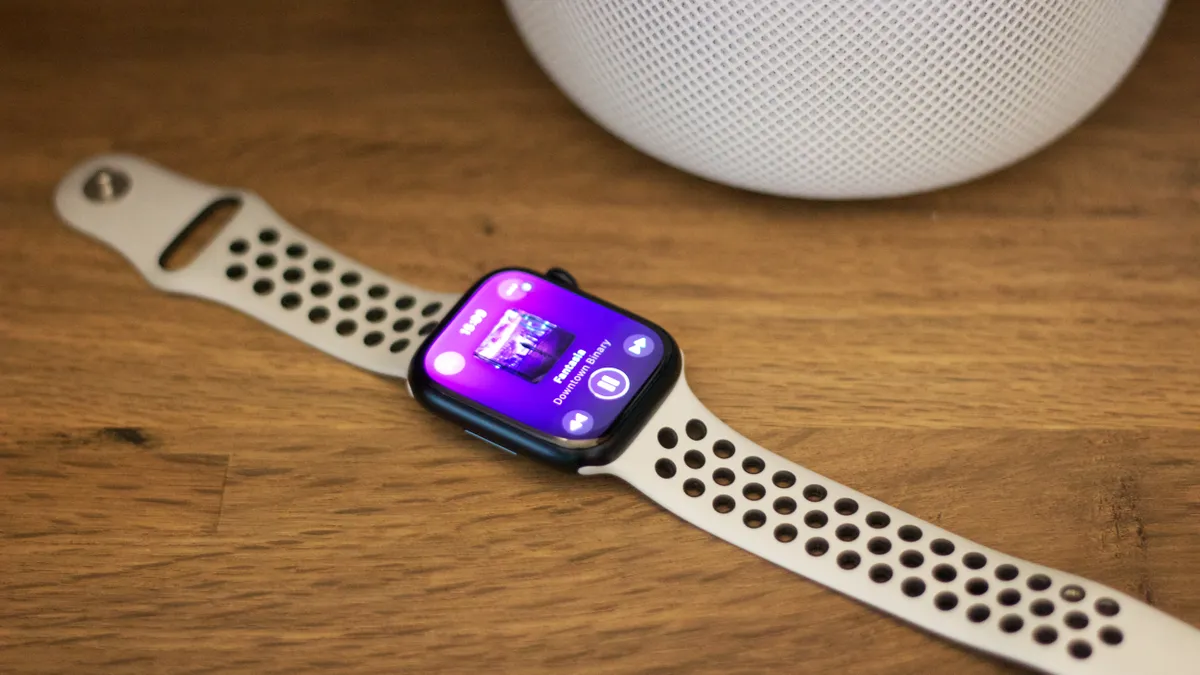
Quick Tips There's a temporary fix for ghost touch on Apple Watch but you'll need to wait for a more permanent one.
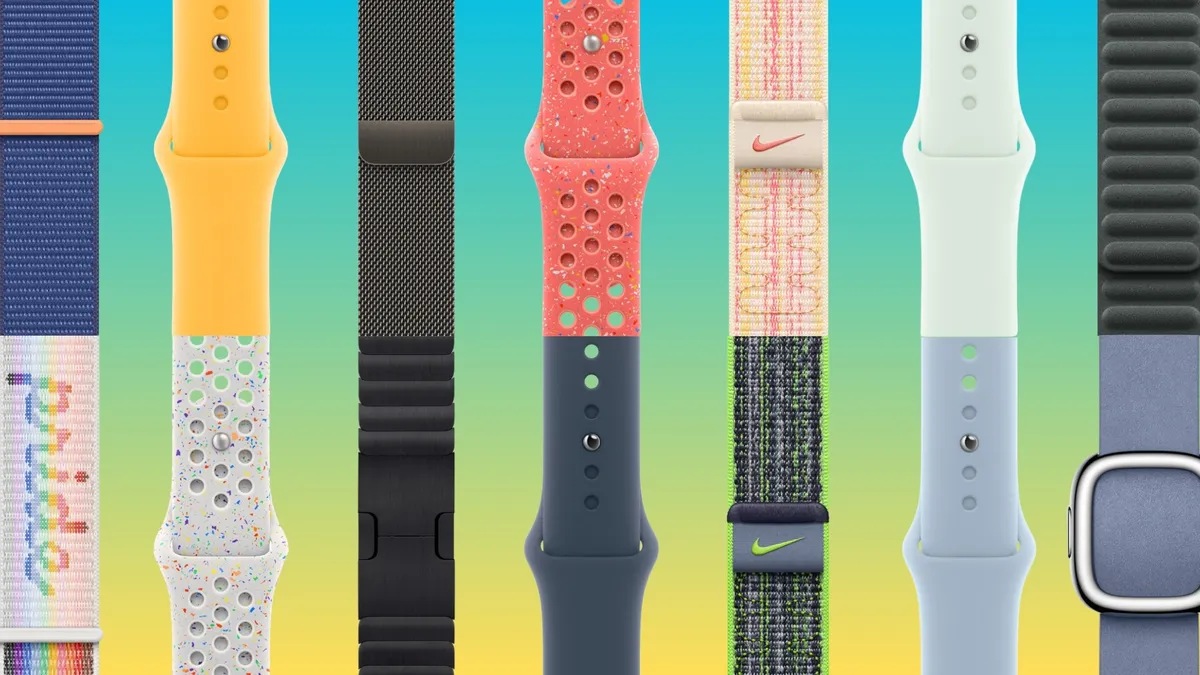
What are the best accessories for Apple Watch? From high-tech chargers to cool carry bags, we have a few ideas!

iOS 17 has lots of tools to block certain types of websites, specific URLs, or any website except ones you've allowed.
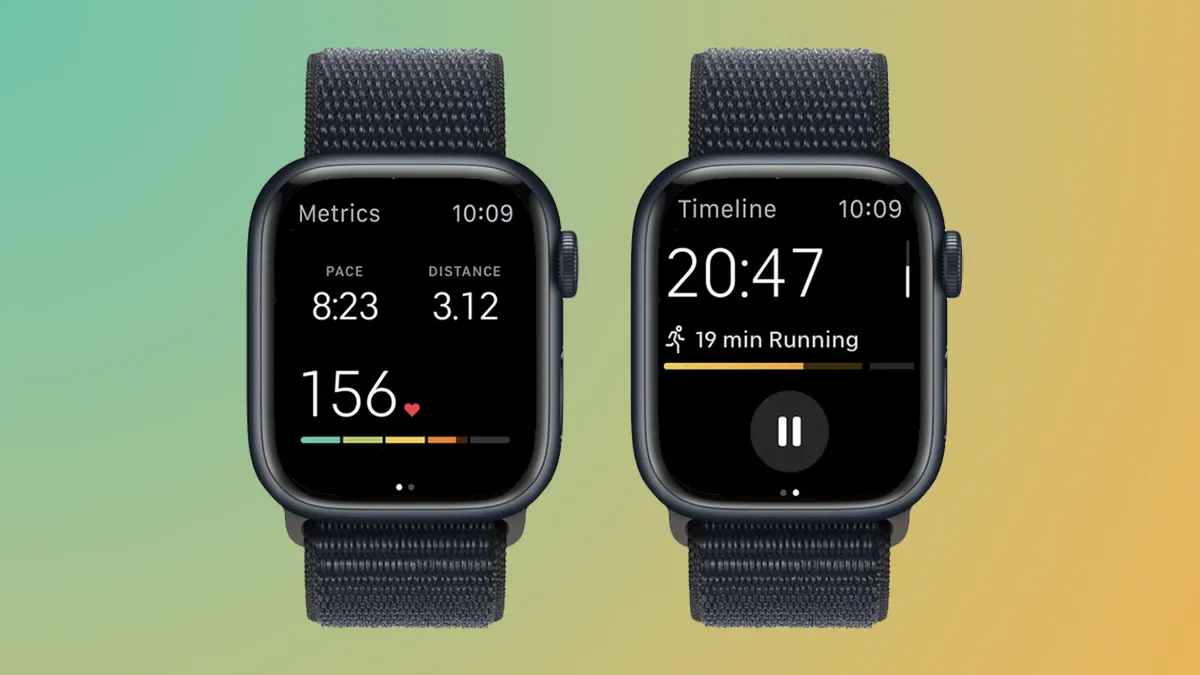
Connecting your Apple Watch to treadmills, exercise bikes and other fitness equipment brings outdoor accuracy inside.
Quick Tips Your iPhone has a hidden sound library with calming noises like white noise and rain.

How-to How to transfer data from iPhone to iPhone, so your shiny new device works straight out of the box.
PPSSPP, a PSP emulator for iPhone, is currently in the works but Apple’s unclearness around its own rules leaves the developer unsure of if it will launch.

Fortnite isn't on The App Store, but you can still play it on iPhone or iPad for free. Here's how to play Fortnite on iPhone or iPad in just a few simple steps.
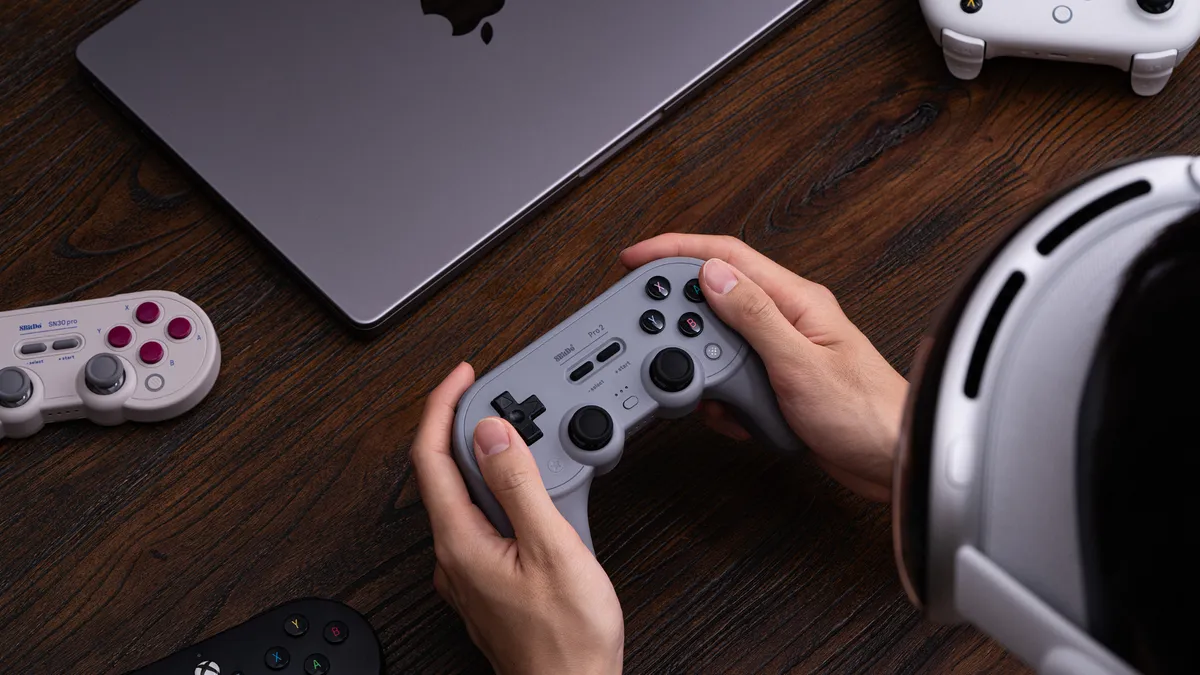
A Virtual Boy Emulator is coming to Apple Vision Pro, letting users play a piece of VR history

The Lofree Dot Foundation is a gorgeous mechanical keyboard that takes its looks from makeup. Our review:

The Satechi Thunderbolt 4 Slim Pro Hub is excellent — if all you need is more Thunderbolt ports for your Mac and practically nothing else.
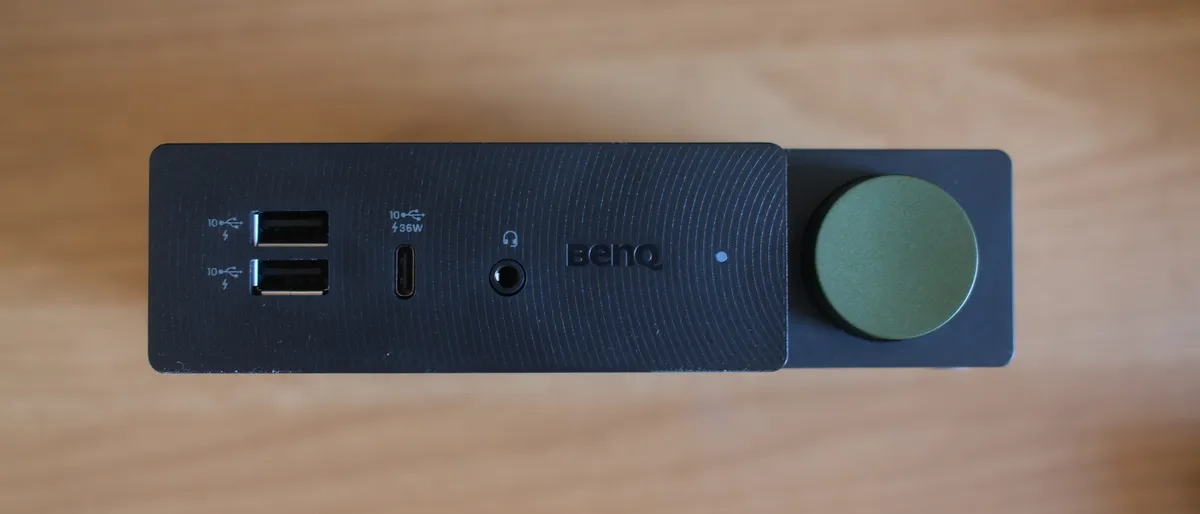
The BenQ beCreatus DP1310 is the perfect dock for Mac users who play games on console. With just one click you can jump between USB-C and HDMI 2.1.

Stage View adds previews to apps and windows in the Stage Manager sidebar. Is it worth your cash?
App of the day Yuka gives you more info about your groceries and flags healthy choices, ideal if you can't decide what to buy.

Roadtrip is a new app to the UK where it now promises to offer customized data on which routes and fuel stops to use to save money on journeys.
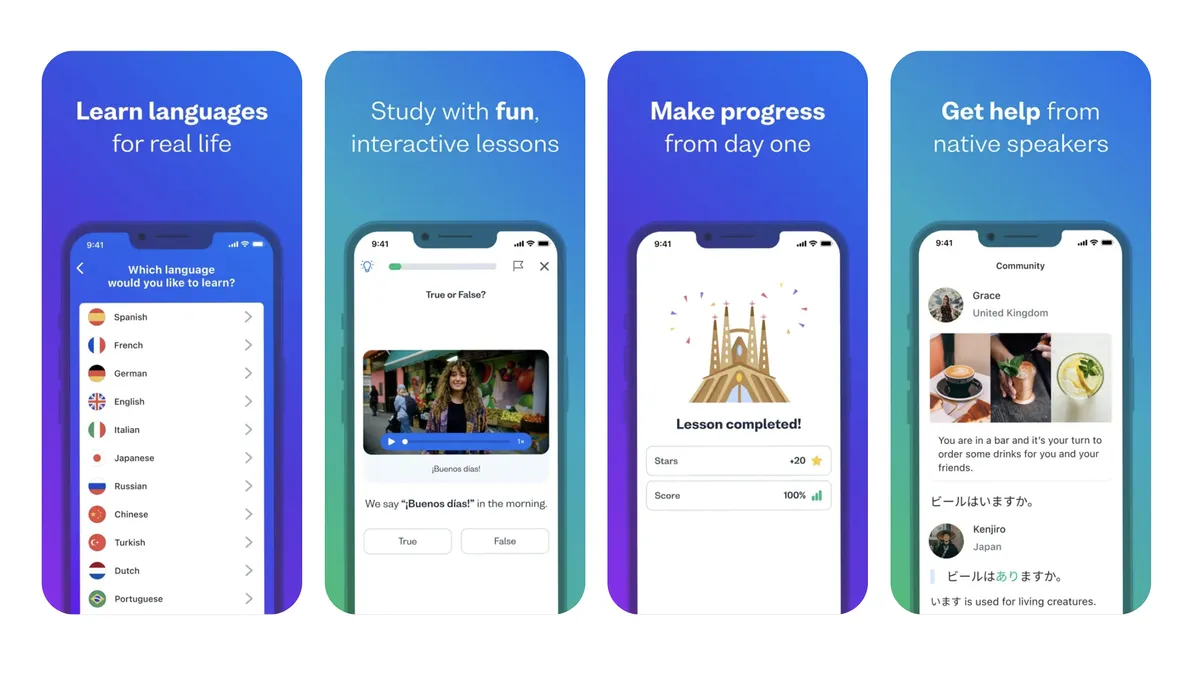
App of the day If you're looking for an alternative to Duolingo, Busuu might not be as fun and colorful, but it's simple and effective.

WhatsApp has announced a new update to the way it lists chat threads with a new filter option.