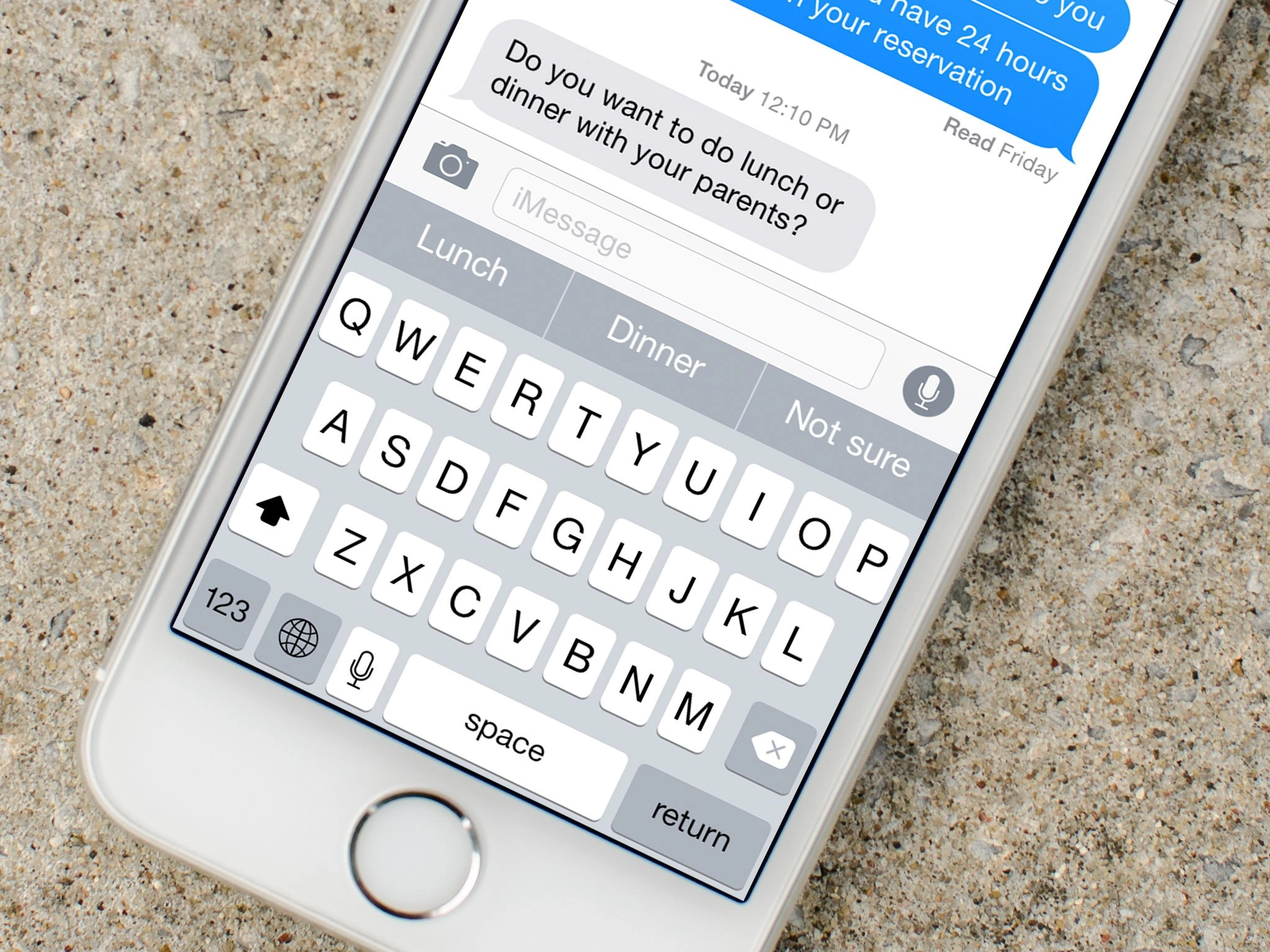
QuickType is Apple's predictive keyboard that gets smarter as you use it. Since QuickType is contextually aware of your conversation, it can even present you with an answers to common questions. And depending on who you're corresponding with, QuickType can even pick up on your conversation style. All you have to do is start using it!
- How to start using QuickType on your iPhone or iPad
- How to use Emoji suggestion with QuickType keyboard on iPhone or iPad
- How to hide the QuickType keyboard on your iPhone or iPad
- How to turn off the QuickType keyboard on your iPhone or iPad
- How to insert special characters and symbols on your iPhone or iPad
- List of special characters and symbols available on iPhone and iPad
How to start using QuickType on your iPhone or iPad
QuickType used to be enabled by default, but that seems to have changed recently. If QuickType isn't on, and you want to try it, you can turn it on at any time.
- Launch any app and pull up the keyboard.
- Tap and hold on the emoji icon in the bottom left of the keyboard. This may be the globe icon if you have multiple keyboards active.
- Swipe upwards and hover your finger over the Predictive toggle and release your finger.

You can also enable it in Settings > General > Keyboard.
Once it's on, QuickType is easy to use.
- Launch any app and pull up the keyboard — we'll use the Messages app as an example.
- Simply start typing as you always have.
- You'll notice that QuickType instantly starts suggesting words that may come next.
- Tap on the word in the QuickType bar that you'd like to add to your message and keep typing or adding words as QuickType predicts them.

- If you type in a word that QuickType either doesn't recognize or suggests something else for, it will show your spelling in quotations on the far left. Tap on it to confirm that's what you meant and keep typing and selecting suggestions.

How to use Emoji suggestions with QuickType keyboard on iPhone or iPad
New in iOS 10, the QuickType keyboard can predict emojis just like it predicts words. They will show up in your predictive text bar.
- Launch any app and pull up the keyboard — we'll use the Messages app as an example.
- Simply start typing as you always have.
- You'll notice that QuickType instantly starts suggesting words and emojis.
- Tap on the emoji you want to insert into your text.

How to turn off the QuickType keyboard on your iPhone or iPad
If you ultimately decide you don't like QuickType, you can also disable it altogether.
- Launch any app and pull up the keyboard.
- Tap and hold on the emoji icon in the bottom left of the keyboard. This may be the globe icon if you have multiple keyboards active.
- Swipe upwards and hover your finger over the Predictive toggle and release your finger.
- To enable QuickType again, just follow the same three steps.
How to insert special characters and symbols on your iPhone or iPad
What you see when you first glance at the iPhone or iPad keyboard are the regular letters, numbers, and symbols you're most likely to use in everyday communication. There's a whole lot more, however, lurking just beneath the surface, including accented (diacritic) characters, ligatures, extended punctuation, and special symbols.
Accents include acute, grave, circumflex, caron/wedge, double acute, and double grave, dots and rings include umlaut and over ring, strokes include macrons, overlays include crossbars and slashes, curves include breve and tilde, and subscript curls include cedilla. Letters include eszett, Special symbols include degree, en dash, em dash, bullet, Euros, Pounds, Yen, and Won. Punctuation includes ellipses, carets, and more.
- Tap and hold the letter, number, or symbol that contains the special character you want to access.
- Wait for the popup selector to appear.
- Slide up and onto the special character or symbol you want to insert.
- Let go.

List of special characters and symbols available on iPhone and iPad
Here's a list of all the currently supported special characters and symbols on the iOS English language keyboard.
- e: è é ê ë ē ė ę
- y: ÿ
- u: û ü ù ú ū
- i: î ï í ī į ì
- o: ô ö ò ó œ ø ō õ
- a: à á â ä æ ã å ā
- s: ß ś š
- l: ł
- z: ž ź ż
- c: ç ć č
- n: ñ ń
- 0: °
- -: – — •
- /: \
- $: € £ ¥ ₩ ₽
- &: §
- ": " " „ » «
- .: …
- ?: ¿
- !: ¡
- ': ' ' `
- %: ‰
Sadly, there's no Apple symbol included in the extended characters. If it's something you want easy access to, here's how to make an Apple symbol shortcut on iPhone or iPad.
Note: Some apps include additional inserts. For example, if you touch and hold in Safari, you'll get options for .com, .org, and regional domains.

