
A long time ago, on a platform far, far away, Mac OS was the branding Apple used for the software that ran on all of its computers. Then came the NeXT acquisition, and with it, OS X. Now, with version 10.12, Apple is once again going back to the Mac — specifically, to macOS.
It's a more elegant, more consistent branding for a more modern, more expansive age. It carries with it nostalgia but not baggage, and signifies that Apple is no longer content to shed its past, but push off it to propel computing even farther forward.
And it all starts with Sierra.
The previous two versions of the Mac operating system were named after a park and a peak; Sierra is named after the chain of mountains that encompasses both. It fits. Sierra embraces everything that was great about Yosemite and El Capitan, including its new design language, extensibility, and continuity architectures that have proven so valuable in the past. It also brings us features like Auto Unlock with Apple Watch, Universal Clipboard with iPhone, and Apple Pay authentication with both.
Messages for Mac gets some (but not all) of the new features found in iOS 10: A few are display-only; others, like 3x emoji, tapback, and inline previews are fully functional.
Apple Music has gotten much of the same big, bold, brilliant — and much-needed — makeover as iPhone and iPad, but it remains buried in iTunes, and bereft of Continuity handoff for songs and video.
Photos can now edit Live Photos and create Memories, which pulls together people and places to serendipitously remind you of the occasions that mean the most. It also now includes "computer vision" for your local library, which identifies, tags, and lets you search for faces, places, and thousands of object types.
iCloud will now sync your documents no matter where you save them, including your desktop, so your files stay consistent across multiple Macs and easily accessible from any iPhone or iPad, while Optimized Storage hopes to do for file management what Time Machine did for backup (and battery shaming did for power). By adding new tools to automate trash and cache cleanup and inspect large files, power cleaning should now be accessible even to intermediate users.
Rounding out Sierra's both front-facing and behind the scenes features are tabbed browsing for every app, picture-in-picture for video, enhancements for Apple's Metal framework for graphics, Swift 3 and a much-improved Xcode for developers, advanced support for wide color gamut, Safari extensions on the Mac App Store, Contacts integration, and much more.
There's even a new Apple File System (APFS) that, when it starts shipping next year, will improve backups, storage efficiency, security, and more.
Then there's Siri, Apple's personal assistant, which makes its debut on the Mac with Sierra. It requires a button click or keyboard combo to activate, at least on current hardware, but it has almost all the functionality of iOS as well as some new tricks for the desktop, including persistence, pinning, and drag-and-drop into documents.
All told, it's a big update. Siri and APFS (Apple's new file system) alone make it one of the biggest updates in recent years — as big as the mountain range from which it derives its name.
But is it big enough?
About this review
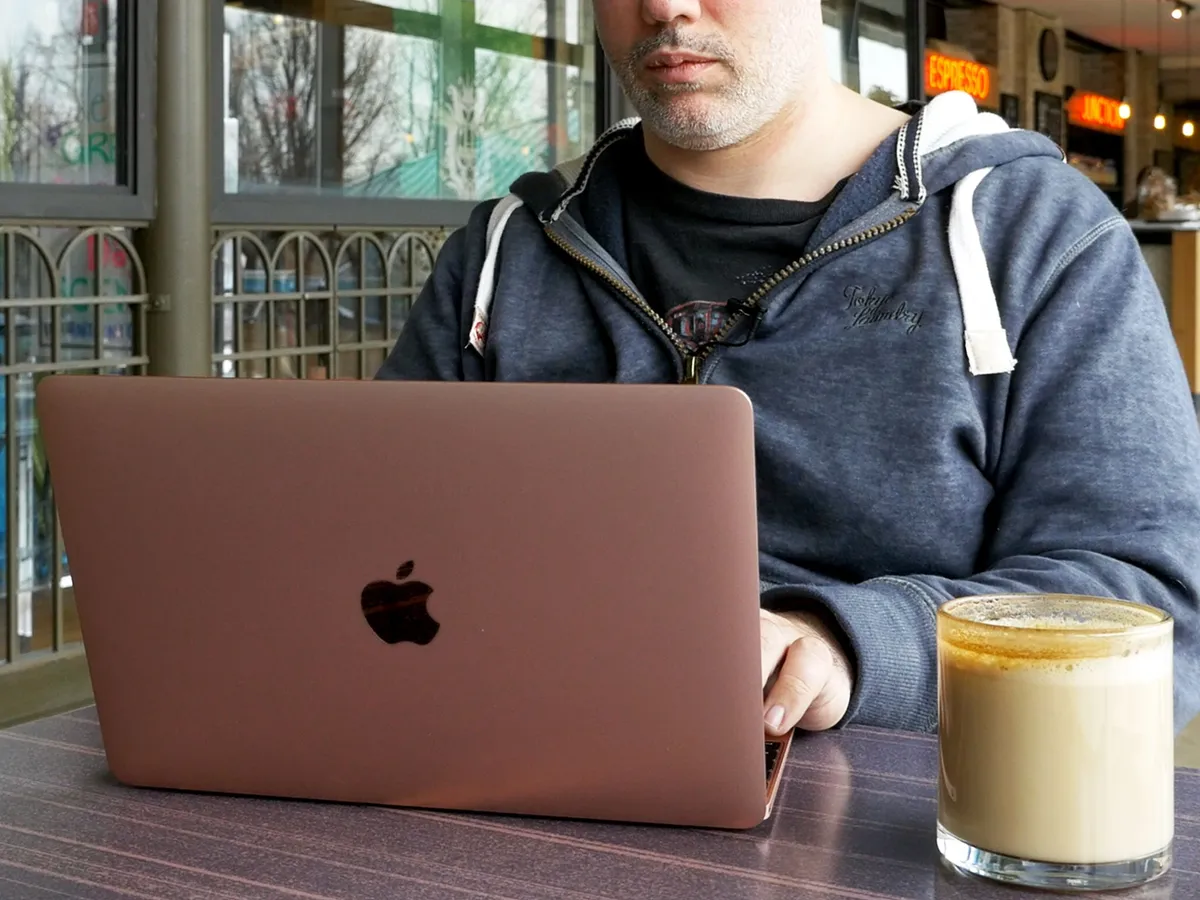
I've spent the last three months and change using macOS Sierra day-in and day-out on my main machine, a 13-inch MacBook Pro. I've also spent some time with it on both a MacBook and iMac. That includes a lot of time in my studio, at coffee shops, on planes, at hotel bars — and yes, at more coffee shops. Notes for this review were taken throughout the beta program, and final testing was done on the gold master (GM) version.
Like all our reviews going forward, it'll be a living review. We'll all keep testing Sierra as it launches and as it updates, and as new apps and accessories come out that take advantage of its features. And we'll update this review when and as needed. So, check back whenever you like, and you'll always get the best, most current version.
macOS Sierra Evolution
| Header Cell - Column 0 | Header Cell - Column 1 | Header Cell - Column 2 | Header Cell - Column 3 | Header Cell - Column 4 | Header Cell - Column 5 | Header Cell - Column 6 | Header Cell - Column 7 | Header Cell - Column 8 | Header Cell - Column 9 | Header Cell - Column 10 | Header Cell - Column 11 | Header Cell - Column 12 | Header Cell - Column 13 |
|---|---|---|---|---|---|---|---|---|---|---|---|---|---|
| Version | OS X 10.0 | OS X 10.1 | OS X 10.2 | OS X 10.3 | OS X 10.4 | OS X 10.5 | OS X 10.6 | OS X 10.7 | OS X 10.8 | OS X 10.9 | OS X 10.10 | OS X 10.11 | macOS 10.12 |
| Release name | Cheetah | Puma | Jaguar | Panther | Tiger | Leopard | Snow Leopard | Lion | Mountain Lion | Mavericks | Yosemite | El Capitan | Sierra |
| Code name | Cheetah | Puma | Jaguar | Pinot | Merlot (PPC) Chardonnay (Intel) |
Chablis | Snow Leopard | Barolo | Zinfandel | Cabernet | Syrah | Gala | Fuji |
| Architecture | PowerPC | PowerPC | PowerPC | PowerPC | PowerPC/Intel | PowerPC/Intel | Intel | Intel | Intel | Intel | Intel | Intel | Intel |
| Features | Pre-emptive multitasking Memory protection Aqua interface |
Performance Enhanced CD/DVD support Enhanced 3D Improved AppleScript ColorSync 4.0 Image Capture |
Address Book Rendezvous/Bonjour CUPS printing Revamped Finder Spam filtering Windows networking Quartz Extreme Sherlock 3 Universal Access QuickTime 6 Performance Journaling |
Fast user switching Exposé FileVault iChat AV X11 |
Spotlight Safari RSS Mail 2 Dashboard Automator VoiceOver QuickTime 7 Dashboard Quartz Composer Rosetta Core Image Core Data Core Video |
Back to My Mac Boot Camp Stacks in Dock Cover Flow in Finder iCal Safari 3 Spaces Time Machine Core Animation Ruby on Rails |
QuickTime X Safari 4 Cocoaized Finder Improved performance Exchange ActiveSync Grand Central Dispatch OpenCL Better power management |
AirDrop Push Notification Auto Save Auto Correction FaceTime Launchpad Mac App Store Multitouch gestures Resume mode 64-bit exclusive |
Notes Messages Game Center AirPlay Mirroring |
Multiple display support Tabbed Finder iBooks Maps iCloud Keychain Timer coalescing App Nap Compressed Memory LinkedIn support OpenGL 4.1 OpenCL 1.2 |
Continuity Extensibility Photos iCloud Drive Mail Drop Family Sharing |
Split View Enhanced Mission Control Spotlight intelligence Notes Transit Enhanced Mail Enhanced Photos Enhanced Safari New typography Metal |
Siri Universal clipboard Auto Unlock iCloud Desktop Apple Pay Optimized storage Enhanced Photos Enhanced Messages Enhanced Apple Music Universal tabs Picture in Picture Apple File System (beta) |
| Release date | 3/24/2001 | 9/25/2001 | 8/23/2002 | 10/24/2003 | 4/29/2005 | 10/26/2007 | 8/28/2009 | 7/20/2011 | 7/25/2012 | 10/22/2013 | 10/16/2014 | 9/30/2015 | 9/20/2016 |
| Price | $129.00 | Free | $129.00 | $129.00 | $129.00 | $129.00 | $29.00 | $29.00 | $19.00 | Free | Free | Free | Free |
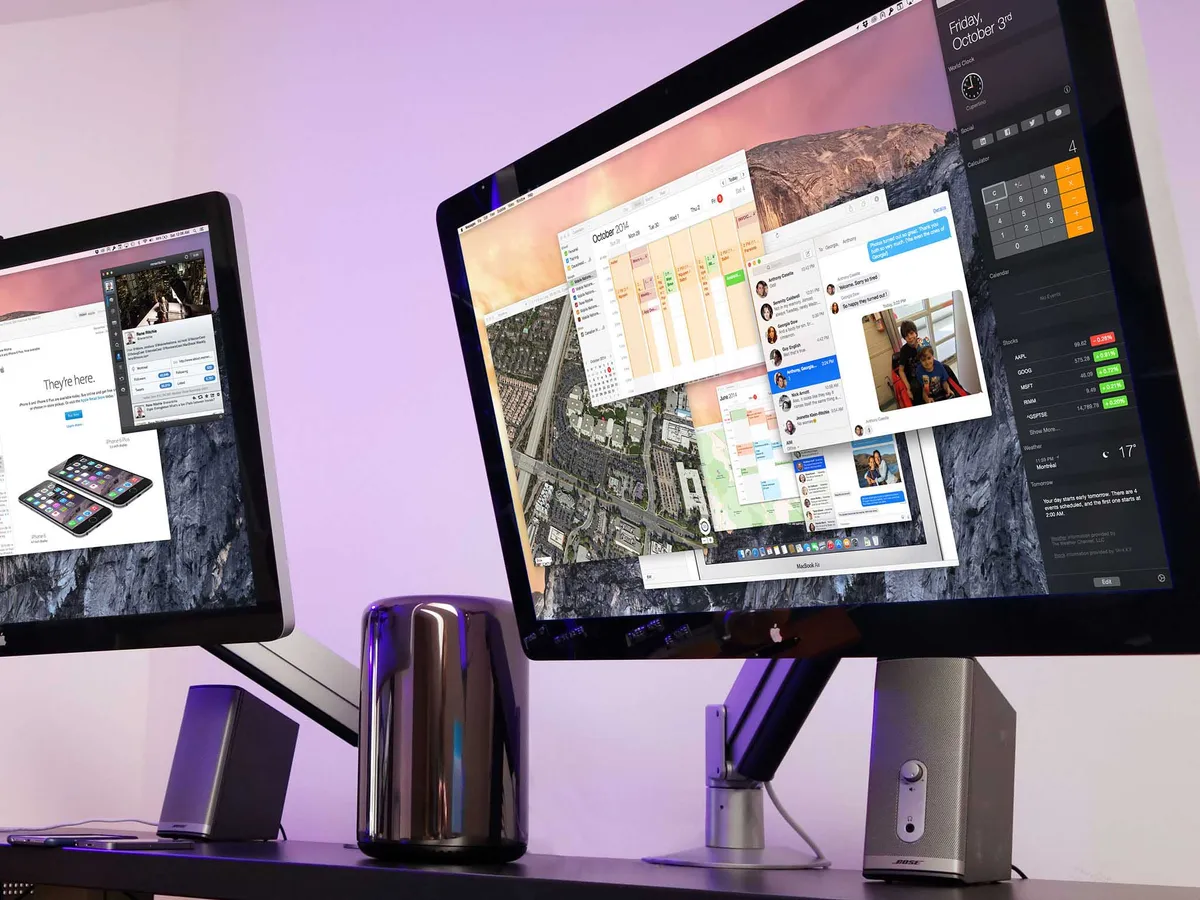
Previously...
macOS Sierra Compatibility
You can download and install macOS Sierra, for free, on a range of hardware going back to late 2009.
- iMac (Late 2009 and newer)
- MacBook Air (2010 and newer)
- MacBook (Late 2009 and newer)
- Mac mini (2010 and newer)
- MacBook Pro (2010 and newer)
- Mac Pro (2010 and newer)
Similar to the previous years, Macs that shipped prior to 2012 won't be able to take advantage of Apple's Metal frameworks or many of the Continuity features, including the new Auto Unlock and Universal clipboard.
Read how to update to macOS Sierra
macOS Sierra Siri
Apple's virtual personal assistant, Siri, has expanded rapidly over the years. It's now on iPhone, iPad, Apple Watch, and Apple TV in dozens and dozens of countries around the world, and supports a plethora of languages including English, Chinese, and Arabic. On Apple TV, Siri has even begun to handle multiple languages in the same query.
Where it hasn't been, and what it hasn't done, is work on the Mac. Until now.
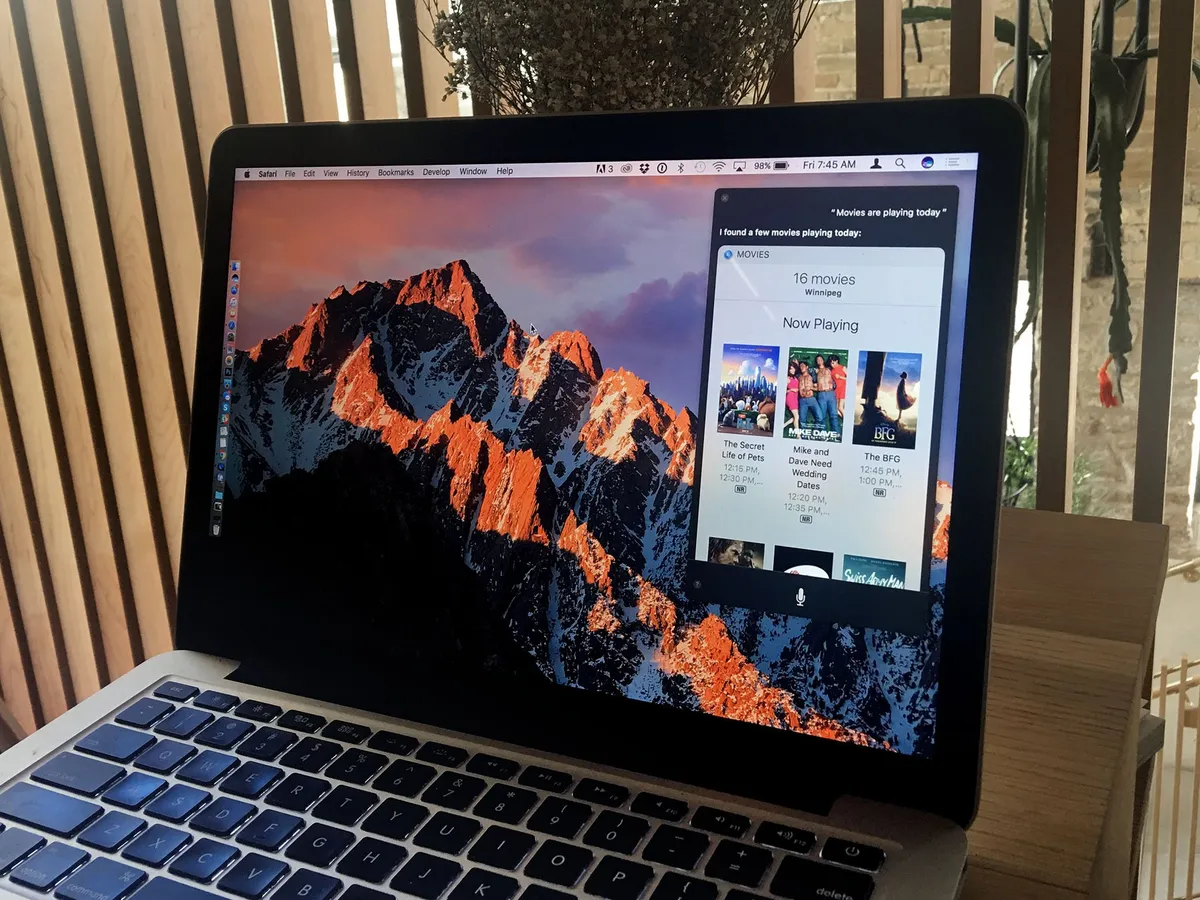
Siri on the Mac, like Siri on Apple TV, brings much of the same functionality we know and love from iOS, but reimagines it for a different type of device.
I'm sad it took so long to get Siri on the Mac. Voice query and control are imperative for accessibility and I'd hoped to see it long before now. But what Apple has delivered is thoughtful and well-executed.
Siri defaults to the second position on the standard dock, next to the Finder. That's intentional. Apple knows the dock is where most people go first, and that means most people will find Siri immediately. You can also trigger Siri by clicking on the menu bar icon, or by using a keyboard shortcut (holding down Command-Space as opposed to Spotlight's typed Command-Space action). If you're used to using the shortcut to launch Spotlight, as I am, Siri becomes an almost instant reflex.
Once you activate Siri, it works just as you'd expect: It uses natural language to parse what you say, and contains thoroughly mapped domains so you can ask in a way that's natural to you. There's sequential inference, so Siri remembers what you just asked about and uses that as context for what you ask next. That enables you to drill down or expand out, as needed.
Siri can aid you a number of tasks, including:
- sending and reading mail and messages
- placing calls
- finding movies, books, and other iTunes media
- playing Apple Music
- checking theater showtimes and sports scores
- checking the time and weather around the world
- searching for information and pictures from the internet
- toggling settings like do not disturb and Wi-Fi
- enabling dictation and screensavers
- changing volume or brightness
- putting your Mac to sleep
The list goes on and on. Siri on the Mac seems to be able to do most of what Siri on iOS can do, and that's amazing.

What you can't do is launch Siri using only your voice. Like with the TV, Apple is insisting on a button push, at least for now. "Hey Siri" only recently came to iPhone and iPad, and required the latest-generation hardware to do so. Maybe the same will prove true with future Mac hardware.
Also missing, at least for now, is support for HomeKit, along with the third-party Siri app implementation coming to iOS 10 this fall. But even with those omissions, the Mac is far from lacking. It even has its own unique feature set.
Siri on the Mac lives in an overlay that can, if you want it to, persist as you switch from app to app, and even if and when you go full screen. That way you can keep Siri around as long as you want to, from a moment to all day.
It can also answer at any time without taking over from what you're typing, so you can stay in a full-screen app while getting Siri to accomplish other tasks at the same time. For example, I can message my colleague Lory Gil to ask a question without stopping work on this preview.
Siri has also been widgetized. So, if there are results you want to keep around longer than Siri itself, you can tap the + button and pin them to Notification Center's Today view. There, they'll stay updated so you always have the latest data, right at your fingertips.
You can get information about your Mac, including processor speed, memory size, storage space, serial number, and more. You can search for files just like you would with Spotlight, using time, title, tag, and other metadata to quickly find or refine down to exactly what you need.
And — pause for exclamation! — you can drag-and-drop Siri results out of the overlay and into your documents, because this is a Mac, dammit: That's how we expect it to work, and that's exactly how Apple's made it work!
All that said, I haven't found myself using Siri on the Mac nearly as much as I use it on iPhone or Apple TV. On Apple TV, Siri is almost my primary interface. On iPhone, I use Siri and dictation whenever I can't or simply don't want to type.
Mac has proven more like iPad for me. The conventional interface is so available, and I'm using it all the time anyway, I don't need Siri that often. Where I do use it though, is to teleport through interface layers — to save myself having to dig for settings, deep dive for files, or search for information. In those cases, Siri is so much faster than point and click I'm never going back.
macOS Sierra Auto Unlock
Open your Mac or shake the cursor to wake it up. Type in your (hopefully long and strong) password. Type it in again if you mess it up. Do this dance innumerable times a day and it becomes beyond habit. It becomes muscle memory. But that doesn't make it quick or easy. Auto Unlock does both.
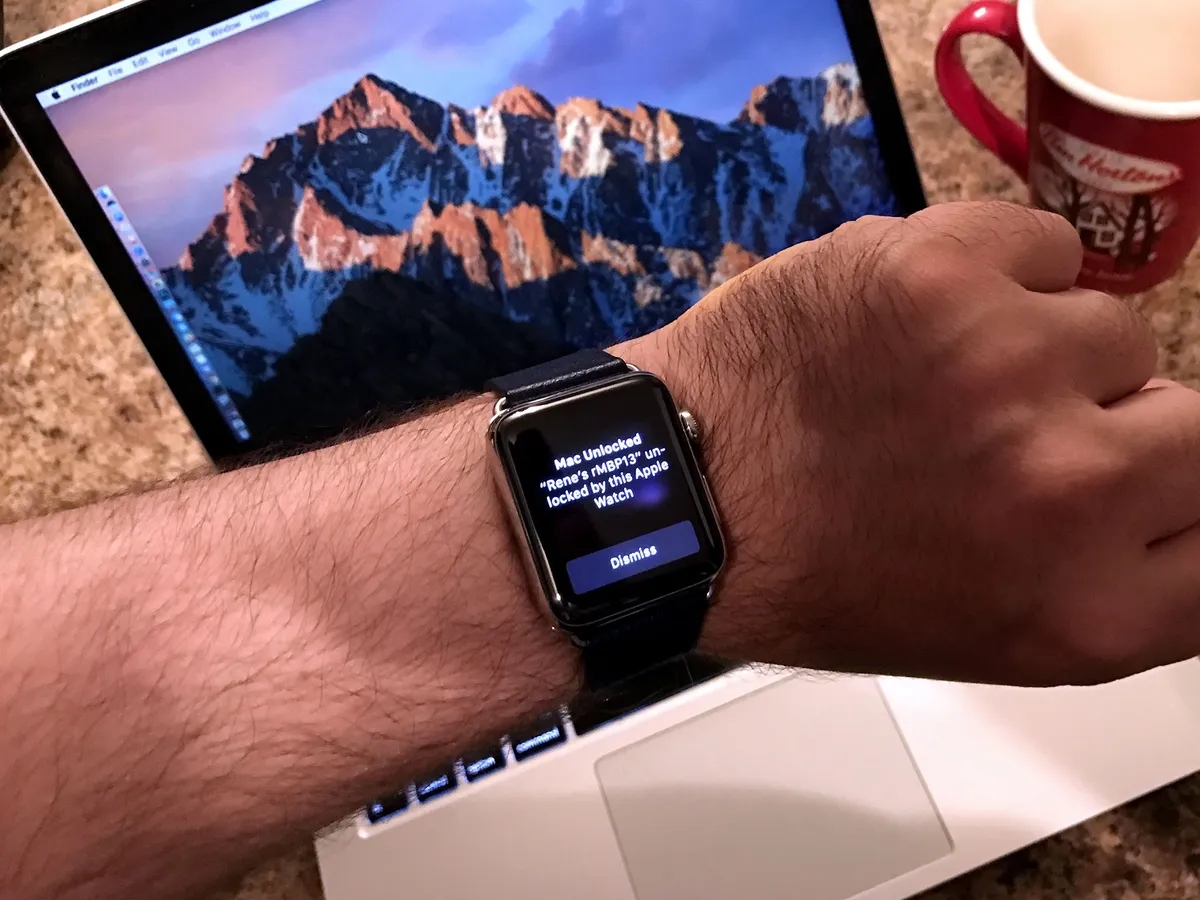
With Auto Unlock, you use your Apple Watch to log into your Mac. And it's kind of genius.
Digital security can employ a number of factors, including "something you know", "something you are", and "something you have". A password is "something you know." It can be fairly secure, but you have to remember it and be able to type it in accurately. Your fingerprint is "something you are". On iPhone and iPad, Apple's Touch ID sensor can read it and, for the sake of convenience, use it in place of your password.
A connected object is "something you have." Traditionally, it's a Bluetooth device that, when brought into proximity, can be detected and also used in place of your password.
Historically, though, it's been terrible. The problem was, the Bluetooth objects being used had no concept of ownership. So, if I stole someone else's object, I effectively became them, and could use it to access all their stuff. The object was dumb, which made the system equally so.
Apple is improving on the concept by using a Bluetooth object that does understand ownership — Apple Watch. Once you unlock your Apple Watch, it needs to stay in contact with your skin to stay unlocked — if it's removed, it locks back down.
So, if your Apple Watch is used to unlock your Mac, there's a reasonable degree of certainty that you're the one unlocking it. In other words, Apple has a truly smart object, which makes the system smart.
To further lock it down, Apple is using "time of flight" to measure how long it takes the signal to go from Apple Watch to Mac. That means your Watch has to be within 3 meters of your Mac for it to work. That reduces the change of someone accessing your Mac when you and your Apple Watch are in another room, or from performing "relay" attacks where they rebroadcast the signal from your Watch across even further distances.
Auto Unlock also only works when waking your Mac from sleep. If you reboot, just like with iOS and Touch ID, you'll need to enter the password to authenticate. What's more, Apple is also restricting Auto Unlock to people with two-factor enabled on their iCloud Accounts That's where the "something you know" is augmented by a token displayed on a separate, already trusted device.

Like with Touch ID, Auto Unlock reducing how often you need to type in your password will hopefully encourage people to use longer, stronger passwords. And, in this case, encourage even more people to enable two-factor.
That was a problem for me at first. No matter when or on which device I tried, I couldn't get iCloud to enable it on my account. I finally found out that, because I had some devices on older versions of iOS and OS X thT I was still using to log into iCloud, I was disqualified.
Luckily, iOS 10 and macOS now flag those as warnings but still let you set it up. So, I'm now set up. And it's great.
When the Apple Watch was first announced, I said the killer feature was going to be convenience. By expanding Watch-as-identity and bringing it to the Mac, Apple is proving just that — and not only through increased security, but through increased usability.
It's kind of trippy: When I first started using this feature, I thought using Auto Unlock took an awfully long time. I watched it come up, verify, and then notify me it worked. But then I timed it again, just typing in my password. No contest: Auto Unlock blew typing away. I was just busy typing, as opposed to watching, and as such, it felt like less time went by.
Now that I've spent a couple months with it, on those rare occasions when I'm not wearing my Apple Watch, when my Mac has rebooted and requires a password, or when continuity simply glitches out,I spend a few moments, stupefied, before I remember what to do.
Auto Unlock is one of those things that, once you have it, you can never go back.
macOS Sierra Universal Clipboard
Continuity, introduced in 2014, was a breakthrough. It went beyond syncing data between devices, and focused on syncing activity state. Start working on your iPhone, continue on your Mac, finish up on your iPad — all thanks to Bluetooth Low-Energy, peer-to-peer Wi-Fi, iCloud, and activity indexing.
It kept paying off in 2015 when Siri on iOS gained the ability to "remember this," which is now also available on the Mac. And it's paying off again in 2016, not just with Auto Unlock, but with Universal Clipboard. (When it works, that is.)
Copy text, photo, or video on your iPhone and paste it on your iMac. Copy something on your MacBook and paste it on your iPad. You can copy from and to any Mac, iPhone, or iPad that's logged into your iCloud account and any app that supports copying and pasting.
You need to have your devices in close proximity to use Universal Clipboard. That's both for security and for usability. If you can't reach the device you want to copy from and the device you want to copy to, the feature is pointless. Once you're close enough, however, copying on one device will tell iCloud to replicate the content to your target clipboard, and you're good to go.
Media takes longer to copy than text, as you can imagine — more data needs to be transferred between devices — and the clipboard takeover only lasts for two minutes. After that, macOS assumes you didn't really want to transfer that data and reverts back to your local clipboard.

I've been using it a lot, and it works well enough. It does occasionally flake out, like AirDrop (which also uses Continuity) — but strangely not at the same time; as such, I've been using one when I can't use the other.
I've copied a ton of text, a bunch of passwords, and even images from Photos on my iPhone and dropped them right into Photoshop on my Mac. It's one of those "only Apple" features that makes you smile the first time you use it, scowl any time it doesn't work, but ultimately thankful that everything connects together as well as it does.
If you have a website or message or any other active content you want to shift to another device, Handoff is still the better option. If you have a link or text or any other static blob, Universal Clipboard is your new best friend.
macOS Sierra Messages
iMessage is the most-used app on iPhone, and messaging is one of the most important services on mobile. It's so important, it's practically become a platform all its own. That's why Apple has added a lot of modern — I won't say Millennial! — features to Messages for iOS 10, and why they're making some of them available for the Mac as well.

Yes, some: Whether Apple had to dedicate the majority of its resources to Messages on iPhone and iPad or they're still deciding on the right experience for Mac, many of the best new features didn't make it into macOS this time around. It's a shame, because feature parity on the Mac has previously been a huge advantage of sticking with Messages over other apps.
Included in macOS this time around are inline web and video previews; Tapback emoji reactions to love, approve, disapprove, laugh, exclaim, or question messages; and — the real crowd pleaser — display up to three emoji at three times normal size.
Messages on macOS can also display — but not send — special effects from iPhone and iPad, including stickers, sketches, heartbeats, taps, handwriting, and invisible ink.
Invisible ink looks amazingly cool on photos on the Mac, with a sparkle-blur effect temporarily shooed away by the pointer, only to reignite and coalesce back into place after the pointer leaves your image. I just wish I could send invisible ink messages from macOS as well.
For Messages's other animations, instead of loud effects or balloons, you get an annotation — "sent with loud effect" or "sent with balloons effect". It's both helpful and maddening. The biggest miss, though, is the very platform that made Messages for iOS 10 so instantly competitive again — the apps.
Sure, given the Mac's multi-window environment, it's faster and easier to switch contexts than it is on iOS. But what's still fastest and easiest is not having to switch contexts at all, and that's what embedded apps allow. To send money, I have to switch from messages to the web. To call a ride, I have to switch from Mac to iPhone. With Messages apps, I don't have to switch at all. And that means I don't have to risk getting distracted or losing the flow of the conversation.
It's not unusual for features to debut on one product line and the roll out across the rest. Hopefully, that'll be the case with the rest of the Messages features. Some of them may not make as much sense on desktop at first blush, but if you get a sticker or slam, you want to be able to send one back without reaching for your iPhone.
macOS Sierra Apple Pay
The Mac doesn't (yet) have a way to verify fingerprints or skin contact. With macOS Sierra, however, the Mac has gained the ability to borrow Touch ID from the iPhone or the heart rate sensor from the Apple Watch. And that lets Sierra brings all the convenience and security of Apple Pay to the Safari web browser.
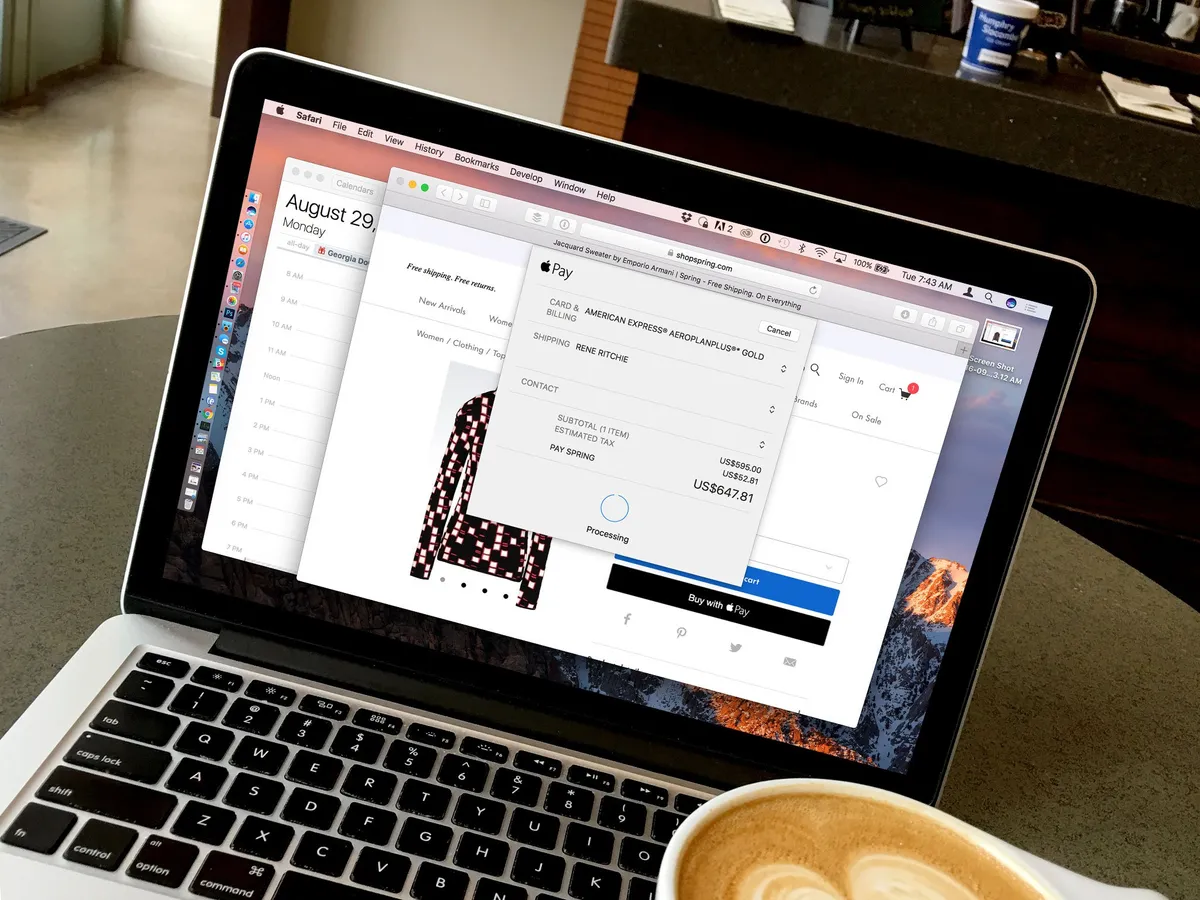
Here's how it works: Browse a site that supports Apple Pay on the web and, when you're ready to buy, click on the Apple Pay button. Especially clever websites should even be able to detect the presence of your iPhone or Apple Watch and only offer the option for payment if your devices are nearby.
Once you click the button, you're asked to authorize Apple Pay by either using Touch ID on your iPhone or double-clicking the side button your Apple Watch (as long as it's unlocked and in contact with your wrist.) At that point, a one-time code authorizing Apple Pay is sent — with end-to-end encryption — from the secure element on your iPhone or Apple Watch to the merchant.
This is yet another brilliant use of Continuity technology across Apple devices. It lets you enjoy all the security and privacy that comes with Apple Pay with the convenience of browsing and shopping on the Mac.
Like with previous Apple Pay implementations, the merchant never gets your actual credit or debit card number, so they can't track your purchases, and if they ever suffer a data breach, only the one-time credit card number is exposed — so you never have to replace your card.
The experience of shopping changes as well: You no longer have the need to fill a cart, then fill in payment information. You simply click, authorize, and buy, and the merchant figures out how to best bundle and ship everything to you once you're done.
Over 300,000 websites are theoretically going to be ready for launch. That's a terrific start, but millions more are going to have to follow for Apple Pay to transform from delightful surprise to ubiquitous part of the online shopping experience. Getting Apple.com to support it shouldn't be a problem. Getting Amazon.com? Home Depot?
But given every credit card I've ever had to cancel and replace over the years, I hope those sites do, and soon.
How to use Apple Pay on macOS Sierra
macOS Sierra Safari
Apple Pay may be the biggest Safari web browser news this year, but it's not the only news. Safari Extensions are moving to the Mac App Store, which makes them more powerful, flexible, and turns them into a real business opportunity. Yes, that includes content — read: ad — blockers, which should now be as easy to find and use on the Mac as they have been on iPhone and iPad.
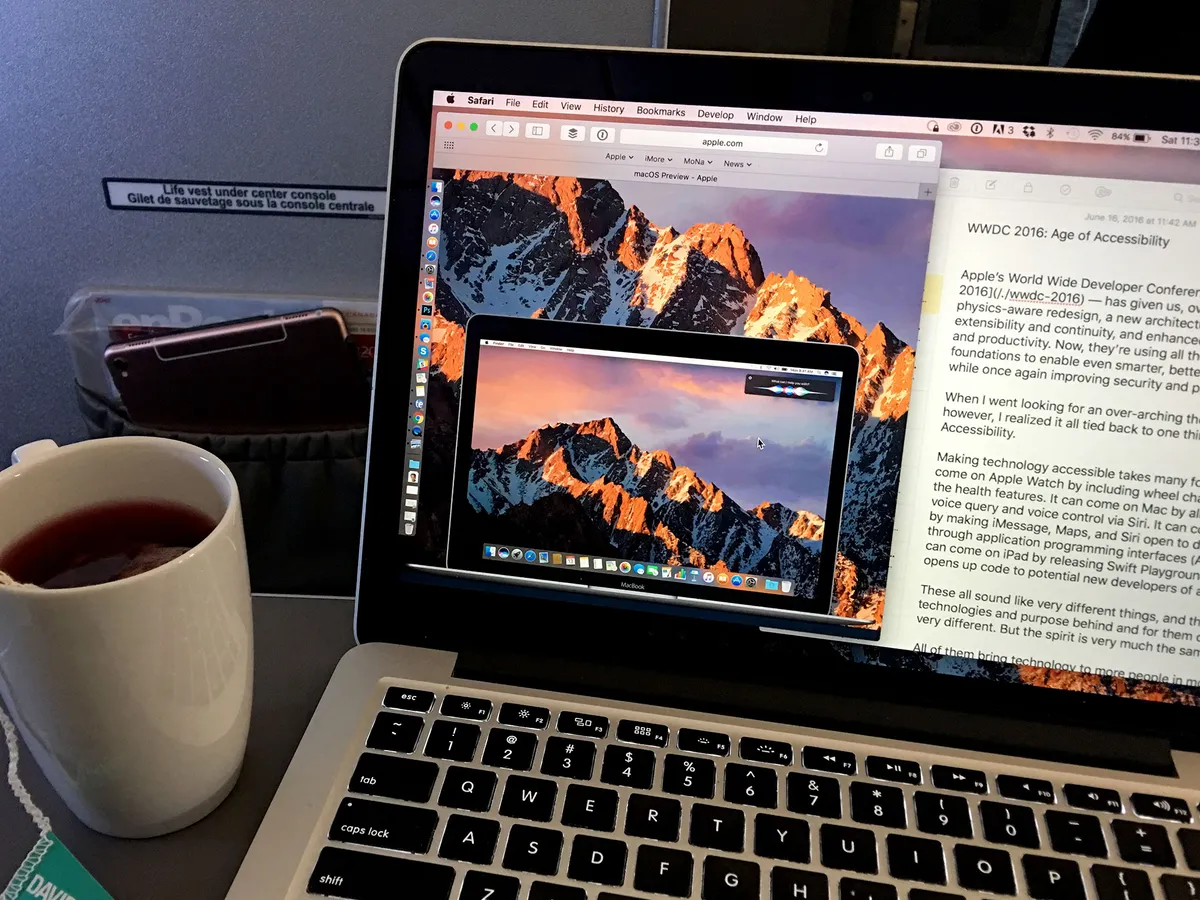
Apple is also disabling Flash by default. Safari hasn't included Flash for years, but now, even if you download and add it yourself, Safari will still check with you before running it. That way, websites will be "encouraged" to send more modern HTML5 video content instead of Flash whenever possible, and let you run Flash content whenever not. All the while, Safari will try as best as it can to protect you from the numerous Flash exploits that keep getting discovered.
Of course, the best solution remains not installing Flash if you don't have to and, if it's already too late, uninstalling it if you can. Also, JavaScript security is being hardened, because that's still a growing vector for attacks.
Safari remains my go-to browser on Sierra. I use Chrome for Google Docs and Hangouts, both of which my job require, and for when a restaurant site is still stuck in Flash hell. I enjoy it less and less over time, though. There's a heaviness to it on the Mac, and a battery drain that forces me to leave the coffee shop an hour or two — and beverage or two! — earlier than when I surf only on Safari.
macOS Sierra Photos
The new Photos app for the Mac was first shown off two years ago at WWDC 2014, and shipped just over a year ago in April of 2015. While it didn't have every feature of its predecessors, it came in more mature than previous Apple reboots — remember iMovie '08? — and has steadily improved ever since.
(Though it's still six to five and pick 'em whether I can drag from Photos into Photoshop any given Sunday...)
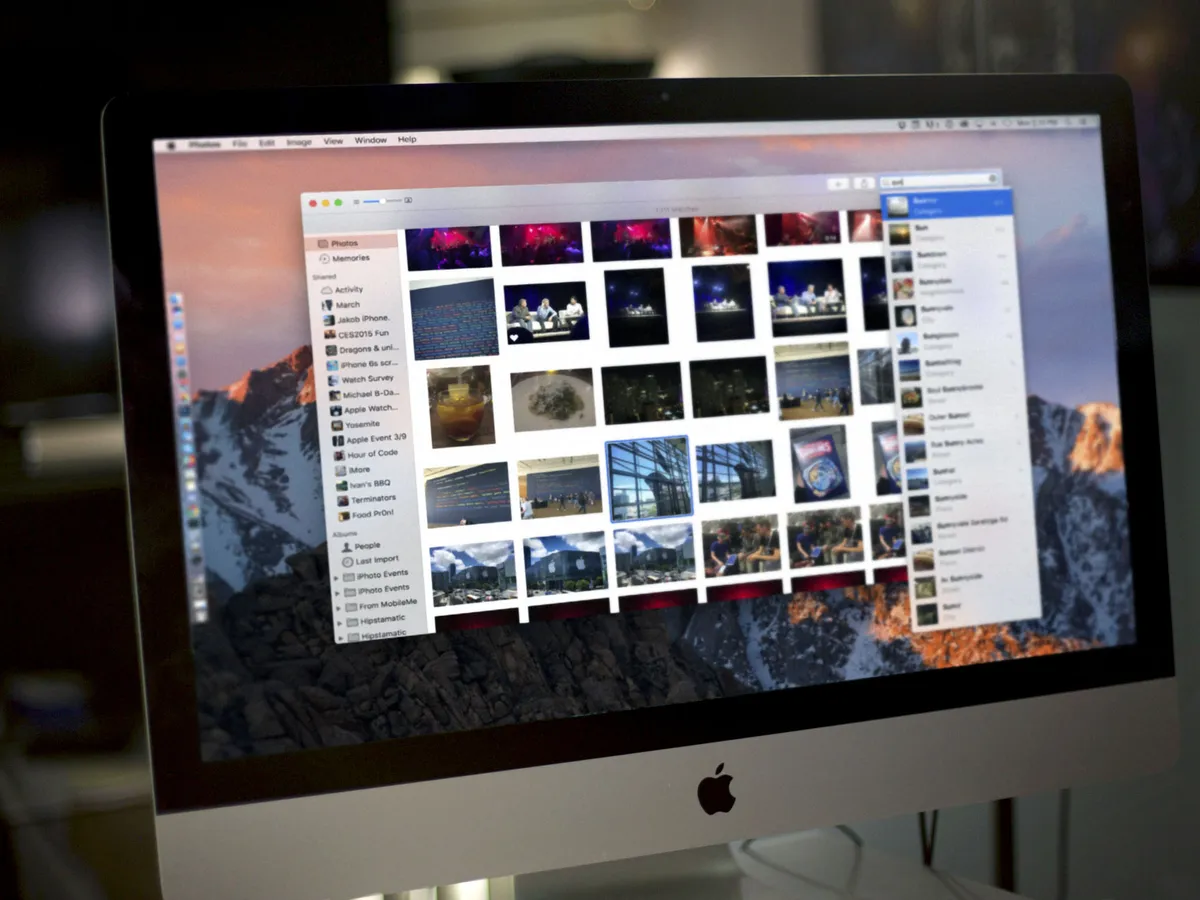
macOS Sierra improves continues to improve upon Photos in several key ways, most significantly through the use of "computer vision." That's a fancy way of saying Photos "looks" at your images, figures out what's in them, and then lets you browse and search based on those things. For example, Faces lets you see all the people in your pictures, sorted by frequency, or pinned as a favorite. Places lets you see all your pictures on a map, stacked on top of where you took them. Those are both part of the new, cleaned-up Albums view.
You can also search for other things in your images, like steaks, coffee, mountains, lakes — though strangely, Apple devices like iPhones and Macs won't show up — and you can do it by typing into the search box or by asking Siri.
What's remarkable about how Apple implements intelligent search is this: Rather than forcing you to upload your images to servers out of your control, Apple is doing it all locally on your Mac.
That's a huge win for privacy and security. You can pay for services with money, time, data, or attention, but while money and time visibly leave your bank account or clock, paying with data is almost impossible to see. And, as they say, out of sight, out of mind.
So far it works well enough that I'm using it a lot. It's not as granular or encompassing as Google's search, but neither is it as intrusive. That's not going to matter to some people, but it will to people like me, and I find it terrific that Apple is offering an alternative.

There are also new editing features, including Brilliance, which brightens shadows, tones down highlights, and modulates contrast to bring out fine details and make your images more vibrant. It's built into the updated Enhance tool, but can also be accessed through a slider in the Light tool.
Markup, Apple's annotation plugin, expands from Mail to Photos, so you can add scribbles, callouts, text, signatures, and otherwise clarify — or vandalize — your images. It puts Preview's editing controls to shame, and I hope to see it expand further across the OS in further updates.
You can also edit Live Photos — both the still photo and video component — without destroying the video, both with Photos's built-in tools and, come the fall, third-party photo extensions. Forget being limited to what you first captured: You can crop, enhance, filter, add effects, and otherwise make your Live Photos even more dynamic.
What's more, Photos will use its newfound smarts to automagically create Memories for you. Culled from your collections, Memories tries to surface important moments you may have forgotten about, including vacations, parties, or meet-ups, and trips to town, out of town, or nights on the town.

There doesn't seem to be a way to edit and share Memories the way there is in Photos for iOS 10 — at least not yet — but you can still see when individual photos are from, who's in them, where they took place, and related photos. If you love one, you can favorite it so you can go back to it at any time. If you hate one — oh, hello, awkward ex! — you can delete it forever.
I wasn't a big slideshow user, so I'm not sure how often I'll use Memories. But I like that Apple's trying to solve the very real problem of photos getting lost in libraries. The only catch is my having to remember to go to the Memories tab to find it. Maybe having Memories show on launch, even if only briefly, would make it even better for rediscovery?
macOS Sierra Apple Music
Just like iOS 10, Apple Music on the Mac has gotten a bigger, bolder, and more beautiful redesign. Unfortunately, it's still bound to the enormity of iTunes — until people no longer have to sync their iPod nano to Windows, that'll be slow to change — but it's cleaner now, and more coherent.

Library is up front, which has all of your stuff, while For You shows recently played, daily playlists, heavy rotation, new releases, and more. Browse lets you see new music, curated playlists, top charts, and genres. Radio has Beats 1, along with featured and recently played stations. And iTunes Store has just what you'd expect — all the songs and albums you might want to buy.
The redesign has made a valiant effort at tackling what I'd previously said was an impossible job: Catering to every music lover's use case, from my "Siri, play [whatever song I feel like at the moment]" to a seasoned audiophile who wants to hear one of the eleven slightly different versions of an Ozzy song they've painstakingly added over the years.

I watch far more video than I listen to music, so I'm not sure if macOS Sierra will solve everyone's problems with Apple Music. I'm not sure everyone's problems can be solved, absent iTunes moving to iCloud and being reimagined for a new generation. But it comes a heck of a lot closer than it has before.
The only giant, glaring, missing feature remains Continuity for music and video files. Apple has made such incredible use of the technology everywhere else, it's impossible to believe I can't start playing something in iTunes on my MacBook, walk away, and hand the audio off to my iPhone. (A third-party app did just that back in 2011, after all.) Or come into the room watching a movie on my iPad, and hand it off to my giant-screens iMac.
Fingers crossed for macOS next.
macOS Sierra iCloud Desktop and Documents
With iCloud Drive, the Mac gained an iCloud folder that synced between devices. It was useful — but ultimately, an island. With iCloud Desktop and Documents, macOS Sierra is extending iCloud sync to multiple islands — namely the Desktop and Documents folders.

Desktop, which is where most of us store most of the things we're working on, can be automagically be synced between multiple Macs, and also via the iCloud Drive app and extension on your iPhone or iPad. It can even be accessed on iCloud.com and the iCloud app on Windows. You don't have to do a thing: No dragging elsewhere, no clicking to enable. Simply drop something on the Desktop, and iCloud syncs.
Likewise with the Documents folder: Save and it syncs. It's great for working on a file on your Mac, leaving, and suddenly needing to see or share it. With Dropbox, Google Drive, and other alternatives, you would have had to put it some place specific to add it to the syncing system. With iCloud, it syncs the "folders" users save to most.
I've missed Mac-to-Mac sync since Apple deprecated it with the transition way from MobileMe: I used it to keep my Dock in sync across Macs, for example. This doesn't replace that, but it gives similarly-useful functionality and ensures I don't have to remember which Mac I'm at when I start working — I can simply start working.

There is a potential drawback, though. If you're in the habit of dumping very large files to your desktop, like Final Cut Pro X exports, iCloud can use up lots of bandwidth and storage pushing them to and from the server. It can crush a tethering plan, and max out your iCloud plan — which still only offers 5 GB for free.
If you really want to store things on iCloud, the upgrade prices aren't terrible. If you're continually syncing big binary blobs you don't mean to store, however, I recommend exporting to Movies or Downloads, which don't sync. Or to Dropbox, for example, if you want to quickly and easily send someone a link, which iCloud sync currently doesn't support. Of course, now that Apple's given me online folders, that's the type of online functionality I'd love to see next.
In the meantime, being able to open up that PDF I left in Documents on my iMac in Montreal from the iPhone 7 I have with me at Shake Shack in New York City is a lifesaver.
macOS Sierra Optimize storage
Apple's been on a "fusion" tear lately. On iPhone 7, they've just fused wide-angle and telephoto lenses and high-efficiency and high-power processor cores to give us better cameras and performance without the usual sacrifices. On the Mac, we've seen everything from Fusion drives — which offer the best of both fast Flash storage and huge disk capacities — to iCloud Photo Library, which lets us keep recent and frequently accessed images conveniently on our local devices but offloaded older, infrequently accessed images to the cloud to free up storage.
Now, that same fusion approach has been extended to much more of the data typically stored on our Macs.
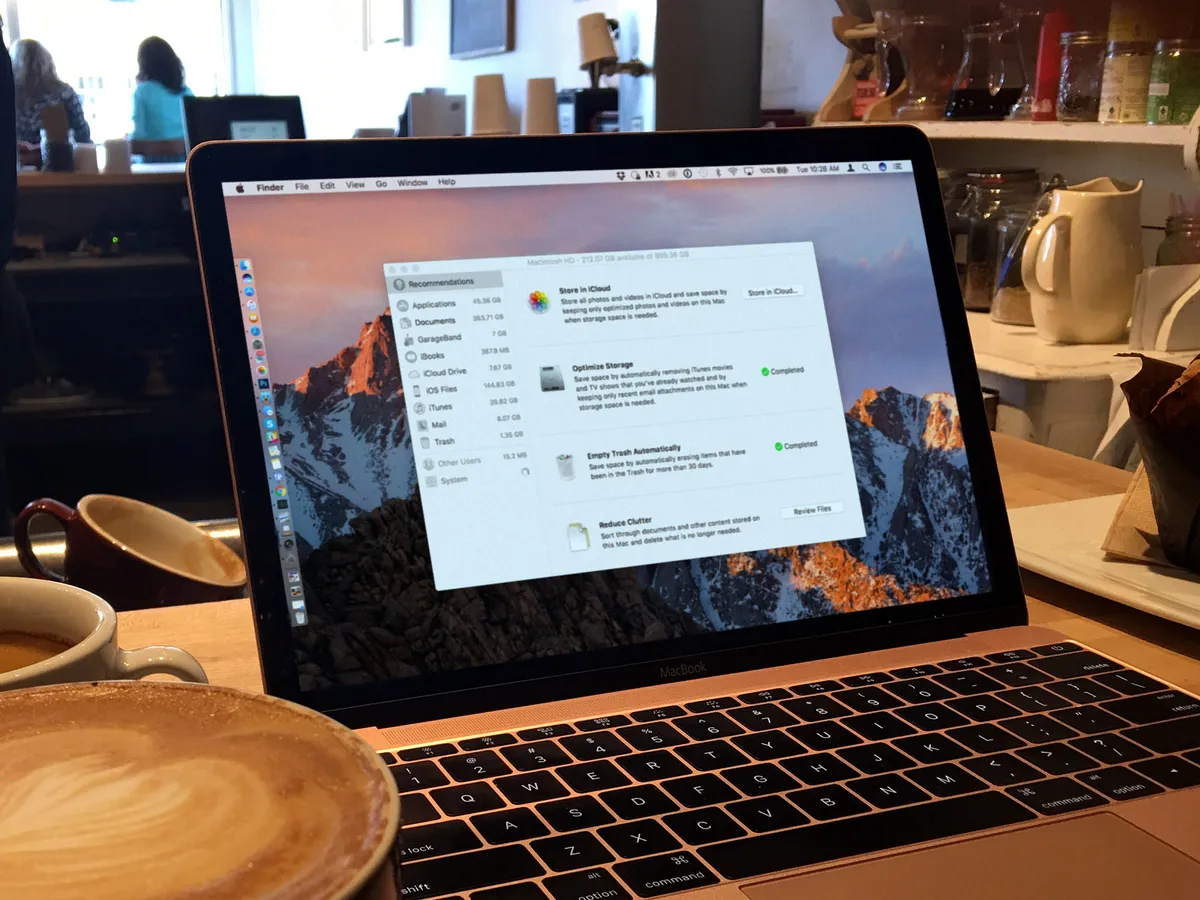
Thanks to iCloud Drive, and the new iCloud Desktop and Documents, Apple can store all your files on its servers. If you run low on local storage, macOS can remove the local cache. The file still looks like it's right where you left it, and will re-download with just a click, but unless and until you re-download it, it takes up no storage on your drive.
In addition to that, Sierra offers options to keep mail attachments on the server until you choose to download them, to automatically remove watched iTunes videos until you choose to re-download them, to proactively delete installers, to automatically delete non-critical caches and log files, to smartly management of dictionary, font, and instructional video downloads, and to automatically erase files that have been in Trash for over 30 days.
Sierra also gives you excellent visibility into which files are taking up the most space on your drive. It's not as dramatically visualized as some third-party apps, but it shows you what you need to see to reduce clutter and free up storage space. That includes things like old iPhone and iPad backup files, which are huge, and used to be hidden away in hard-to-find libraries.
Optimize storage has four tabs, including Store in iCloud, optimize storage, erase trash automatically, and reduce clutter. Reduce clutter lets you see large files in descending order of size, downloads by how old they are, and lets you browse files. The sidebar also breaks down storage by type, showcasing files from apps like GarageBand, iBooks, iTunes, Mail, and more.
I thought I would hate it. I'm so used to micro-managing the storage on my Mac that I didn't want to give it up. But I'm also used to seeing those dreaded "out of disk space" messages pop up on my Mac, usually when I'm desperately trying to download the HD version of Apple keynotes or render the hands-on video from an event, that I decided to flip all the switches anyway.
Once I could find them, that is. Optimized storage is buried in the system: You can access it from the menubar via > About this Mac > Storage, by launching the new Storage Management app (which displays itself as System Information), or by searching Spotlight for "Opti—" and then clicking on the Storage Management app that shows up in the results. (During my tests, Siri, which would normally be my go to for this, seemed genuinely confused by my request for help.)
It only took a short time to go through all the tabs, but it turned out to be supremely worth it. The first time I had 137 GB free on a 1 TB MacBook Pro. Even being conservative, I quickly went to 312 GB free. Right now I've got 237 GB free, but can immediately see over 144 GB of recent iOS device backups begging to be purged. Some 1+ GB Logic Pro exports as well.
And, you know what? I haven't had a disk full warning since June. Love it.
A word of warning, though: If you travel a lot with a Mac that's chronically at its storage limits, and you don't want to be caught with even old files being on the cloud while you're offline, you'll want to avoid flipping the Store on iCloud switch.
Also, even though iCloud is much improved, with online systems there's always the risk of data loss, corruption, or even temporary unavailability. So, Store on iCloud should by no means should be treated as a replacement for a proper backup strategy, including local backups.
macOS Sierra Apple File System
Lest anyone mistake macOS Sierra for a minor update, Apple is also using it to begin beta testing a next-generation file system. Apple File System (APFS) will, starting next year, begin to replace the venerable HFS+ on everything from the Apple Watch to the Mac Pro.
It's a file system built by a modern Apple for modern Apple devices. It's designed for flash storage and SSD drives, so you always maintain the maximum amount of space available to you. It's fully encrypted by default, to keep your data safe and secure. It works for both internal and external drives. It's great for backing up, with crash protection and support for "snapshots;" that way, if something ever goes wrong, you can revert back and recover your data. It's also efficient. For example, if you copy a file, APFS will treat it as a "clone" and won't start using any additional storage until you actually start making changes to that copy.
APFS doesn't have everything everyone wanted from a new file system, but honestly, nothing would. Even so, it's a tremendous starting point that really puts security and efficiency front and center, and can be built on for generations to come. When you see how far Apple has taken HFS+, the possibilities both obvious and currently unimaginable are beyond tantalizing.
What's more: Based on the way Apple continues to improve macOS over the years — with the addition of Swift, Metal, and components partially or fully rewritten — it's clear that evolution over time can be as profound as revolution. With the Mac, Apple has focused on doing this in a far more responsible and managed way, on a platform that's been lived in for over a decade and includes millions of users.
macOS Sierra Miscellany
There's a lot more to macOS Sierra beyond everything I've already mentioned.
For one, Apple has made tabs easily available to any app that supports multiple windows, so you can keep Maps or Pages or any other app that uses Apple's default interface elements as well organized as you do Safari, even in Full Screen and Split View mode. (Now if only Split View itself was easier to re-organize.)

The Mac has also gotten picture-in-picture (PiP), which came to the iPad last year: With it, you can float video over your desktop and over other apps, resize the window, and keep it with you as you move between screens and workflows.
Metal, Apple's graphics framework, has gotten support for tessellation, function specialization, and system trace, which should make games more detailed and easier to make and optimize.
Contacts integration will let third-party messaging and calling apps appear and be prioritized in the Contacts app.
iCloud is now available to apps both inside the Mac App Store and out, so you can have the convenience of Apple's online services no matter where you get your apps from.
Gatekeeper has been hardened against "repackaging attacks" with path randomizations and signed disk images, though the latter is active as of 10.11.5. There's also been a subtle change to the Gatekeeper interface, with "Anywhere" now replaced with "Can still open anyway".
Overall, there are a lot of new little details to love.
macOS Sierra Bottom Line
macOS may have a new name but it continues the proud tradition of iterating on a mature desktop operating system: It combines the incredibly solid foundations of UNIX with over a decade of Apple features and interface improvements, including the latest found in Sierra.
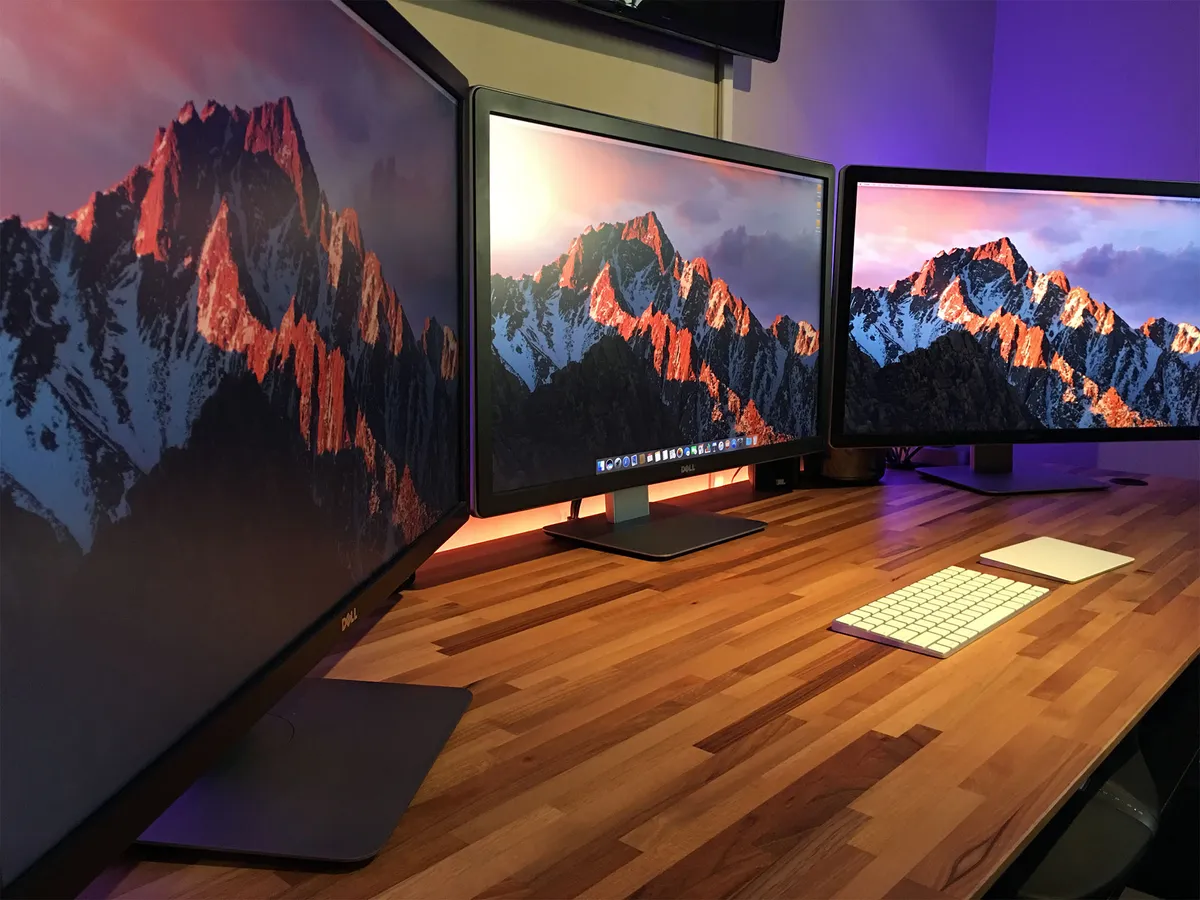
There might come a time when, like the old Mac System software before it, the current OS is deprecated in favor of something new and truly next-generation. Until then, it's Apple's job to keep moving the Mac forward, year after year, feature after feature.
There's a lot still left to do. I'd love Messages to get parity with iOS, and for Maps and Siri to get app integration as well. I still don't know why hand off for media is MIA, and why I can't control Home from my Mac, which lives in my home. iTunes is still iTunes — then again, super happy it isn't my job to revolutionize it! — and split screen and Playgrounds have fallen behind iPad.
Those are next year's problems, though. Right now, Siri makes the Mac more useful and convenient, deep learning makes it more insightful, and APFS promises to make it more efficient and more secure.
Those are three major iterations, and combined with everything else, make macOS Sierra worthy of its new branding and expansive name — as one of the most important Mac software updates in years.

