How to quickly change or move a meeting time in the Calendar app for iPhone and iPad

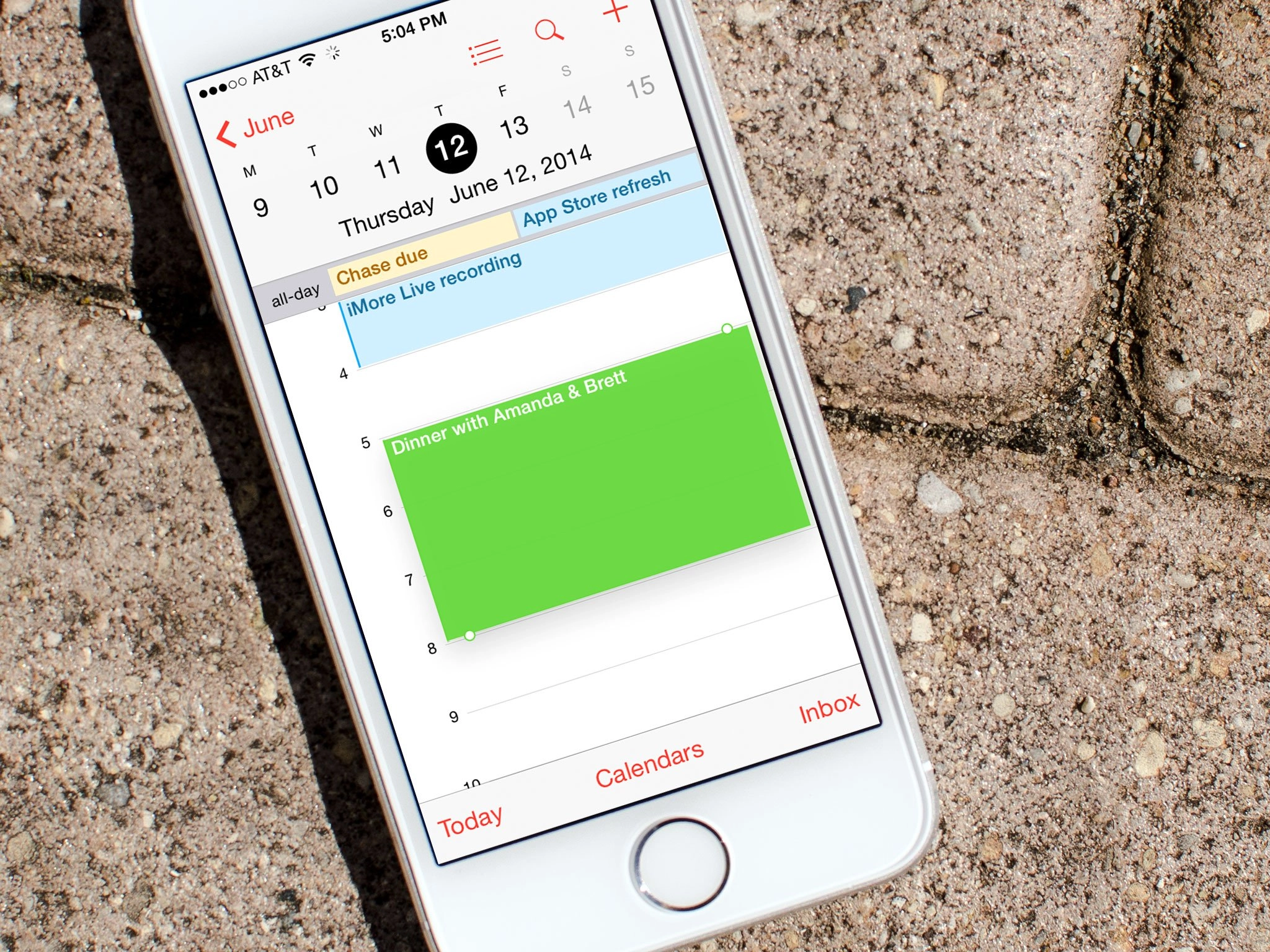
If you need to move a Calendar event or appointment around on your iPhone, iPod touch, or iPad, you can do it by tapping the event and editing it the old fashioned way. However, iOS also provides a quick and easy gesture shortcut to make it even faster and more visual.
How to quickly change or move a meeting time in the Calendar app for iPhone and iPad
- Launch the Calendar app from the Home screen of your iPhone or iPad.
- Along the bottom, select the Day option and find the day of the appointment that you'd like to change.
- When you've found the event or appointment you want to move, simply tap and hold on it.
- You'll now notice anchors that come up. You can now drag it up and down to change the time on that given day or left and right to move it to a different day altogether.
- Once you're done moving it, just tap anywhere else on the screen and the event will be moved to where you placed it.


There are 6 comments. Add yours.
Nice post! Thanks for your commitment to these How-To's.
Yes, that's nice, but I need to duplicate events more than I need to move them! Past phones made this easy! I see Fantastical only just added this--WTF?! I may switch to that app, but the native app has the visual/spatial Day view and others can't match that! Arrrggh!
Easiest way other than Siri to move appointments. Emjayess, get fantastical. Easiest way to enter appointments and yes, now it allows recurring events.
The other thing that bothers me is the inability to Serbs contact to a particular group.
I've always wanted that in all my devices even before I got Apple products.
If a calendar event is a meeting, and lets say its exchange based.....if you change the time in this fashion, does it send updates or ask you if you want to send an update?
Thanks for the shortcut. I learn something new everyday :).
