Join our iPhone, iPod touch, iPad and Apple TV community today! Register Here | Login

How to use VoiceOver for iPhone

By , Thursday, Dec 9, 2010 at 3:45 pm
22

VoiceOver is part of Apple's accessibility features, a gesture-based way to have your iPhone speak what is written on your screen. First available on the Mac, Apple brought it to the iPhone with iOS 3 and improved it again in iOS 4. It doesn't get the attention of copy/paste or multitasking, but that might simple be because people do not know much about it or how to use it.

For an overview of VoiceOver and the various ways it can be used, stay with us after the break.

What VoiceOver can tell you

VoiceOver can give you the description of all the items on the screen, battery level, status, cell network signals time of day and even let you know if the orientation of your iPhone has changed.

VoiceOver Controls

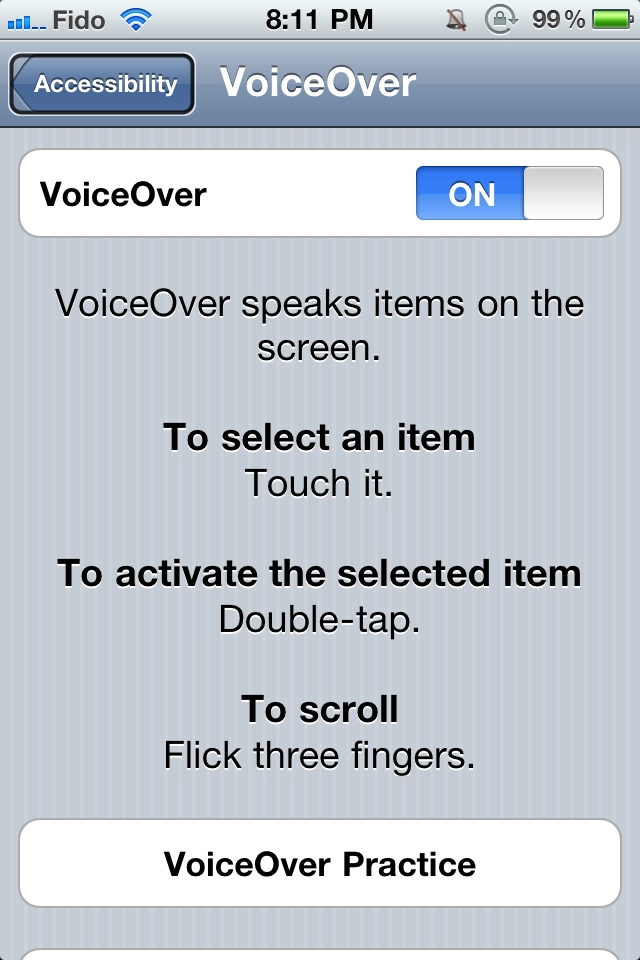
  • Single tap to hear a description of what you have tapped
  • Double tap to activate
  • Swipe to adjust a slider
  • Flick to the left or right to move to the next item on screen.
  • Three fingers to scroll

VoiceOver will also deliver contextual information, such as the location of objects on the screen or tell you about adjoining objects. Since you are directly touching the part of the screen you want to have read out loud to you it is much easier to get the information you want faster than with other voice applications.

When you enter text on VoiceOver the letter you press is spoken to you when you touch it and then repeated again when you enter it. This is quite a tedious process but you can have VoiceOver speak the whole word instead. Flicking up and down will move the cursor to the left and right within the text for editing.

VoiceOver will try and predict the word you are typing to make the typing experience less stressful. I find this process very arduous and would rather use a dictation app like Dragon instead.

It uses sound effects to alert you when certain apps are open and can also lower the background music so that you can hear VoiceOver more clearly. When you select something a black rectangle shows on that item.

VoiceOver Adjustments

There are a variety of adjustments you can make to VoiceOver so that it is customized to your needs. You can adjust the speaking rate so it is as slow or quick as you like.

Languages offered

VoiceOver comes in 21 languages: Bahasa Indonesian, Chinese (Cantonese), Chinese (China), Chinese (Taiwan), Dutch, English (US), English (UK), English (Australian), Finnish, French (Canada), French (France), German, Greek, Italian, Japanese, Korean, Norwegian, Polish, Portuguese (Brazil), Portuguese (Portugal), Romanian, Russian, Slovak, Spanish (Mexico), Spanish (Spain), Swedish, Thai, Turkish.

Compatible Apps

  • iTunes
  • Safari
  • Maps
  • Mail
  • A few others as well

If you're a developer, Apple offers the Accessibility Programming Guide for iOS [developer.apple.com link] to help you add VoiceOver and other accessibility features to your app. If you're not a developer but you have an app you'd really like to see the feature added to, send them that link!

The Rotor

Place two fingers on the iPhone and turn them and you get a dial-like set of options for VoiceOver. This allows you to flick up or down to move through only the text you desire.

The Rotor is especially useful for navigating through a webpage, and options include:

  • Lines
  • Heading
  • Links
  • Form Controls
  • Tables
  • Characters
  • Words

Do you ever use VoiceOver and if so how does it work for you? Let me know in the comments below.

[Apple]

Georgia

Senior Editor at iMore, psychotherapist, 2x Canadian Brazilian Jiu-Jitsu champion, co-host of iPhone & iPad Live and ZEN and TECH.

More Posts - Website

 TwitterGoogle Plus

← Previously

Analytix brings ClickyTouch UI to Google Analytics for iPhone, iPad

Next up →

Dungeon Hunter 2 now available for iPhone!
  1. Farbod21 says:

    Apple needs to do a better job explaining and speaking about this feature... It is extremely valuable for many users. Thanks for posting it!

  2. ohferfuxsakes says:

    Georgia,

    Will this help you get into DFU mode more easily?

    Zing! :)

  3. .iMe says:

    I'll launch a website to hear and stream some of the latest music while driving home. The news section will sometimes have a juicy headline so I'll fire up voice-over to hear it.

  4. dandbj13 says:

    I'm writing a book on the subject. Nice to see it get some mainstream attention.

  5. T-Mobile iPhone User says:

    Maybe I'll save some other iPhone 3G user the wasted 30 minutes I just spent trying to find this feature.

    It's only available on an iPhone 3GS or iPhone 4.

    Maybe that could be mentioned in the article? :-(

  6. Greatful & Thankful says:

    I agree with Farbod21. Thanks for posting these seemingly simple (and sometimes obvious) tips. They may not help the masses but they sure help us n00bs.

  7. smlk says:

    Thanks for this, I went trying to find info on this feature a couple of weeks ago and there's not much out there. Thanks.

  8. Ian P says:

    Not a fan at all. Poor and slow feature.

  9. graham says:

    I can't seem to get it to work to read snooks etc. Tried following the instructions but it just tells me screen orientation etc... No actual reading of iBooks. Any ideas?

  10. Anna says:

    This is a amazing article. Thank you for this site. Well made! You will find more informations on Lingerie de charme. There's everything all you can need!

  11. Thisistherealme says:

    I'm totally amazed of voice over. I tried it a couple of months ago, but there's a little of a learning curve, especially for people that never tried a screenreader (i didn't). I can read, but not for long, so for me it's a fantastic to be able to have long articles read and now voice over even supports my language. The "speech simulation" is very well done, even in my language.

  12. Thisistherealme says:

    What I meant about the learning curve is that the first time I tried it I couldn't figure out how to use it properly so it just ended up taking a long time for nothing. But now, as I looked more into it, it turned out to be fantastically well done.

  13. Three Eyes says:

    Apple brought it to the iPhone with iOS 3 and improved it again in iOS 4. As a blind user, I'd like to know the differences.

  14. Three Eyes says:

    Overall, it seems cool, however; I wonder how voice over acts durring calls if you have to make a threeway call or inter information into an automated system such as voicemail. That would be interesting to experience. :)

  15. Mariafaguet says:

    where do i find voice over?

  16. Libby says:

    it's driving me crazy!!! how do i get out? too type a message i have to hit each lettter 3 times!!!

    HELPPPPPPP!

  17. khine says:

    please help me i can't enter passcode & then can't use other thing when ever i'll on the voice over. How to turn on my ph please help me stupid voice over

  18. New says:

    So VoiceOver is a tool to have articles read out loud to u? I have this feature but confused about what it's for

  19. Debbie Combs says:

    Very confusing. I couldnt get it to work on my phone. also want to know if i dont care for it how to take off. is it as easy as putting on in settings which im having probls with? not much on this feature

  20. constanza rosselli says:

    there is not too much information about voice over! I use it and have to read in english (being spanish speaker) in order to get some help.

Leave a Reply

Note: Comments must be civil, respectful, and on-topic. If a comment does not add to the conversation, if it contains spam advertising, or inappropriate language or content, it will be removed. Insulting the topic, author, staff, site, network, or other commenters will result in the comment being marked as spam and potential prevent future comments from appearing on the site. Do not post as a business or your comment will likely be confused with spam. Comments containing links may be held for moderation. Relax, enjoy, and share in the discussion.
