
The best drawing apps for iPad and Apple Pencil manage to give enough complexity to make great works of art, whilst being intuitive to learn pretty quickly. Whether you are looking to create new pieces of art or edit pictures to be better than before, there's a drawing app out there for you to try out.
It doesn't matter if you are a professional artist being paid for your work or a humble hobbyist, thinking of getting some color on the page, you should be able to get quite a lot of joy out of nothing but an iPad and an Apple Pencil.

If you have something excellent like the iPad Pro M2 (2022), one of Apple's best iPads, or you're planning to upgrade to the new iPad Air 6 or M4 iPad Pro — Apple Pencil can turn a blank page into a rough sketch in mere moments.
Due to the Apple Pencil Pro coming on May 15, as well as these new iPads, the brand-new features of the stylus could help transform how you use your preferred drawing app. For example, a new 'squeeze' feature allows you to open up a palette on your iPad, letting you switch tools and more.
With the great iPadOS 17, you can customize PDFs easily so drawing apps will give you even more utility out of the same purchase.
Though your iPad is the best way to use many of these apps, some of them even work with iPhone 15 and iOS 17 has made them even better.
With that in mind, here are the best drawing apps for iPad and Apple Pencil right now.
The best drawing apps for iPad and Apple Pencil—our expert picks
Best free drawing apps for iPad
Freeform

Apple's Freeform app debuted with iPadOS 16.2 in November 2022. It's there waiting to be used and it's ideal for drawing as well as brainstorming on your iPad. Working seamlessly through iCloud, you can easily access, edit, and collaborate across multiple different devices including iPhone and Mac.
The app provides many brush styles and color options so you can sketch out ideas or basic artwork. However, if you want a more dedicated drawing app, you'll need something more in-depth and versatile such as others listed below.
Linea Sketch

If you're overwhelmed by Procreate, Linea Sketch is a more welcoming and approachable option, especially if you don't usually draw. It features a simple and intuitive interface that provides you with many powerful tools that all work great with Apple Pencil. Even little details like circles are made easier here with the app able to create perfect circles and other shapes.
It also shows you colors that complement your selected hue perfectly, so you don't need to figure that out yourself. Additionally, it offers layers, a split screen view, and much more. Linea Sketch exports your projects as PSD, JPG, or PNG files so that they can be easily accessed from other devices, like your Mac.
Adobe Fresco: Sketch & Draw

Adobe Fresco is part of the Adobe suite of graphic apps, built specifically for the iPad and Apple Pencil. It works well for anyone who wishes to draw professionally or just for fun.
Our review of Adobe Fresco sums up why it works so well. You get a combination of user-favorite Photoshop brushes along with vector brushes and well as Live Brushes. What this means for you is plenty of functionality to express yourself. It also offers essential tools for illustrators, as well as selection and masking tools. At all times, the UI is flexible enough to work well for all purposes. While you can use Adobe Fresco for free, some premium features come with a paid Creative Cloud account.
Paper by WeTransfer

For a free and accessible option, Paper by WeTransfer is a great choice. Via Paper, you can create many journals all offering a different place to capture your sketches and notes. It's intuitive to use with six basic tools that are excellent for drawing, outlining, and writing.
If you opt for the optional Pro subscription, which is $8 for six months or $12 for a year, you'll get access to more tools like diagrams, collages, and cut-and-fill. Creativity is rife as well with the option to add multiple photos to a journal, along with cutting, sticking, or fixing without the need for complicated layers. You can also customize your sketch journals as much as you'd like, with your work synced across devices, providing you have a Pro subscription.
While you'll need a Pro subscription to get the most out of Paper, you do get the basics for free, so it's a good idea to give them a try before committing. Or if you can live with the basic feature set, then you won't need to pay a dime.

Best paid drawing apps for iPad
Procreate

For the absolute best drawing app on iPad, you need Procreate. It's one of the most powerful sketching, painting, and illustration apps around. Built for professionals, it works perfectly with Apple Pencil.
With Procreate, you gain access to exclusive tools like its dual-texture brushes and immediately responsive smudging tools, so there's plenty of flexibility here. Even better, if you can't find the tool you need, you can simply create your own. The app also has very high-resolution canvases so you can print out your work to massive sizes. All of your work is available in PSD, native .procreate, TIFF, transparent PNG, multi-page PDF, or even web-ready JPEG file formats.
Procreate also supports time-lapse replays, so you can share the creation process with your favorite streaming service or social media app. If Procreate feels intimidating, we have a tutorial on getting started with Procreate for some helpful advice.
Sketch Club

A lot of the premium drawing apps we've mentioned so far can be a bit pricey, but Sketch Club is a little more affordable. That's while still offering plenty of nice features for both amateurs and pros.
In Sketch Club, you'll find plenty of brush tools, along with blurring, filling, procedurals, selection, smudging, text, and vector tools. If you're worried about creating perfect shapes, there are shape tools with automatic ratio snapping so you can be guaranteed that nothing looks off. Sketch Club also offers layer support, plus all your canvases can go up to 16K with presets, along with 300 DPI prints.
Sketch Club also has an integrated community, which is great for getting motivation and inspiration. The community has daily challenges, weekly competitions, monthly group events, annual awards, and more. The tutorials are fantastic too if you're trying to improve your drawing skills and learn something new.
Astropad Standard

Astropad isn't like other drawing apps. Instead, it turns your iPad into a drawing tablet for your Mac. If you prefer to use image editors on your Mac, but like to draw on an iPad, this is the perfect way to do that. Think of it like turning your iPad into a Wacom pen display. To get Astropad to work properly, you'll need to get the free Mac companion app.
Using Astropad gives you a natural drawing experience with the results delivered straight to your Mac. It's fast and keeps up with your drawing at 60 FPS, even via a Wi-Fi connection. It can work either wirelessly or through USB, with flawless Apple Pencil support. Pressure-sensitive, you'll gain accurate drawings.
The app itself can be a little pricey, but compared to buying a Wacom tablet for your Mac, it works out as a much cheaper alternative. It's also a better alternative for when Sidecar isn't enough.
Pixelmator

Pixelmator is a good option for anyone seeking a full-featured, layer-based image editor that works just as well for photo editing as it does for sketching and painting.
It offers over 100 brushes that are designed by fellow artists. The possibilities feel endless here with the tools specifically designed for various painting techniques. Chances are high that you'll find what works for your vision. The brushes also replicate the wetness effects well, such as watercolors and crayon brushes.
Double-texture brush technology provides you with the best detail as you paint, while the Pixel brush is fun to use. Pixelmator also supports layers, has an eyedropper color picker, and is fully optimized for Apple Pencil.
Pixelmator can save your images in PSD, JPEG, PNG, and more file formats. Your work can be shared via social platforms, or you can upload and sync it right to your iCloud to be accessed anywhere.

Best drawing apps for iPad for vector graphics
Adobe Illustrator: Vector Art

Adobe Illustrator lets you create logos, illustrations, and graphics on your iPad using Apple Pencil. It's possible to work on projects across Illustrator, Photoshop, and Fresco, with your work automatically synced to the cloud.
Designers can create vector lines and shapes, type, make gradients, add effects, and merge and cut graphics with their Apple Pencil. The app also has over 20,000 fonts to utilize.
Affinity Designer 2
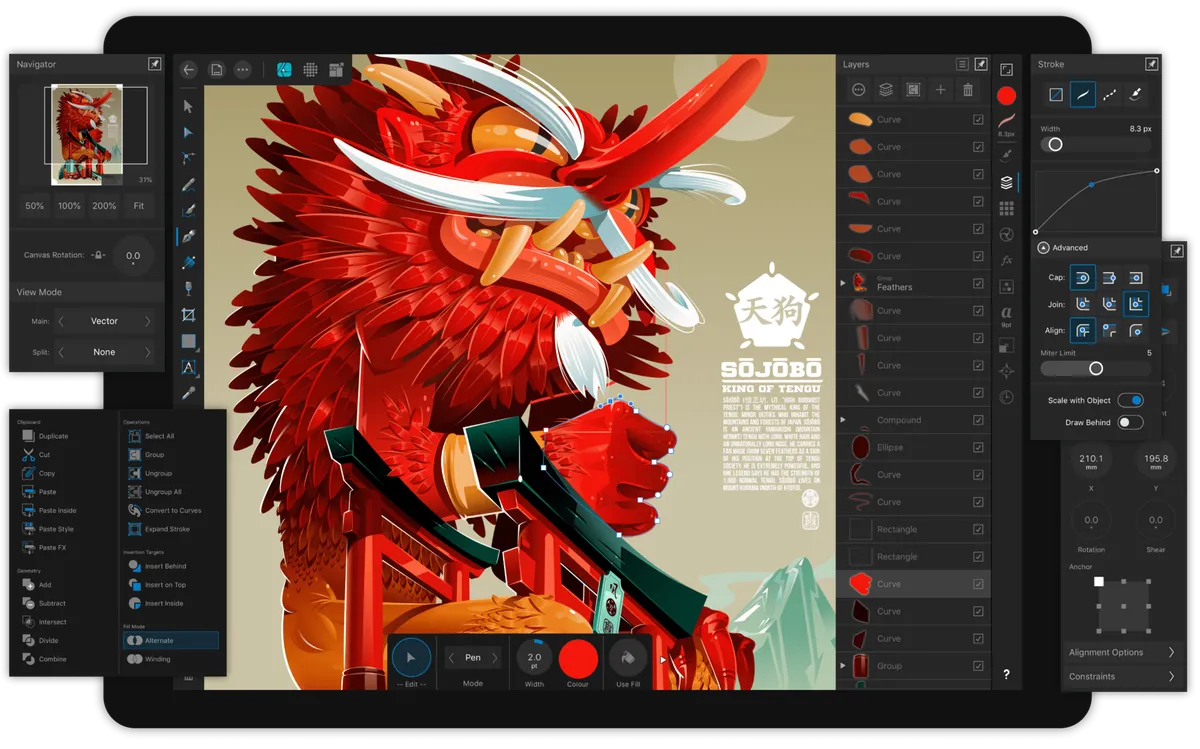
If you need to work with vector graphics, Affinity Designer 2 is one of the best ways to do that. It's effectively the desktop app converted into a great mobile experience.
Designed to take advantage of Metal, you get blazing-fast performance while you work. Panning the canvas out or zooming demonstrates the silky advantages of 120fps with the relevant iPad.
It also works flawlessly with the Apple Pencil, taking advantage of pressure, tilt, and angle sensitivity. You also get plenty of the best pen, pencil, corner, curve editing, geometry operations, and smart shape tools available at your disposal, and the Apple Pencil means phenomenal accuracy.
Other ways to upgrade your iPad
The apps listed above are perfect for all types of art, although we love them the most for drawing.
The iPad and Apple Pencil combo isn't just about drawing though. Besides the best note-taking apps for iPad being useful for jotting down your thoughts, it's also worth seeing how the best iPhone and iPad apps for college students can solve many scenarios, even if you're not a college student.
Also, don't forget to keep your iPad safe with one of the best iPad cases and while you're working on being more productive, consider something like one of the best keyboards for iPad Mini 6 too.

