Apple Intelligence is finally here (well, at least the first beta is), and you can try it out today. Some of Apple’s new AI features have been included in the iOS 18.1 developer beta so you can give features like proofreading, summarization, and rewriting a try.
In this guide, we’ll show you how to install the Apple Intelligence beta on your iPhone so you can test out the new features before the official release later this year.
From installing the developer beta to joining the Apple Intelligence waitlist we’ve got you covered. So grab your iPhone, iPad, or Mac, and let’s get started.

Apple Intelligence compatibility

To use Apple Intelligence early you’ll need to own a compatible device. Apple’s AI features are currently available on the best iPhones, best iPads, and best Macs. So if you own one of the following you’re in luck:
- iPhone 15 Pro
- iPhone 15 Pro Max
- iPad Air (M1 and later)
- iPad Pro (M1 and later)
- MacBook Air (M1 and later)
- MacBook Pro (M1 and later)
- iMac (M1 and later)
- Mac mini (M1 and later)
- Mac Studio (M1 Max and later)
- Mac Pro (M2 Ultra)
Spot your device on the list? Keep reading. If not, you’ll need to upgrade to a newer device now or wait until the iPhone 16 or iPhone 16 Pro releases in the Fall.
How to install the Apple Intelligence developer beta
To access Apple Intelligence beta today you’ll need to install the iOS 18.1, iPadOS 18.1, or macOS Sequoia 15.1 developer beta on your compatible device. We highly advise you not to do this on your daily drivers as developer betas are buggy and can cause performance and battery issues.
How to install iOS 18.1 developer beta
- Open Settings
- Tap General, then Software Update
- Enable Beta Updates
- Select iOS 18.1 developer beta 1
How to install iPadOS 18.1 developer beta
- Open Settings
- Tap General, then Software Update
- Enable Beta Updates
- Select iPadOS 18.1 developer beta 1
How to install macOS Sequoia 15.1 developer beta
- Open Settings
- Click General, then Software Update
- Enable Beta Updates
- Select macOS Sequoia 15.1 developer beta 1
Now that you’ve installed the latest developer beta, read on to find out how to join the Apple Intelligence waitlist and use the new AI tools.
How to join the Apple Intelligence waitlist

To access the Apple Intelligence beta you’ll need to join the waitlist. Luckily, it’s really easy to do and shouldn’t take too long for you to gain access (I only had to wait a couple of minutes). You’ll need to live in the United States of America to use the new features but if you’re not there’s a way to access Apple Intelligence from outside the US.
- Open Settings
- Choose Apple Intelligence & Siri
- Select Join Waitlist
You’ll get a notification when you’ve been accepted into the Apple Intelligence beta, from there toggle on Apple Intelligence in the same Settings tab from above. You’ll now have access to the first Apple Intelligence beta as well as Siri’s new redesign.
Apple Intelligence is here
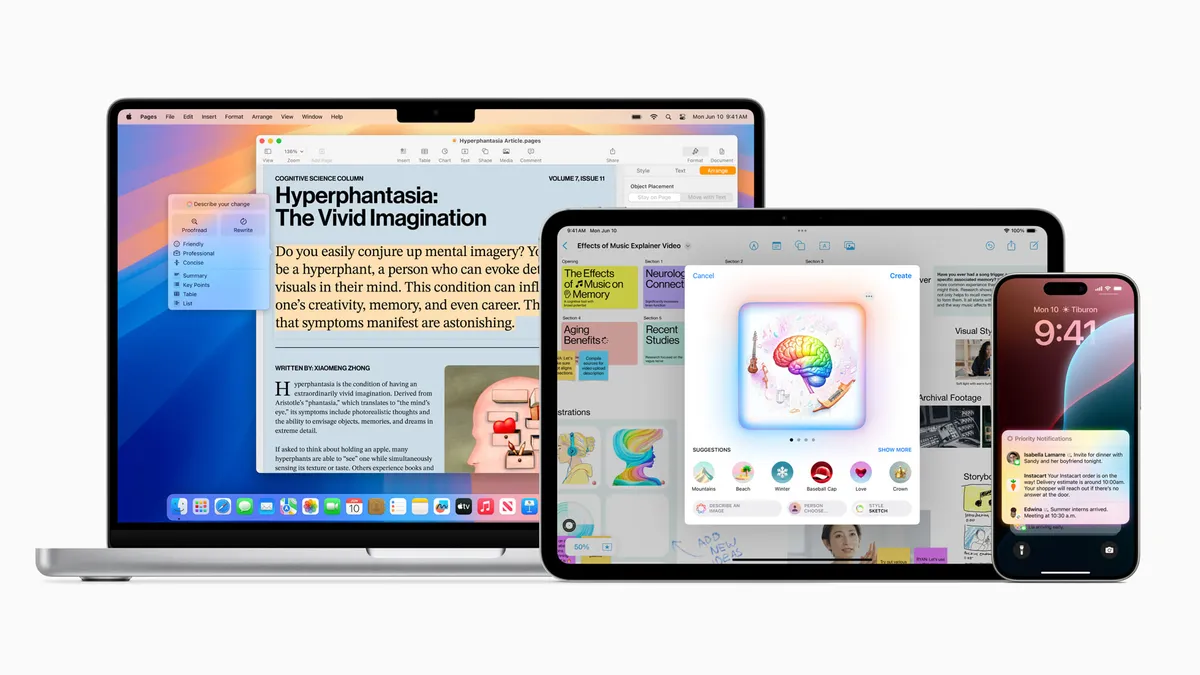
The Apple Intelligence beta is pretty limited at launch but you can expect more features to be added as we grow closer to the release in October. You’ll now have access to proofreading tools like Grammarly, rewriting tools, better quick replies in Mail and Messages, the ability to summarize any text from articles or emails, and you can even record phone calls to a note.
Generative AI capabilities like Genmoji or Image Playground are not available as of yet and neither is the next-generation Siri which is set to launch in 2025. That said, Apple Intelligence is finally here and it’s an incredibly exciting time to be an Apple fan.