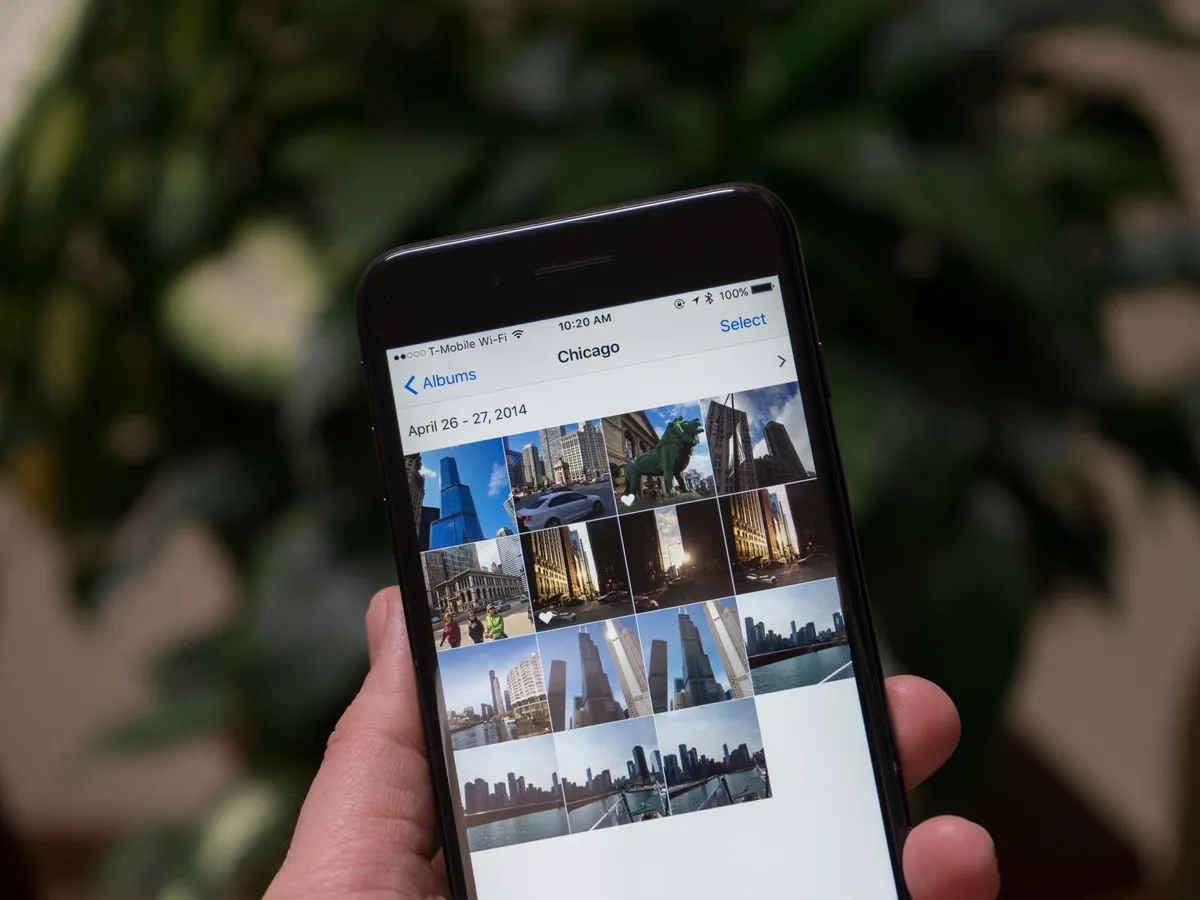
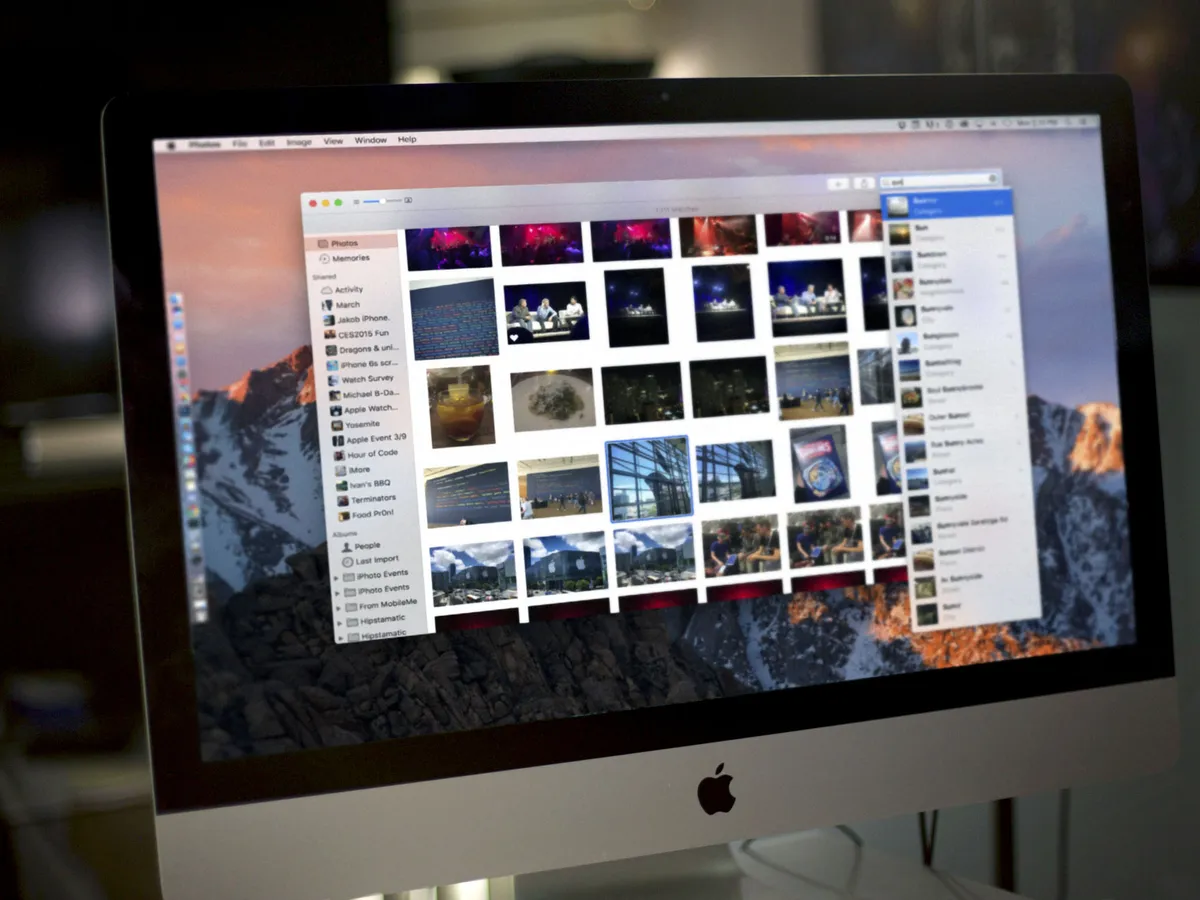
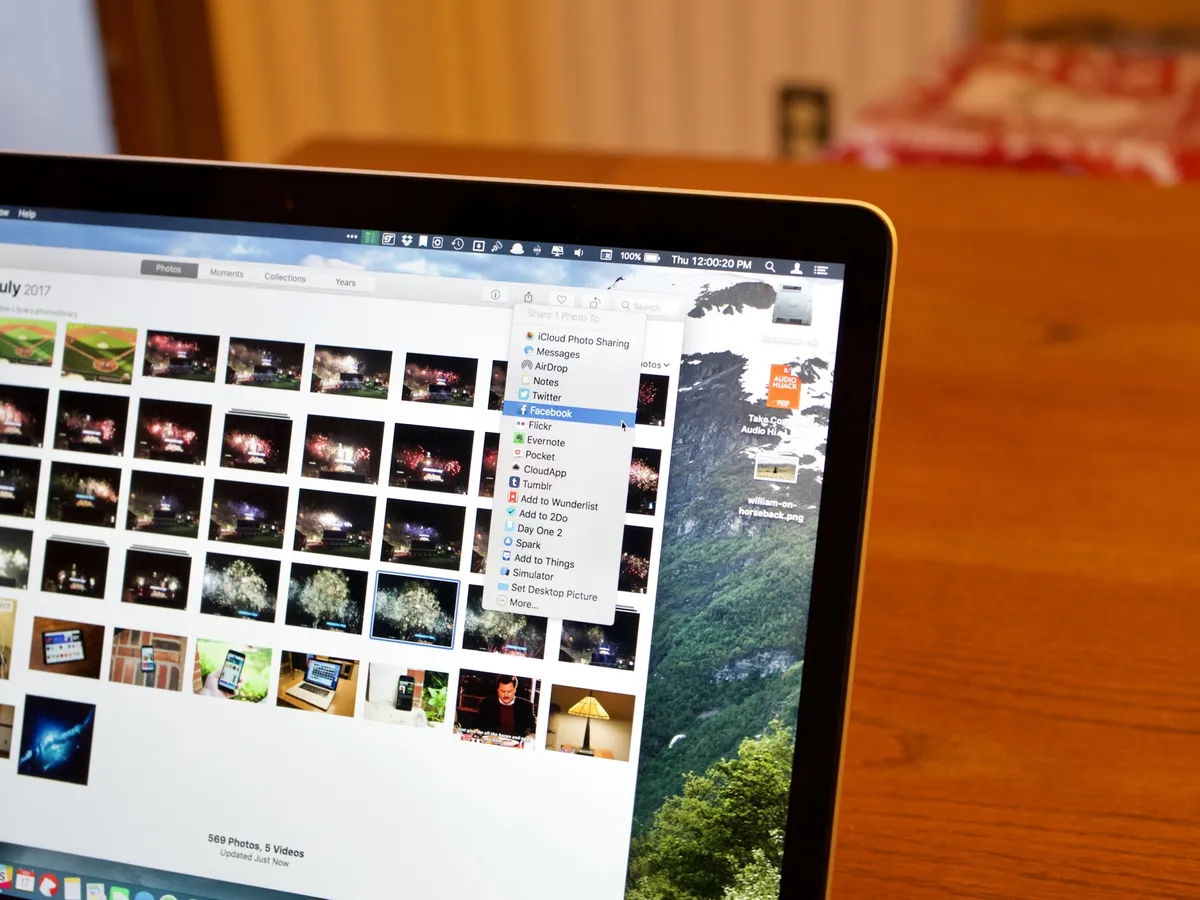
Our long national iCloud photo-syncing nightmare is over: Photos for OS X, Yosemite's official successor to iPhoto, is now available with OS X 10.10.3. What's changed from iPhoto? What's stayed the same? Read on. You can also check out our super in-depth Photos for OS X Ultimate Guide and iCloud Photo Library Ultimate Guide for more information, how-tos, and walkthroughs.

Will I be able to import my iPhoto or Aperture Library into Photos?
You bet! Your iPhoto or Aperture library is compatible, and can be imported seamlessly into the Photos app. When you first launch Photos, it'll either auto-convert your primary library or ask you to pick which library you'd like to import.

Your old library won't be converted, just imported, so you can still open it in Aperture or iPhoto if you like (though once you import, if you do anything new with that library in Aperture, it won't carry over to the Photos version).
The new Photos library references the same master images as your old library, so you don't need the space to store images twice. It also makes for an incredibly efficient migration process.
- How to import your iPhoto library into Photos for OS X
- How to import your Aperture library into Photos for OS X
What if my iPhoto library is 500GB and I only have 10GB free on my Mac?
Thanks to some under-the-hood wizardry from Apple, your photos won't duplicate when you import your library from iPhoto/Aperture to Photos. As such, you won't need to have 500GB of extra space.
Can you import multiple libraries?
Just like iPhoto, the Photos app supports opening and working with multiple libraries, but you won't be able to unify multiple libraries within it.
That means that once you pick, say, your iPhoto library, you can't import an Aperture library into that new Photos library. You can, however, create a separate Photos library (by holding down Option when launching the program) and import your second library into that.
If you want to unify your photos, we suggest combining your libraries into one master Aperture library first, or exporting all the photos out of them into folders and then importing those into Photos.
Note: If you have images that *aren't organized in a formal library setting, you can import any of those — be they individual images or a folder — into Photos with no issue.
Can I delete my iPhoto or Aperture library after I import my photos into Photos for OS X?
Yes, though you don't need to. Through the magic of symbolic links (older users might also know these as aliases), your masters have all been moved to the Photos library, but your iPhoto and Aperture libraries still work because each photo has a symbolic link to the Photos master. Though it may appear in the Finder that both libraries are taking up the same storage capacity, only one library — your Photos library — has the majority of the data. Apple has a support article written about this under-the-hood magic if you want more information, but the short answer is: If you don't want to use iPhoto or Aperture anymore, feel free to delete your original library. If you still might want to pop back into iPhoto or Aperture, keep that library. It won't actually take up extra disk space.
Will I have to store my photos in the Photos Library?
Nope! There's a setting you can uncheck to just link to your photos in their existing locations, rather than directly importing/duplicating them. Unfortunately, if you use reference files, you won't be able to sync with iCloud Photo Library. (If you're just storing your Photos Library on an external drive, you should be fine.)
What about duplicates in my library?
The Photos app will check for duplicates during import, like iPhoto or Aperture. And if you have iCloud Photo Library enabled, iCloud will check periodically for any duplicated content and unify it server-side.
There unfortunately appears to be no way to check for duplicates after import with in the app itself, however.
What happens to my Stacks, Projects, and Events from Aperture and iPhoto when I import them into the Photos app?
They're all converted to Albums (and folders holding albums) so that you don't lose any of your prior organization. These albums are Mac-only, however; they don't sync with your iOS devices.
Okay, so do you need to enable Apple's iCloud Photo Library to use Photos?
You don't! You can use the Photos app as an offline storage home base for your images if that's what you want.
That said, we think you probably should enable iCloud Photo Library if you're willing to pay for Apple's extra storage costs ($1/month for 20 GB; $4 for 200 GB; $10 for 500 GB; $20 for a terabyte). It provides you with an online, always-there backup as well as easy Web access to your photos on your other devices — be they Mac, PC, iOS, Android, what have you. And Macs and iOS devices have the Photos app in which to view and edit their images.
- iCloud Photo Library: Explained
- Should you use iCloud Photo Library?
- What iCloud Photo Library storage plan should you choose?
How does iCloud Photo Library work?
When you enable it on your Mac, the Photos app immediately uploads every image in your library to the cloud. (There's no way to exclude images, so if there are pictures you'd rather not keep online, we suggest not storing them in this Photos app library; you can always create a secondary library if need be.) From there, you can adjust whether you want to keep the high-res versions of all your photos on your computer, or optimize your storage.
Optimized storage? What does that mean?
If you select optimized storage, your computer will only store a percentage of your images on-device at high resolution, with the rest available from iCloud. That percentage changes depending on how much free space you have available on your Mac, and it intentionally doesn't take up the entirety of your hard drive. (You won't have to worry about your optimized library only leaving you 500 MB of free space to work with on a 128GB MacBook Air, for instance.)
High-resolution pictures and video are prioritized behind the scenes, with specific groups of images — say, favorites and recently edited photographs — chosen to be stored locally. Additionally, any time you open up an image to edit it, the high-resolution version is pulled down from iCloud's central repository.
Are Raw files supported?
Absolutely — they'll import into the Photos app and upload to iCloud Photo Library.
How do I know if a photo is stored locally or not?
Like with iTunes, files that aren't stored on your device appear with a cloud icon atop them.
Can I delete a locally-stored photo from my computer without deleting it from iCloud?
Nope. iCloud Photo Library does all of that magic behind the scenes, so you shouldn't have to manually delete anything. And if you want to, you're unfortunately out of luck.

What's happening with My Photo Stream? Does it still exist?
My Photo Stream — which uploads the last 1000 photos (or 30 days' worth) to the cloud and your Mac for free — is alive, well, and continuing into the foreseeable future with no plans on Apple's part to change it. If you have iCloud Photo Library enabled, it will sidle off into the background and you shouldn't really notice it. Those who choose to keep iCloud Photo Library disabled, however, will still see the My Photo Stream option.
iCloud Photo Library and My Photo Stream: What's the difference?
What about editing? Are the tools pro-worthy?
On first glance, Photos for Mac offers the same three Light, Color, and B&W edit sliders that are present on the iPhone and iPad — both their simplified and in-depth versions. Photos gets a few extra tools not present in the iOS lineup, however, including detailed histograms, sharpening masks, a vignette tool, levels, definition, white balance, and more. It may not be quite Photoshop- or Pixelmator-level without layers, but as a general color-correction and editing tool, it should please many former Aperture and Lightroom users.

Like iPhoto, all your adjustments are non-destructive, with your specific settings even staying in place after you press Done, so you can pop back in at any time to readjust.
- How to adjust light, color, and more in Photos for OS X
- How to access histogram and advanced adjustments in Photos for OS X
- How to apply filters in Photos for OS X
- How to automatically crop and straighten in Photos for OS X
- How to manually crop in Photos for OS X
- How to manually straighten in Photos for OS X
- How to rotate in Photos for OS X
- How to flip in Photos for OS X
- How to retouch pictures in Photos for OS X
- How to edit and trim videos in Photos for OS X
Does "Open In" still exist?
Not currently, no. Photos for Mac does support OS X's Sharing Extensions, however, so other apps and services can present themselves right in the standard Share menu. But there are no action extensions, a la iOS 8, that allow you to use third-party editing tools from within the app.
Do iPhoto's print projects still exist?
Yes! Though they've been removed from iOS, print projects are back front and center in the Photos app. Apple is offering new book styles (including square books); auto-sized photographs, which allow you to print panoramas; posters; calendars; cards; and more. And the entire print project area has gotten an iOS 8-style makeover — nice and clean with a birds' eye overview of the process.

Will Photos for Mac work for DSLR owners and Aperture/Lightroom lovers, or is it just for iPhone photography?
From my limited time with the app, it's absolutely a great tool for iPhone and DSLR users alike. If your goal is heavy-duty organization, however, I'm not sure if it's a perfect replacement for Aperture or Lightroom; keywords exist, but flags have been replaced with the "flag" keyword and a premade smart album, and a lot of custom metadata options from Aperture aren't present in the Photos app.

For my semi-pro usage and large photo library, I think the Photos app will be just fine — far better and smoother to work with than iPhoto, that's for sure. I just can't say yet if it's going to be the perfect tool for power organizers.
You mentioned a flag smart album. Does that mean smart albums live on in Photos?
They do! Though sadly, they're Mac-only at present and don't sync with your iPhone. You can create and adjust smart albums within the Photos app, just as you can in iPhoto and Aperture.
Will it be as clunky as iPhoto was with big libraries?
Time will tell, but so far, neither myself nor Rene have found Photos to be anything but speedy. Ally experienced a little sluggishness in larger albums while scrolling. That being said, many of the memory leaks that plagued iPhoto appear to be gone in the Photos app.
Other questions?
If you have any other questions on Photos for Mac, let us know in the comments and we'll try and get to them ASAP. In the meantime, you can keep up with all the Photos news on our Photos for OS X topic page.
Updated 4/8/15 at 2:45PM ET to add how-to links and more information about the current release. Updated 3/2/15 at 1:40PM ET to add information about the public beta. Updated 2/5/15 at 6:30PM ET to clarify spring time frame, external editors and library migration storage requirements.
Reader comments
Photos for OS X FAQ: What you need to know!
What about having full photo library available for family sharing (me and my wife). Is there any ways to access full library in iCloud for my family and store all photos there?
Pages
This is what I want too. Since iOS8 I've had to create a separate iCloud account for my wife and now my photos don't automatically go into our family Mac's iPhoto library.
My same question.
Right now my wife imports pictures from her iPhone into iPhoto on our family iMac. I do the same thibg. We both have our own iCloud accounts. We then "sync" our phones with iPhone, which allows us to have each other's pictures from iPhone on our iMac. Wondering how we will make this work with the new Photos app.
Sent from the iMore App
I suspect Apple’s answer is to use the “Family” album which is automatically created when you set up Family Sharing. Yes, photos have to added manually (not every photo is automatically added), but it’s possible to add any photo or Moment to the Family album with a few clicks. In addition, there’s a bulk-add mode (similar to creating an iTunes playlist on iOS) that allows you to quickly add lots of photos into the shared album.
Great question. I don't know if iCloud Photo Library will support Family Sharing, but we can ask Apple and get back to you!
Thanks! that would be great
I'm guessing they'll say that they use iCloud Photo Sharing as a way to deal with Family sharing as it automatically sets up a Family Photostream. But this still isn't a great solution as you manually have to share photos via iCloud Photo Sharing. Would be nice if we there was a central family library. But that's philosophical, what should be shared in the family- the whole library or one or more albums? Do I want to see my wife's pictures from her girls' trip automatically on my iMac? Some may prefer individual libraries for many reasons.
Are there any updates on this? My wife and I have two separate iCloud accounts and use different computers currently for our photos. She downloads her photos to iPhoto on her MacBook Pro and I download mine to a MacMini. I could create a single library to turn on iCloud Photo Library, however, I'd want her to be able to access the photos on her mac, without having to change to a different iCloud account.
Has anyone tried using an external hard drive and linking both accounts to the Photos Library so that it is connected to two iCloud accounts?
Is faces still used? I am too lazy to go through and tag/title my photos and have relied on faces.
Yup! It's still there, under Albums, and you can tag new faces manually by opening the info pane.
But are faces autodetected, or we have to tag them manually?
Yup, autodetection
It doesn't seem to sync the Faces among other Macs though...
Nope, for now the smart folders on your Mac (Faces included) seem to be local only.
Please (PLEASE) tell me there's a way to mass delete faces you don't want. (if you've ever taken photos of your kid's kindergarten class, you know what I mean)
So far nope. My daughter is a cheerleader and every single cheerleader in the pic face is there and one by one until the 5th one and I stopped and will wait to see if it gets added later.
Right-click on a face and choose “Ignore This Face”.
They said "mass delete". There's got to be a better way than having to right-click and select "ignore this face" 1000+ times.
Ah, you’re right. Yes, it just seems ridiculous it’s not possible to (at very least) shift-click to select multiple faces.
Yup...still the same crummy faces system. Now, just to add insult to injury, you have to drag each...individiual...face...one...at...a...time to it's corresponding name.
I'm certain that was something that was specifically done to annoy me. :/
I like the app, but sheesh....how could this not have been something that was addressed right out of the box?
Ya, it's just a case of bad UX design. Apple used to never be guilty of this, now it seems like it's happening all the time.
If you click on a "Suggested Faces face", you have selected it. It gains a circle around it. Since it's selected, you should be able to press a single hotkey for ignore instead of having to right-click, move mouse over "Ignore this face" and click again. Just that one action alone is cumbersome. Now think about a library of 70K photos like I have. I've got so many faces I don't know it's not even funny. Old yearbook photos, old family photos, etc. If we're able to select one face, we should be able to select multiple faces (and then ignore them as a bulk selection).
Since we're able to select a face, we should also have a menu item for the action instead of this crappy ONE-ITEM contextual menu. If we had a menu item, we could assign a hotkey ourselves. (Seriously, a one-item contextual menu?)
Also, sometimes (especially on older photos) you're not quite sure if that's who you think it is without seeing it in context. Should be a way to look at the entire photo the face exists in before having to decide who it is. In a library of 70k photos, there's no way I'm going to manually track down that photo to get a better look. I've figured out that as a workaround, I can tag it as "temp". Then go into that temp face, look at the photos in their entirety and properly decide who it actually is, changing the name and thus removing from the temp face folder (which will no longer show when empty). Again, crap UX.
Something else - I can't seem to create my own circle around a face and name it when it's not already tagged as a face. That kinda defeats the whole faces thing, doesn't it? I've got a picture of three people, two of them tagged as who they are, and I KNOW who the third person is, but I can't tag them?!?!
Apple used to be all over UX. Hell, they even had documents written about it to have developers be on the same page. That's why you could jump from app to app and never feel like you needed to read a manual. While the apps may have done totally different things, they did them in ways that felt natural and made sense.
This is day 3 of simply tagging (but mostly ignoring) suggested faces. When I'm done, it'll be awesome to quickly show (at least most of) the photos of just one person from 70K+, but man... it just isn't what it should be. =(
Yes, I agree this currently feels half-baked.
It is possible to create a Face (when it was not detected automatically), though:
1) Open the photo
2) Get Info
3) Click the plus-button-inside-of-the-circle at the bottom of the Info dialog box. (Screenshot: http://cl.ly/ahyd . Side note: Photos is obviously not using any smarts to automatically determine the best photo to use as a Keyframe/poster image! haha...)
4) This will add a new, blank Face circle to the center of the image. You can resize and reposition as needed, then assign the correct person to the face. (Screenshot: http://cl.ly/ahu2)
Actually you don't need to right click on a "Suggested Faces" face to ignore it. Just click it once and hit the delete key. Photos will now ignore that face, just as if you had brought up the contextual menu and hit ignore.
Once photos from iCloud are in photos on my Mac If I delete them from my phone will they be deleted off my mac as well or will a copy remain permanently? I hate keeping tons of photots on my phone.
I think the point is you don't need delete them, there will be a tiny file on your phone, the thumbnail. Kb in size, rather than Mb. Then when you want to open the full size picture for full viewing or editing, it will be downloaded to your phone. If you edit it, changes get pushed up. If you don't touch the photo for a while, the full size picture will automatically be removed from your phone, thumbnail remaining. --- if I understand it correctly.
Sent from the iMore App
Correct. The Photos app on iOS as well as on the Mac analyzes how much free space you have on your phone and only budgets a percentage of that space for high-res files; the rest are stored in the cloud.
My biggest question.... Is there a way to see 'unallocated' photos not in any album?
My iPhone camera roll has loads of images not worthy of their own album like Memes, screenshots used for reminders and other random pics. Any images worthy of an album get moved out and stored in Aperture then re-synced in iTunes.
I tested iCloud Photo Library and my camera roll got completely mixed in to the other thousands of photos I have in albums and I couldn't find a way of seeing photos not assigned to an album.
I hope this is implemented as I'm looking forward to using the new Photos all but this is a deal breaker for me.
Sent from the iMore App
I bet you could make a smart album to do that. Will investigate.
Yep! You can do this with Album > Is not > Any.
Thanks very much. Very helpful!
Can you expand on this. I put any photo I want to keep in an album and like to delete the rest. It's really good for Burst photos.
What do I open and what do I hit to get Album > Is not > Any and can I then delete all the non album photos ?
You have to create smart album.
I don't have the "any" option in the smart album. Maybe due to an update? Is there any other way to see which photos I have not included in an album?
How does this app work with 2 Mac's? I have an iMac which I'd like to store full offline copies of all photos, and a retina MacBook which i'd like to use optimised storage. Is this possible with the same library? Also assuming it is, what happens if I add dslr photos to the MacBook - does it upload the full file to iCloud and automatically download it to any Mac that is set to not use optimised storage?
Sorry for the confusing questions! Thanks :)
Yup! You understand it exactly right. You can have one Mac storing full copies, one with optimized storage. And anything you upload will download full res to that first Mac.
Small correction: According to Tim Cook, it's "Early 2015" that means the first four months of the year, not "Spring 2015". "Spring" probably means the literal season, so they would probably want credit for any date before June 21.
Ha, fair enough! This is what happens when I write quickly. :)
Small correction/clarification - "migrating" the library won't require fully 2 times the space of the original iPhoto library. Though "Get Info" in Finder will show them taking up their full amount of space, there's some magic going on under the hood to make it such that only one copy of the original image files exist on the physical disk.
Yes! You're absolutely right. We clarified above.
I'm not sure if that's actually correct. I've told Photos not to copy over the originals from my 50 GB photo library, yet the library file it creates still blows up to 50 GB itself. And I've verified that this is a real 50 GB reduction in my total HDD space.
Is it easily possible to load select phots, or albums, onto and IPAs, then back to Photos and/or icloud?
Wow, not sure how I botched the spelling above!
Is it possible to move photos to and from iOS devices individually and/or as albums?
Sent from the iMore App
Not sure exactly what you're asking, so forgive me: You'd rather sync individual photos and albums to your phone rather than all of them synced together, correct?
If so, I think that functionality is still available in iTunes via the Photos tab.
I enabled iCloud Photo Library Beta already and have uploaded most of my photos to iCloud (except non-JPEG photos and videos). What will happen when I upgrade to Photos.app from iPhoto? Will it realize all my photos are already on iCloud or will it start uploading all my photos again? I really hope that it doesn't upload my photos again, that would be a nightmare. Thanks.
I can't answer your question, but that is exactly why I haven't pulled the trigger on any of this, nor will I until I know as many of the bugs & catches as possible. I have several backups of my iPhoto library, but I REALLY don't want to deal with duplicates, etc.
Sent from the iMore App
Yep, there's a "detect dupes" feature when importing, so it should avoid uploading images that already exist.
If I edit a photo on the iPhone, are the edits carried into Photos on the Mac?
Sent from the iMore App
Yep!
Since Photos.app, edits don't import with photo from iPhone to Mac. They are for you?
They should as long as you're syncing via iCloud. If you're manually importing a photo from your phone, I don't think they will.
Can you rate photos (1-5 stars) as in iPhoto on Mac? The bulk of my iPhoto library is built upon smart albums based on photo ratings, so I'm very curious about this.
Christopher Breen's Macworld article on the Photos beta indicates that star ratings are subsumed into a keyword: "Metadata including star ratings, flags, and color labels will be transformed into keywords and become searchable in Photos."
I hope they bring the stars back. Favorites just isn't as flexible.
+1. I don't RELY on ratings but I use them fairly often. Same for Faces, Places, events and sometimes keywords. My opinion/speculation: that info is all a giant database, the rating could become a"keyword" for the database, but still be presented to you as a 1/5 stars graphic... But I'm not a developer, easier said than done, I guess.
Sent from the iMore App
Because it's swapped to keywords, you should still be able to have those smart albums, just mapped to your keyword ratings rather than traditional stars.
This is a deal-breaker for me. I've worked out a sorting/culling workflow that relies on being able to set a display threshold on the numerical ratings. This allows me to quickly accept/reject photos using a single keystroke.
Does Lightroom have a numerical rating system?
Thanks for the helpful responses, everyone. Even though I'm bummed by the lack of star ratings, it's good to know that those will carry over as tags into Photos.
Hi guys,
+1 on easy-to-use ratings for photos! Would love to have this!!
Just FYI if it's helpful: I believe there still exists the ability to create keyboard shortcuts for certain keywords (I still haven't installed Photos but was investigating at my local Apple store). This allowed me to do something like the following:
View photo.
Hit Command+4 or similar to rate 4-stars.
Arrow right to next image.
Command+3 to rate 3-stars.
And so on...
I can't be certain of this, but I do think there are a couple options for "quick" ways to rate photos.
Still would like to see star icons and click star icons! Feature request! :P
Great article, can't wait for public beta!
Safe to assume Events no longer exist...?
Sent from the iMore App
Christopher Breen's Macworld article says that existing Events are transformed into albums. Not sure if it autodetects Events going forward but I didn't get that impression.
For the love of all that is holy or whatever you love, if I have 15,000 f'n albums to replace my events, I'm going to f'n pissed.
.
Moments are NOT the same as Events.
Albums are not the same as Events.
.
Please Apple, don't screw this up.
Who am I kidding? Still no Faces in iOS. Photos.ios can't view a map with pins like in iPhoto.osx can.
Albums I create in Photos.ios don't transfer to iPhoto.osx... Will this change for Photos.osx ?
I suspect we will lose more than we assume at this point. This is the apple way.
Sent from the iMore App
I second that. However, I've never let iPhoto control my library the way it wants. I file the images how I want them filed and then let iPhoto read that directory structure as events/albums. I think this is the only way to prevent Apple's 'our way is the best and only way' mentality.
Sent from the iMore App
I was a bit worried about losing events but the more I think of it, the less worried I am. I have a bunch of smart albums based on keywords from photos within my events. But I've realized I only have a couple of "non smart" albums. I guess nothing much will change for me...my Events just become albums and my smart album setup won't have to change.
Sent from the iMore App
Do you really want to have 100s of albums in your left bar? That's why I like Events, it's a single source in the left bar, and all events are nicely automatically (with manual overrides) presented as a single square with previews to what's inside that "folder" if they keep that same structure, and just call them albums, I'll be fine, but if each and every Event from my 13 years of using iPhoto ends up as some stupid folder/album in the left column, I'll be pissed. iPhoto is one of the only reasons I have a Mac any more. I have a monster work PC at home, and a better-than-average windows laptop, I don't WANT to migrate all my photos over to windows, but if Photos.osx ends up being another half-baked bs app, I'll have no other reason to use an Apple computer. The other main app I use is iTunes, but only bc I HAVE to use it to server content to my AppleTVs. I'm fairly deep in Apple's rabbit hole, so claiming out would be painful, but not as painful as losing core functionality of basic photo organization. The only things I would honesty want in addition to current iPhoto is better performance, & cloud backup with inter-device access to all photos. It seems Photos.osx will do this, but I'll have to pay $20/ month(!!!!) in order to use the cloud feature. Sorry for the rant!
Sent from the iMore App
Events gets transformed into an Events folder with your various "Events" transformed into albums, so you can still have a hierarchy if you so choose.
Without an expandable/collapsible, dual pane list view option, a hierarchical list is impractical for regular usage. This new user interface is worthless for anyone who is currently using a product like Aperture or Lightroom.
I liked events because I knew that if I deleted a photo, it deleted it from any album or smart album that photo was in. Now, do I have to go through each album to delete the picture? Also, if I edit the picture in one album, does it edit the picture in all albums? Does it delete the original?
Events converts to one "Events" folder with your various Events turned into Albums.
And this is just plain awful.
Okay just to make sure I'm clear on this.... every month, I routinely set up two "events": Misc Photos Month/Year and Nature/Scenery Month/Year, and then if we HAVE any 'special events" (like a trip somewhere, a party, a baseball game, or a dinner) I set up individual "events" for each of those. When I sync my phone, all the photos move from "Camera Roll" to "Last Import", then I go to "All Photos" and they are at the bottom (or top) of my iPhoto Library, (chronologically). I then select them and move them to the appropriate "event".
ALL OF THESE are now going to be moved into ONE EVENTS FOLDER, and each existing "event" will become an album in that folder?
And is there a way to accommodate what I'm presently doing to allow me to scan back through my library and find things organized logically in a chronological manner?
Not sure if this helps, but you can create new folders (multiple layers deep) in the Album library, and copy iPhoto Events into them — at which point they become Albums.
So, if you had a Album Folder called “Scenery”, which contained Albums called “Nature/Scenery Oct 15” (etc.), you could revisit those albums in order as needed.
Something like this: http://cl.ly/af3p
Public Service Announcement for anyone (like me) planning to turn on iCloud for a large iPhoto library — check out your ISP's data caps before you do it. I didn't think I had data caps, but when I backed up my iPhoto library to CrashPlan I found out otherwise. Cox was good about it and didn't throttle me or anything, but YMMV.
I have Cox in NV. A year ago I had a roommate who was "looking for work" for a month. We have no standard TV just streaming. We hit 300Gb that month, we got a warning email, I called, he said there is no penalty or fine, they just monitor for the worst offenders, those who may be running websites etc. Then they bumped my speeds from 50Mb/s to 100Mb/s one day, without upping the "bit limit", I've been over 300Gb almost every month since. (Faster speeds = use more bits when you stream everything) They sent an email the first month, then stopped sending emails and my bill hasn't changed. Weird. As long as they don't start charging I'm happy.
.
You might want to call your tech support to be sure they don't charge. Might be a regional thing.
Sent from the iMore App
How about Aperture style brushes? can we brush in adjustments to just a portion of a photo?
Not yet. This version doesn't include it unfortunately.
Not yet aside from a basic "Repair" tool, but I suspect we might see their return in future versions.
The best advice for Aperture users is not to waste a second on the new Photos app. It's that bad. In the unlikely case that Apple intends to evolve Photos into an Aperture-class product, it would take them many years to do so.
Great article. Do you have any info on how "Reference Files" will be handled? I used referenced files on an external HD in Aperture on my MacBook Air. When I use Photos App will they remain referenced? When I import new photos can I make them referenced files or will they be stored on my MBA until they get optimized from iCloud?
Thanks.
The Photos app has a "Copy Items to the Photos Library" box that you can uncheck, which seems to be the primary way to deal with reference items for now. We're looking into exactly how that works and will get back to you!
Same question. I use Aperture for photos and videos...a database spanning a decade. To minimize the size of the library file, I use the "Relocate Originals" feature to keep all of my imported videos in separately organized folders. I am very curious how the new Photos app will handle this arrangement during (a) initial setup, and (b) during routine use going forward.
So far I don't see a relocate option. On import its either in the Photos library or its not. Hope they get it back because I finished jpgs in Aperture but the RAW files are referenced.
Is this usable for a library that is 2.5 TB? Can pieces of the library be exported as in Aperture? Can storage of the library be done over several hard drives? In other words, what if the library grows to 10 TB? Can is be distributed over hard drives?
Neither Rene or I have a 2.5 TB library, so I'll get back to you on that. :) It's much faster than iPhoto or Aperture were for big libraries, that's for sure.
Pieces of the library can be exported using the Export command.
Could you expand a bit on the exporting? Since this is such a cohesive system Apple is building, I'm wondering about how I get photos out of it. Mostly I'm wondering about how you could get your photos out of this system if in the future you want to use something else? If it uses a proprietary database, is there a way to export everything as files in a filesystem? Can you export originals and the edited versions?
I want to use this system, but I don't want to get stuck in it, because who knows what technology I'll be using in 10 years. Might not be Apple.
YES! My question exactly. I know iPhoto, for example, has had issues with proper exporting and metadata/edits being retained.
The Web Version strips all EXIF data. I've moved to One Drive as a result, since I want to retain the ability to get my stuff on my Windows PC (which I also use a lot with my iMac) with all the data intact.
Wondering if the desktop version does this, though I suspect now because the iPhone client doesn't do this (I've tested already).
Getting your stuff out of it isn't as easy, though. It's basically Apple's version of Google Photos, except their Web App is useful while Apple's is borderline unusable.
Same question here as well. At this point I've concluded that Photos comes nowhere near the functionality I would require for it to replace Aperture. I can't stand Adobe products, so Lightroom is not an option either.
Having said that, I don't want to be left out of all the benefits of iCloud Photo Library, including the ability to automatically sync photos & videos across all my devices.
So my question is whether there will exist a good workflow for periodically copying new photos & videos from the Mac Photos app to my Aperture library.
Then once I have applied any editing in Aperture (with features that are missing from Photos) is there a way to copy those edited items back to the Photos app and the iCloud Photo Library.
I'm in the same boat: the Photos beta falls far short of replacing Aperture and I do not use Adobe products. I have not explored iCloud much but I know that Aperture can use the Photo Stream so that might be a way to do what you want.
Just tried Photos for the first time and it's actually far worse than I feared. It is significantly inferior to iPhoto, let alone compared to Aperture.
I no longer hold any hope that Apple will improve Photos to a level I find acceptable. So I guess it's no iCloud Photos for me... ever.
I will say, remember that this is version 1.0. iMovie, Final Cut, and iWork all fared significantly worse for features in their version 1.0 debuts, and they've all been significantly beefed up since then. If you absolutely need a feature, file a bug! Apple is listening. http://bugreport.apple.com
The bug is that Photos is a faint echo of Aperture. There are too many features missing to even compare the two, especially in the areas of raw workflow, asset management, metadata, image retouching, plug-ins and export. With iMovie and Final Cut both were advanced concurrently. With iPhoto and Aperture the later has been abandoned and it will take several years if ever for Photos to match today's Aperture. Different user groups and for whatever reason Apple has decided to bid goodbye to advanced photographers.
Final Cut was a very different story. Apple botched its release and messaging, but they quickly reassured existing customers that they remained committed to pro users and that they intended to restore most of its professional features. If I'm not mistaken, they fulfilled this promise within a year.
I know two people who use Final Cut professionally, and they were aghast at the new version when it was released. The main complaints were loss of key features and what they perceived as a dumbed down interface. A year later, though, they both confessed they had adjusted to the new UI, they were mostly satisfied with the restoration of key features, and they were thrilled with the increase in productivity once they got used to the new UI. As a non-pro, I loved it at first sight, because it gave me the power of professional video editing in a user interface that didn't require a few months of Lynda.com videos to understand.
But I see no such commitment from Apple with their new Photos app. The new UI isn't just different - it's truly anemic and restrictive at the same time, not to mention butt-ugly. Apple has offered no reassurance to Aperture users that they intend to develop Photos into a worthy substitute.
After the years thatI've invested in Aperture, I can't help but feel a sense of deep betrayal.
OK, my sincere apologies for continuing to beat this dead horse, but I'd like to steer the conversation in a more relevant direction...
In all the discussions I've seen, included repeated articles, podcasts, tweets, comments, and webcasts, a lot of emphasis seems to be placed on two topics: 1) editing capabilities and 2) the benefits of automated, cross-device cloud sync.
Editing
Despite my dissatisfaction with the new Photos app and how Apple has handled its release, I agree that its built-in editing features go a long way towards satisfying most users' editing and color correction needs, with an innovative interface that strikes a nice balance between serving newbies and those with some expertise. I'm also willing to give Apple the benefit of the doubt and assume that they will eventually provide extensions that allow the use of external editors. We may have to wait a while, but given that this is already a reality on iOS it would be crazy to think the same won't be available on OS X.
Cloud Sync
Do we really need to sell this feature? Of course it's great. It's the core reason why Photos exists, the reason why they had to re-architect image and video management from scratch, and almost certainly the reason they decided to abandon Aperture since it would have taken a monumental effort to retrofit its complex code base on such a fundamental level. We get it - this is a great reason to use Photos.
Now, with those two items out of the way, I'd like to change the narrative to an area where I feel the new Photos app is truly lacking and, sadly, a topic that's receiving very little coverage and discussion on the tech blogs.
Photos' Real Weakness: Library Management
For people with zero organizational skills (and those who simply don't have the time to meaningfully organize their image libraries) Apple has automated the task of grouping photos and videos by time and location. Cool feature so long as it's merely an option, but not so cool if it undermines the efforts and preferences of those who have already developed a better system.
My Aperture library is primarily organized into Projects (formerly known as Events). I place every new batch of imported photos & video clips into a new Project, which I name with the date and subject matter (for example, "2015-04-15 Bahamas Trip)." By giving the project a brief but meaningful name, I ensure that I will be able to find it when browsing a list of Projects even if I don't remember its exact name. And by including the date as a prefix, I ensure that all of my projects can be easily sorted in chronological order even if I take them out of Aperture and even if the date stamp on some of the images is altered by editing.
My system is fool proof and platform agnostic - Apple's is not.
Aperture also gives me the ability to hide lower quality images and/or those that might not be meant for all audiences by assigning them a rating of "rejected." Any rejected images are excluded when a particular Project or Album is exported or shared. Photos - like most of Apple products - omits any "privacy" features despite Apple's public commitment to "Privacy".
So my question for those who have spent more time than I exploring the new Photos app is this: Can it accommodate my organizational system side-by-side with its default "Years-Collections-Moments" theme, and does it offer a way to hide a subset of images?
I find it a bit frustrating that all discussions of this product spend 90% of the time extolling its (obvious) benefits, and then offering shallow condolences to "professionals who require advanced editing features and who should look to Lightroom or other alternatives." I guess anyone who likes to organize their photo library is now a "professional" and has no right to demand equal access to cloud-based photo syncing...
What I'd like is a more thoughtful and informed discussion of whether and how Photos can be made to work for those who already have preferences for how to organize their image libraries, so they too can reap the benefits of iCloud Photo Library. That's the article I'm waiting for.
Good thoughts. I think the answer is that Photos has limited image management abilities that will not satisfy an advanced or pro photographer. That's fine in the context of quickly sharing images on social media, but bad for those who want a better handle on their work. Besides library organization my image management also makes extensive use of IPTC metadata and labels where, again, Photos is limited.
I do not think Photos' editing abilities are much to brag about, either. Among mobile apps Snapseed and other apps are more capable, and among desktop apps there is no comparison. Photos also falls short in output options which is a big deal to advanced photographers.
I was worried when Apple fell into long update cycles for Aperture and then started almost giving it away. Apple has shown its greedy side by abandoning advanced photography for more profitable mass photography. I feel particularly betrayed because I stuck with them through the lean years and was an early Aperture adopter. If the next Mac OS X update continues in the dumbed down iOS direction then I'm not sure what I'll do.
I don't see this as an issue of greed on Apple's part. Time and again Apple has demonstrated an egalitarian spirit in offering a product line that is affordable and accessible to most anyone with an appreciation for quality. This is apparent in the company's stance on environmental responsibility. It's also demonstrated in their release of the Apple Watch, where the $349 base model has complete feature parity with the $17000 Edition.
Apple is also well known for their ability to focus on the few things that matter most while saying "no" to a lot of great ideas that would dilute their efforts.
So I would take no offense if Apple never created a product like Aperture, just as they've never created a product to compete directly with Photoshop or Microsoft Word. But when they took it upon themselves to create Aperture, they sent a message to their customers that this was one of their areas of focus. Many people were drawn to this great product and invested significant amounts of time and effort to devise workflows around Aperture.
By suddenly abandoning Aperture at a time when there are no truly comparable or better products on the market, and by refusing to communicate whether or not they plan to evolve Photos to a similar level, they've left a lot of loyal customers frustrated and without a clear vision as to what their options may be.
If my livelihood depended on Final Cut Pro, this would make me very nervous.
There are several excellent alternatives to Photoshop, Illustrator and Word to fill the gap in Apple apps. However, what Apple did in creating Aperture was put out such a good product that there was little reason for a third party developer to step in, so there is no good alternative. I call it greed because there is no good reason to abandon advanced photographers except for the bottom line. Apple feels that photography as we know it is a dying field. They may be right but that does not help us.
I use exactly the same file naming technique as freediverx (comment above) and Photos (apparent) inability to sort by filename is a show-stopper for me.
I really don't get Apple's hostility towards a function as simple and essential as a "Sort By" control. It's ironic that in their efforts to dumb things down for the most clueless newbie, they create unfathomable confusion and frustration for more experienced users.
Photos can search by file name or many other criteria much like the Mail app. Unfortunately the results are presented as thumbnails without the file names displayed which makes it difficult to scan the images efficiently. The Info panel can be turned on for each image but that is cumbersome. It's just not designed for the needs of advanced photographers.
meh, I'm going to buy a car with one wheel and hope I get an upgrade in the future to make it fit to drive
If this were your only alternative then that single wheeled car might not seem so ridiculous:
https://upload.wikimedia.org/wikipedia/en/7/79/IT_(South_Park%3B_The_Entity).jpeg
(Yes, I'm comparing the pain of using an Adobe product to that of driving a vehicle where one of the controls is shoved up your butt.)
Am I reading your answer to "Can I delete a locally-stored photo from my computer without deleting it from iCloud?" correctly? Besides the "download originals to mac" vs. "optimize mac storage" options, there's no other way to selectively decide what should live on the Mac?
Sounds like it's an all or nothing scenario. As I understand it, your entire library is supposed to be visible on all your devices. With he "optimize mac storage" option, the app will determine which high resolution images to store on that device based on parameters including the amount of storage space available. Otherwise everything will be stored locally on that device.
Correct. Photos is built to smartly analyze your remaining disk space and limits itself to a portion of that space. So if you have 110GB available, Photos might take up 10-20GB; if you have 10GB available, Photos might only take 1GB. It's all under-the-hood secret sauce, though, and Apple doesn't want folks messing with what to keep, what to delete, etc.
If you want to be absolutely sure you have original images, you can right-click on a photo or album and select "Download and Keep Originals".
Where do new photos taken on your iOS device appear in the library on your mac? Is there a camera roll album?
They appear within your library, but you can also view them under All Photos or create a smart album with the conditions "Camera Model is [iPhone or iPad model]".
Any ideas how it will work if your iPhotos is on an external hard drive?
Same as it did in iPhoto; you just have to connect the hard drive to your computer.
Anyone know if the new photos app will support storing photos on an external hard drive or will it only support local/cloud based storage?
As in- using your external as a replacement for Apple's servers? Highly unlikely. If you mean your photos.library lives on the ext HDD, iPhoto didn't care as long as it was HFS. We'll see what Photos wants to do.
.
Side note-
I tried putting my iPhoto library on my NAS... Nightmare. OSX is horrible compared to windows when it comes to handling network shares. It has gotten a little better with 10.10 which supposed SMB2, but since the share's format isn't HFS, iPhoto gets pissed, not to mention OSX's miraculous ability to drop connection to the NAS whenever it f'n feels like it- usually when you're transferring large amounts of data. (Yes, hard wired - gigabit LAN)
Sent from the iMore App
I have a similar question. First of all I want all my pictures locally + online (as a backup and sync with iPhone). But my MBP's disk is too small, so can Photos.app put all those files on an external disk (as with iphoto, can I move the local library?)
And would pictures added through iPhone etc arrive on that external disk?
Ideally, Time Machine would keep a backup of those pictures as well, so to have the files locally, a local backup and an online back. (I'm a bit paranoid, am I asking too much? ;))
Support for external libraries appears to work just fine in Photos for OS X.
how does it handle burst mode photos?
They should have added support in iPhoto the same day as burst in Camera.app ... so stupid.
The exact same way the iPhone 5s/6 handles bursts — in stacks.
Very similarly to how they are handled on iOS. Bursts look like a little stack of photos. You can open the “stack” up to decide which to keep and which to get rid of.
Does it have lens distortion correction feature?
It does not.
It seems it does't handle geotagging. Is that right?
It supports images that have geotags, and you can build smart albums around the "Photo is tagged with GPS" feature, but at this time there aren't any features to manually tag photos with GPS or sort them into regions, Places-style.
Anyone know how it treats images you've already manually tagged with a place in iPhoto?
Mine were lost in the transition. I assume this is intentional.
I would be happy if it would just send the edited version of a photo when I upload elsewhere. That 'feature' is VERY frustrating!
James, what do you mean? In my testing, that’s exactly what it’s doing.
Is it possible (as in Aperture) to view your library in a hierarchical, sortable list of Projects, Albums, and/or Folders? If not, I fear this is useless for anyone with a moderately large library.
Yep! There's a sidebar that allows you to view and sort albums, folders, etc.
Is there no way of opening a photo from photos to photoshop like it did in Apeture?I understand you have said there is no share extensions built in at the moment. However, Apeture supported this before
Not currently, though I have no doubt that will change in the future.
1. Any applescript support yet?
2. When you say star ratings are converted to keywords, what is the keyword given to a 5 star rating?
3. Is there a screen where you can see exif info for a photo? Can you then edit it?
4. Can you copy the adjustments made to a photo to another photo or selection of photos? (was copy and paste adjustment in Aperture)
5. Can a photo belong to multiple albums?
4+5: yes.
3: only some data is shown (not much), can’t be edited.
I won't be able to use the cloud storage for all my images. Just too many images in my library that need to be archived, tagged etc but not shared / copied to the iOS devices So that won't be much of an option for me until we get a way to select a subset of images to move to the cloud. If we use Photo on the Mac without the cloud will we still be able to copy images to the iOS devices through iTunes selecting albums, smart albums, events etc,
I have a feeling we'll see this roll out of beta in a spring release event along side the Apple Watch and hopefully a new Apple TV. I really don't care about Photo's because I back up to OneDrive and it's only purpose is to get photo's off my iPhone but anything that points to a new Apple TV is welcome.
Thanks for great article and answers. Is there an option for developers to add extensions?
Does Photos let the user easily modify the "creation date" so the images and videos can be grouped and sorted correctly?
(This is necessary in cases where the creation date is missing or inaccurate, such when scanning old photos but desiring those photos to be grouped and sorted based on the dates when they were originally taken.)
Yes. Image > Adjust Date & Time…
Can that be applied to more than one image at a time?
Yep! Here’s a screenshot:
http://cl.ly/afSu
(sorry, posted wrong URL a moment ago. updated.)
The problem is finding the picture with the incorrect date once it has been imported. I realized that some pictured I imported from a disk had the wrong date. I had to search through years, moments, etc to find each of the pictures to correct the date and then put them in an album. Why can't we sort by "import date"? It seems to only sort by date taken (which in this case was terribly wrong). very frustrating.
Did I understand correctly that a) Photos supports maintaining and using multiple libraries and b) iPhoto Cloud Library can be enabled on one library while disabled on others?
Yes, but in that case b) is enforced: iCloud Photo Library can only be enabled for one single library (known as the “System Photo Library”); it's forcibly disabled for any additional libraries you may use.
Over the years, I've tried to keep my photos on iMac, iPhone and iPad synced so I wouldn't have multiple slightly different libraries on each. In last couple of years, however, this has become more difficult, so now I'm in a situation where there are photos on my iPhone that aren't on Mac or iPad and vice versa. Should we go to the trouble of getting all devices synced before turning on iCloud Photo Library or will the syncing occur automatically during creation of the iCloud Library ? I don't want to have to scraped out of the iCloud multiple copies of the same photo.
Does Photos allow editing of all IPTC Core 1.2 and IPTC Extension 1.2 fields?
What little metadata is shown in Photos is not editable at all, aside from Title, Tags, Description and Faces.
Great write up Serenity, thanks :) Definitely one to watch.
I was wondering if maps/locations play any part in Photos? I don't see anything in any of the screenshots, even in the info panel?
I'm dying for maps to come back as well. Love this feature in iPhoto
It exists, but it works exactly the same way as it does on iOS — that is to say, it’s buried within “Years” view on the Photos tab, and the way it’s implemented limits you from seeing a single map with ALL photos from ALL years on it. (You can, however, see all photos from any given year, and it works very well).
Also gone from iPhoto is the ability to define a custom Place name for an area — which is frustrating because Apple Maps thinks everything in or around my city is happening in “Coconino National Forest”. :-/
I am sorry if somebody already asked this, I can't believe nobody did, but I can't find the answer. Does the new app retain Aperture adjustments? This is the most important thing I think I need to know about it given the hundreds of hours I have spent applying them all. Thanks.
Yes, I just tried and the adjustments seem to be here
Any word if Video Slideshows are still available in the new Photos app?
Yes, you can still make slideshow (in the Projects tab), select music and transitions, and export them as a video.
and you want Apple to make a car?! Photos, like so much of their software, is abandoned for years and has too many inconsistencies in managing a photo library. Picasa! Nuff said
I doubt I'll use Photos (Lightroom + Photoshop is a way of life), but I'm slackjawed impressed by the number of comments and questions Serenity has replied to. Nicely done!
Sent from the iMore App
I love Photos app! I wait a very long time for this app!
Sent from the iMore App
So lets say I have a photo that is already in the cloud library and for whatever reason the metadata is missing - location etc. - most likely from saving from a shared stream that didn't have the option checked in iPhoto. Will the Photos app be able to tell it's the same photo as in iCloud and just update the metadata?
Thank you! Great writeup!
Can you still upload to Flickr?
Yes.
Will 'Flip Horizontal/Flip Vertical' be included in the Edit tools - or will we still have to export, open in Preview, flip, save, and re-import!!!???
Thanks
Yes, it’s possible to flip horizontal (though oddly, not vertical) and rotate. Through a combination of those tools, you can flip the photo vertically as well.
I'm trying to upload a photo in Safari, but can't access my photos in the Photos app. am I missing something? Please help.
Perhaps this screenshot will help? Photos should appear within Media > Photos in the sidebar of Safari’s file selection dialog box…
http://cl.ly/aiF8
What about a blemish tool for editing out undesirable marks or for blurring faces or personal information?
What's your favorite app to do this task? (would be nice to know which extension to use later on)
Also, are "captions" transformed into "comments?" I use those a lot for documentation and like how they're preserved as captions in Flickr.
I definitely want to still be able to modify the original date for when scanning photos of older family members. Will that be available also?
1) Captions are transformed into “Descriptions” in Photos.
2) Yes, you can modify the original date of a single photo or a group of them. (Screenshot: http://cl.ly/afSu)
Serenity is soooo pretty. nice article by the way.
Sent from the iMore App
I still prefer aperture over the new photos app.
Sent from the iMore App
Can you import folders from finder into photos as albums? This kind of got touched on above, but I haven't figured out how to do this? I never really used iphoto to it's full potential, so I am starting clean with photos.
I haven't found a way, still trying because I would hate to have to create the album and then have to import. I did a few folders and it didn't create albums, I had to select them and add them to a new album.
What abort add ons like On1 or Topaz?
App Extensions will be supported OS X Photos in the future, but I'm not sure when or which tools will provide support.
One thing I can't quite figure out (or perhaps it's simply that I'm not being patient enough to see it happen): if I create an Album on my Mac, will it show up under the Album section on my iPhone? Or is that just for local photo storage?
Yes if you create an album in Photos for Mac, it will appear on your iPhone. I tried it last night.
Sent from the iMore App
Unfortunately, not working for me.
Can you describe the steps you went through? Perhaps I am missing something obvious.
On the Mac, I am in the Albums tab. I hit the Add (+) button, name the Album and then hit Continue (not adding any photos to the album).
It shows up in my Album list, but not in iCloud.com/photos nor on my iPhone.
Thanks.
Is iCloud Photo Library turned on on your Mac?
Photos > Preferences… > iCloud > [check “iCloud Photo Library”]
I'm guessing that maybe you imported earlier with a developer preview and not the beta. The new version in the 10.10.3 Yosemite beta did not auto-convert my iPhoto Library. It also didn't ask me to pick one. And there is absolutely no option anywhere to choose a library after the fact. And the "Import" menu item will only import individual photos or videos. The only thing Photos tells me is "No Photos or Videos" and that's that. iPhoto and Aperture import are still being touted, but seems to be removed.
You can choose another Library by holding the Alt key when opening Photos. I believe, iPhoto and Aperture worked the same way.
Can I control where the photos are stored? I don't want them in my "home" directory on the internal hard drive, I want it in a folder on my attached mass storage. Is this in preferences?
Yes, the Library can live wherever you’d like. One way to do this is to copy your existing library to its new location, then hold Option next time you open Photos and select the newly-copied Library.
Then, in Photos > Preferences > General, click “Use as System Photo Library”.
Is there any way to sync only a part of the library (located in iCloud) with iOS devices? For example my library is more then 100GB and even with compression this is much to big to sync everything with my 16GB iPhone. So it would be great (for example) to sync only selected albums oder intelligent albums with my iOS devices. Any chance to do so?
Hello Michael, finally I found someone with the same problem that I have, I turned on iCloud photo library, and uses 4.8 GB of my 16GB iPhone, that let me 0 bytes available, hope we can find a way to sync only some period or some albums from our libraries
I guess this is one of the things I have least looked forward to. As it is, I only use iPhoto to import my from my phone and then everything gets dumped into OneNote after I organize in files and subfiles. I just never have found a program that organizes the way I like and I don't want to be tied to iCloud.
Any indication of a Windows version?
Sent from the iMore App
I can pretty much promise that won’t happen. You won’t see Photos for Android (or any other OS) either.
(Apple’s photo ecosystem is one of the things that make it unique, so why would they make their secret sauce available on non-Apple devices?)
* They made iTunes for Windows many years ago in order to sell iPods to non-Mac users, but they are in a very different place now as a company.
ok i know there are a bunch of related questions floating around, but i don't think anything exactly on point. i've only been using iphoto for about a year, before that i had picasa and so i had everything organized in local folders. When I started using iphoto, i began importing everything directly into iphoto and so is no longer in a separate folder. I just migrated to icloud photos, and have everything consolidated/copied into my library. So, now, on my hard drive, my "pictures" folder has: 1) a bunch of random local folders with images [from the pre-iphoto days] 2) my iphoto library at 13.3 GB 3) my Icloud drive photos library at 38.45 GB (but i know that not all of this is stored locally).
My question: am i safe to finally delete the local folders? I know my files are and must be stored locally, but I think their local versions are stored within the library file itself, right? and thus the local folders are totally redundant?
As long as you have the “Preferences > General > Copy items to the Photos library” option checked, then yes: all photos are stored in the Photos database.
If you want to be super-safe, zip all of your external photo folders into a single archive, then place it in the trash can. Open Photos, test to make sure everything seems good and you can access hi-res versions of all your photos. If so, you should be good to delete the ZIP.
Hey do you have any idea where the original photos are stored on the Mac when you choose to have the images saved to your computer?
They are in the pictures folder, consolidated into one large file called Photos library. You can share them many ways from within the app but if you wish to have the actual jpeg then you need to export them from within photos.
albums can be kept sorted by date which is great but the same albums on the iPhone are not sorted by date. Is there a way to get the photos on the iPhone also sorted by date to match the OS X albums?
I can't find a way to sort albums by date. Where did you find that option or is that removed in the final version?
I can't complete the setup as it tells me I need 29GB additional storage space on my hard drive. I have a MacBook Air 256Gb with 18GB remaining. iPhoto was working fine for me before this. I have 133Gb of Movies and 44Gb of photos in iPhoto (a lot I know!)
My problem is I can't try and clean up the existing movies/ photos as I can't open iPhoto anymore in order to delete stuff. Help?! What do I do?
I do have a 2TB Time Capsule and I have a copy of "iPhoto Library Manager" - is there a way to temporarily move a bunch of videos onto the time Capsule without losing their metadata, and then move them back later?
What happens to the use of Topaz tools that I can currently use Aperture when Photos is in use? Can they be connected to Photos?
So we won't be able to use external editors, no more, plugins like Topaz, On One or Nik Software? I think I'll love the organisation that Photos for OSX will bring but getting rid of all the professional tools is killing me with, what looks like, no room for 3rd parties is just killing me. Apple is king at starting a fresh to cater for new technology, I'm praying they has a big plan for the future...
PS.
For now, Will Lightroom be the only way to go for professionals? :-(
For integrated plugins, yes, Lightroom is the primary alternative to Aperture. With other raw editors including Photos we have to use the plugins as standalone apps--workable for a handful of images but a major obstacle for frequent use (I use Nik a lot). Very sad that Photos has shut out plugins.
That said, there are some mature pro raw editors such as Capture One and DxO that are superior to either Aperture or Lightroom in some ways. One of them may be a reasonable alternative depending on our needs and willingness to adopt a new workflow.
I'm not aware of any product that offers a good alternative to Aperture. Lightroom has some very effective editing tools but they're not as efficient or easy to use as Aperture's. Lightroom's library management is nowhere near as good as Aperture's either. This is really frustrating.
I already migrated my library, but I made a mistake. Could I delete and start over? I realized that I should have synced the contents of my iPad Air (edited and curated library in iCPL) first and then migrate.
I have a question
what if i delete a photo inside an album does it delete permenally or i have to go to all photos to deleted over there
Correct: removing a photo from an album does not delete the photo; it just removes it from that Album. If you want to delete a photo permanently, you'll need to remove it from All Photos.
How are libraries on separate computers linked? I installed beta on my macbook and my iMac - does iCloud library merge each computer's library into one could library? Or are they separate?
Apple's new philosophy for image management is that every photo you take will be stored in the cloud in its original, full resolution version. If you have a large library, be prepared to pay Apple for the appropriate amount of cloud storage you will require.
Every photo will also appear on every device, but in a low resolution version to conserve local storage space. You have the option to configure one or more of your devices to store original versions of your entire library. Naturally, this is not something you'd want to do on a portable device with limited storage.
There is no way to choose specific images to appear or not appear on specific devices. It's all or nothing. If you delete an image on any device it will be immediately deleted from all devices and the cloud.
Not strictly true, Photos are held in the recently deleted folder for 30 days I beleive?
it wont let me select my iphoto library to import when i boot photos. my iphoto library is stored on a separate partition on my main hd. help!
Hold down “Option” while opening Photos to select a new library.
Is Photos compatible with external editors, i.e., Photoshop, NIK Plug-ins etc.? I can live with the reduced editing tools if I can still do edits in Silver Efex Pro, etc.
At the moment, no, but I believe the plan was for Photos to eventually support external editors, or for third party editors to be given access to your Photos library.
I have migrated my iPhoto library to Photos in beta and all of my albums have transferred over. However the photos in my albums are out of order from what I had arranged them in in iPhoto. I don't want to have to reorder 100s of albums of photos. Anyone else noticing this? Is it just a beta bug?
If you want any control over how your image library is organized, sorted, or displayed, you're probably going to be very frustrated with the new Photos app. If you're an Aperture user, don't even waste your time trying it out.
Ok, so having used it, I have to say it doesn't do what you indicate. It imported my Aperture library, but did not preserve the project, album hierarchy of non-iOs photos-it lumped them all together, by date. My aperture library then indicted it was a converted library and wouldn't open. The Photos library then told me it was damaged, and to put it in the trash. In short, Photos did nothing but trash the organization of 50,000 photos. Fortunately I use a referenced library, so I have all my photos separate by year, event... Apple's use of "libraries" is a dangerous attempt to toss a lot of information in a form where a minor glitch loses tons of data. Don't use Photos for anything other than your iPhone photos, and even with that, beware-you might as well keep print copies for the risk you take with Photos.
I tried to keep an open mind about Photos, but after trying it out I quickly concluded it was utterly useless for me.
I don't see how anyone could recommend it for people who currently use a product like Aperture or Lightroom.
I have 150,000+ photos and 1,000's of videos. Does anyone have any idea on how much optimised storage it would use on my iPhone?
I hope I didn't miss this being addressed somewhere - I just rashly cut over to Photos on my desktop Mac and allowed it to use my existing Aperture library. And I swallowed hard and upgraded my iCloud storage so I can exploit the "optimised" mode on my laptop and iDevices. Things look fine so far, except that some data loss on my desktop means that my laptop has some photos not present on the desktop but also a whole load of overlap.
It would be nice to think I could just kick off photos on the laptop, let it use the local Aperture library and enable iCloud, then have Photos intelligently deal with the duplicates. But that seems like a really big ask, and it seems like it would make a mess.
Should I do that crazy thing? Or should I wuss out and manually pull in the missing photos?
Does anyone know of a way to set up multiple flickr accounts? I have multiple configured in iPhoto for uploading to. Some albums go to both accounts, some go to just one, some go to just another etc, it all depends on the content. My only flickr option in Photos appears to be the flickr account configured in OSX, and OSX only lets you set up one flickr account at a time.
VIDEOS's - I've had the new OS X photos app for a few hours, and just double clicked on a video that was moved from iPhoto to Photos. It doesn't play. The suggestion to try quicktime is offered but also doesn't work (rather Quicktime player can't play the video). Quite disappointed. The videos I've tried worked before, and were shot on an iPhone. Is this a giant miss, a small bug, or I missed something?!
My iPhoto-imported videos shot on iPhone play just fine in Photos, so maybe something went wrong when importing your library...
my photos stored locally in both mac new photo app and iPhone are same. what will happen if activate iCloud library in both mac and iPhone. I don't want store same pictures twice in iPhoto librabry
Photos is supposed to remove duplicates on import, theoretically. Not sure how will it works…
Once you import into Photos, can you delete iPhoto and your old iPhoto Library? It's taking up a lot of precious SSD space!
sorry what meant was iCloud photo library not iPhoto library. i want upload all my pictures in mac and iPhone to iCloud library. however some pictures are same and i don't want store any picture twice or a duplicate in iCloud library.
You should theoretically be able to delete your iPhoto library, but I don’t believe that will actually save you any space! More info here:
http://sixcolors.com/post/2015/02/the-hard-link-between-photos-and-iphoto/
After importing the iPhoto library I have noticed a duplication in libraries (that is in my pictures folder, I have an iPhoto library and a Photos library) but this doesn't seem to be reflected in a duplication of space (i.e. it appears I have about the same amount of space I have before importing the library into Photos - certainly not 9GB less, which is the apparent size of both libraries). Can I remove the iPhoto library or will this corrupt everything/lead to data losses due to symbolic links, cross-library references and stuff?
Photos and iPhoto “share” a library via hard link, which is why you are seeing two libraries that don’t take up two libraries’ worth of space. :)
More info: http://sixcolors.com/post/2015/02/the-hard-link-between-photos-and-iphoto/
Does this update enable video uploading from iOS to iCloud photos for use on the Mac? Until now I have to manually connect my iPhone to my MBP to move videos over when I need to free up storage on my iPhone.
Sent from the iMore App
Yes, videos I take on my iPhone are now syncing automatically to iCloud Photo Library and are accessible from Photos on my Mac.
1. Is there a way to access the original files in finder if you choose to use Photos as your database (rather than a simple folder in finder)?
2. What happens to the original photo if you edit it? Is the original saved, or is it replaced by the edited version?
1) Yes, you can export either the original or the modified photo as a file at any time. (http://cl.ly/ahwt)
2) The original is always saved. No matter what edits you make in Photos, you can always click a button to revert all changes to the original image.
I have the same question as #1 here, but it was not specifically answered. Is there a way to access the original photo files directly in finder? Previously you could right click and see in Finder. But, that is no longer an option I see.
"it should please many former Aperture and Lightroom users"
No.
Comments such as this will only lead to anger and frustration for anyone who currently uses Aperture or Lightroom. The very first sentence of any review of the new Photos app should be a bold and unequivocal warning for Aperture users to stay away. Anything less than this is just a cruel waste of their time.
My photo library is 110GB big, all photos are in their original size on my iMac. I was able to sync the complete photo library using iCloud with my MacBook Air using optimized storage it has only 26GB. Great job Apple!
Now the question: I also have an iPhone 5 and an iPad Air with only 16GB storage and less then 4GB free on each of this devices. Can i enable the photo library on this iOS devices with so little free space? Or will the entire space on the iPhone / iPad then be consumed?
Photos on iOS evaluates your remaining space on device and adjusts accordingly so theoretically it should work?— however, there is obviously a minimum amount of space required even for thumbnails — and I’m not sure what that minimum is. :-/
Can i see the iOS albuns (iphone) in Photos OSX?
Yep! Albums sync across devices.
Two things that I like in Aperture:
1. It can automatically auto-optimize my images during the import (I often finetune the images later on, but having the option a basic automatic optimization is great).
Can I do it this with Photos, too? Can I select multiple images and then auto-optimize them with one click?
2. Images that are already edited/optimized are marked with a symbol on the thumbnail in the gallery view. Is there a similar indicator in Photos?
1) I can’t find a way to edit more than one photo at a time.
2) Select View > Metadata > Edited to see an icon indicating which images have been edited: http://cl.ly/ahy8
I think I understand the OS X part of sync with iPhoto from iMac. One iMac is just now moving photos from Aperture to iPhoto to iCloud. My other Mac, which is new and have no photos at all are downloading. Seems to work fine.
But I have also upgraded two iPads and two iPhones with IOS 8.3 today.
On those i have previously sync’ed some albums (all albums on one iPad) from Aperture through iTunes with a cable on the iMac with all the photos.
When I turn on the iPhoto app on any of these IOS devices, will I then get duplicate, duplicate… four times when they start the sync with my newly upgraded iCloud account?
Photos is theoretically supposed to remove duplicates on import — not sure how good of a job that will do.
It’s probably reasonable to assume you’ll have to do *some* cleanup after you turn on iCloud Photo library on all devices — but I guess the grand promise is that once you’ve gotten everything sorted, everything will be in sync from that time on. :)
Question: will the "iPod Photo Cache" folder also be moved/imported to the new Library? I hope this folder will no longer be needed........ This folder has caused considerable bloat in the old IPhoto Library structure, and I'm hoping Apple has figured a better way to manage syncing with idevices.
I believe this statement is false:
"What if my iPhoto library is 500GB and I only have 10GB free on my Mac...Thanks to some under-the-hood wizardry from Apple, your photos won't duplicate when you import your library from iPhoto/Aperture to Photos. As such, you won't need to have 500GB of extra space."
Anyone else run into a problem asking you to have 50+ GB available in order to complete
Official statement from Apple : https://support.apple.com/en-us/HT204476.
In the old I-photo I could flag a photo go to Facebook click add photo, select photos, then select flagged and upload the photo without searching through all my photos. Now I make a photo a Favorite in the new iMac Photo and cannot find out how to even find how to show favorites but it does not show up even when in Facebook as the flagged ones did. I need to know HOW as I cannot do a search through thousands of photos to upload a few to Facebook.
It works similarly:
1) “Add Photo” in Facebook, as normal.
2) When the file upload dialog appears, select “Media > Photos” in the sidebar. (If you don’t see Photos, click on the Media title to expand that section.)
3) When you select Photos, you will see images from your Photos library in the thumbnails at the bottom of the dialog box.
4) Scroll down to Albums; click triangle to expand. Select “Favorites” from the list. All of your Favorites (which have replaced Flagged items from iPhoto) show up here for easy selection.
The same process works if you create any Album as well.
The article states that importing creates symbolic links, that those are the same as aliases, and that they allow you to delete your old library. All of that is wrong.
I haven't tried the new app yet, and Apple's tech note doesn't say, but I assume it uses hard links, which are a third thing and really would allow deleting your old library.
That is correct; here is an article describing hard links in more detail:
http://sixcolors.com/post/2015/02/the-hard-link-between-photos-and-iphoto/
Where has the export-to-web-page menu option in iPhoto remained in Photos? I have used this option in iPhoto dozens of times.
It doesn’t work exactly the same way it used to, but you can still create a web page from Photos by exporting a set of images using iCloud Photo Sharing. After you create an Album for sharing, you can edit the album’s preferences and check the box titled “Public Website”. You can also decide whether to allow others to post to that album.
Here is a sample public web page generated in this manner:
https://www.icloud.com/photostream/#A3GdIshaGPI8pB
Hi. In the past version of Iphoto I liked that I could see a world map with ALL the pictures in my computer organized by location. I think now you can only see the map with the location of the current year. Do you know how to fix this? Thanks.
Yes, I believe this is a thing-that-got-lost in Photos. :( The way the UI is currently set up, I can’t find a way to view more than one year’s worth of photos on a map at the same time.
The real bummer for me is that it’s not (I think?) possible to view the photos from a given Album on a map either.
can you advise on how to access the map? even if it is only for a year worth of photos....
Loving the app and connectivity, one problem I have though is exporting pictures to Facebook Albums. I select the Album and the viewer as "Only Me" and yet it still posts them publicly.
I just tested this, and it worked correctly: the photo I sent to FB properly posted to “Only Me”.
Can you try again, or provide further detail about your process?
Removing duplicates is a pain, there is no way to do this after the initial sync as far as I can tell. I have everything set up but imported my dropbox photo´s and now have to manually delete the duplicates. Anyone know of a third party app to do this yet?
Waiting for info about the sharing of a library amongst 2 users of 1 Mac. Any official word?
Apple had a special tech bulletin for doing this on iPhoto. The recommended work around was putting the iPhoto library on an external drive.
Just wondering if this is necessary with Photos or if sharing 1 library locally on same Mac is even possible on Photos. I don't really want to go through the hassle of testing it especially since Apple has to have the answer to this question already. ...