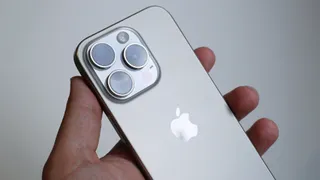
Apple yanks multiple AI nude-generating apps from the iPhone's App Store
Apple has removed three AI apps from the App Store after it was discovered that they could be used to generate nonconsensual nudes.

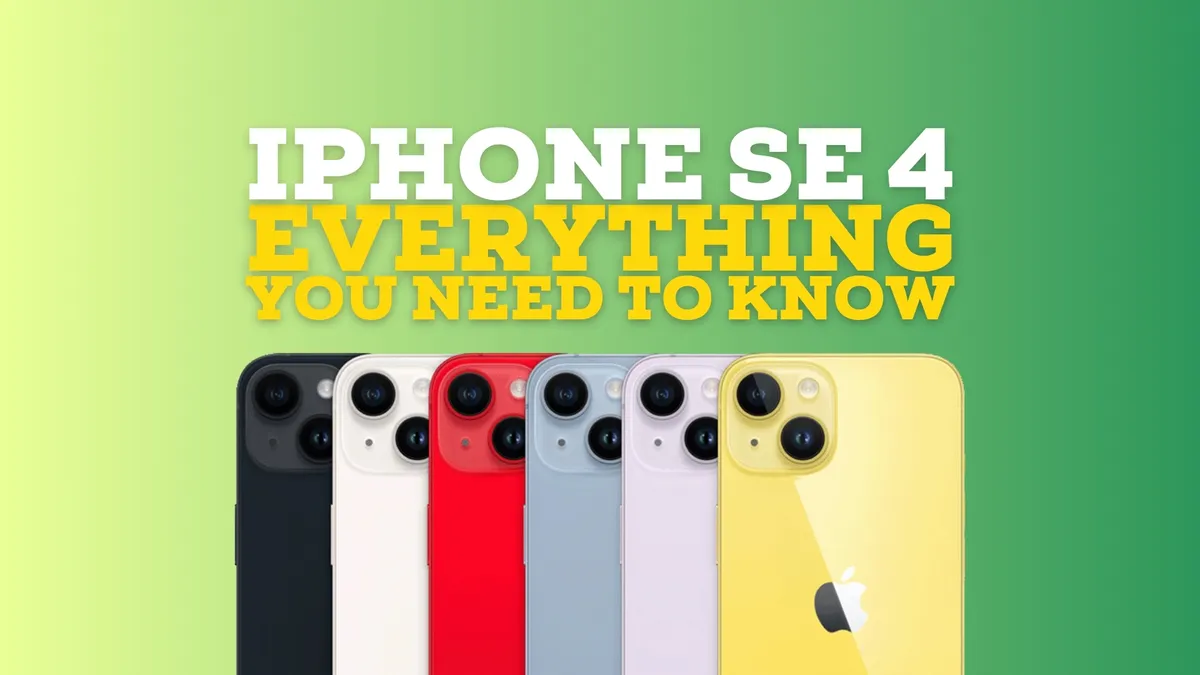
The rumored iPhone SE 4 is likely to bring the budget iPhone up to par with the current lineup including a bigger OLED display.

TSMC has announced that it is working on new chip technology for 2026, and it could debut in Apple's iPhone 18.
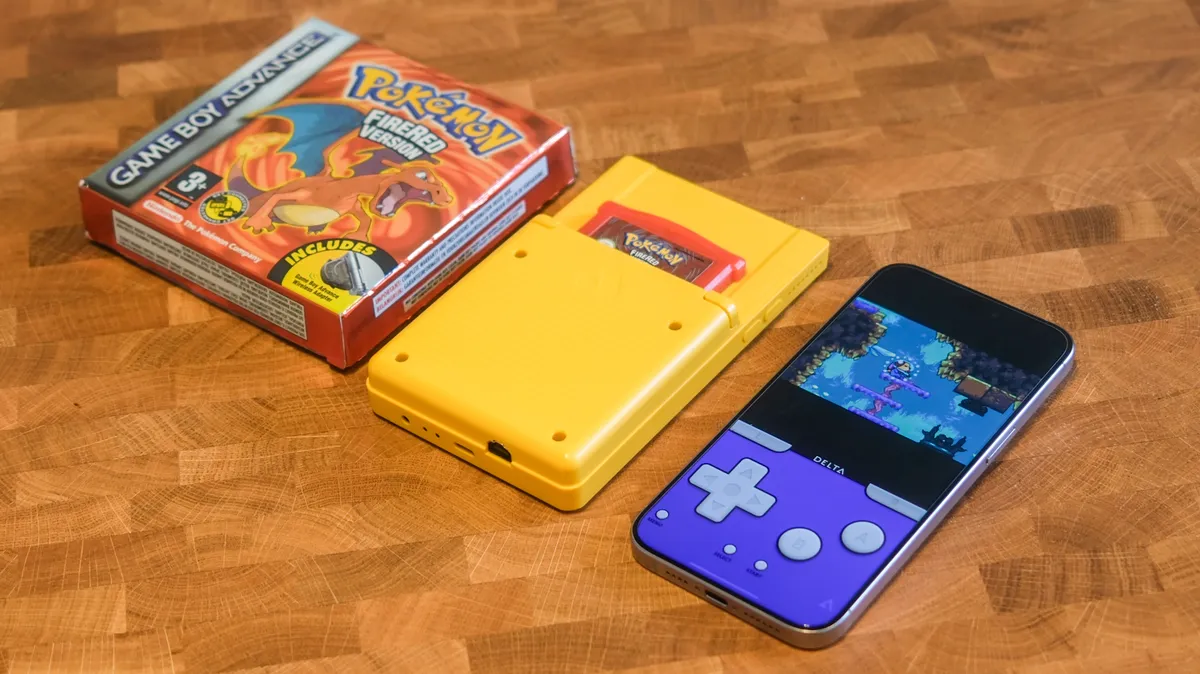
Now that Delta has finally launched on iPhone, some competitors are getting ready to hit the market, and my favorite one looks set to come soon.
The rumored iPhone SE 4 is likely to bring the budget iPhone up to par with the current lineup including a bigger OLED display.
TSMC has announced that it is working on new chip technology for 2026, and it could debut in Apple's iPhone 18.
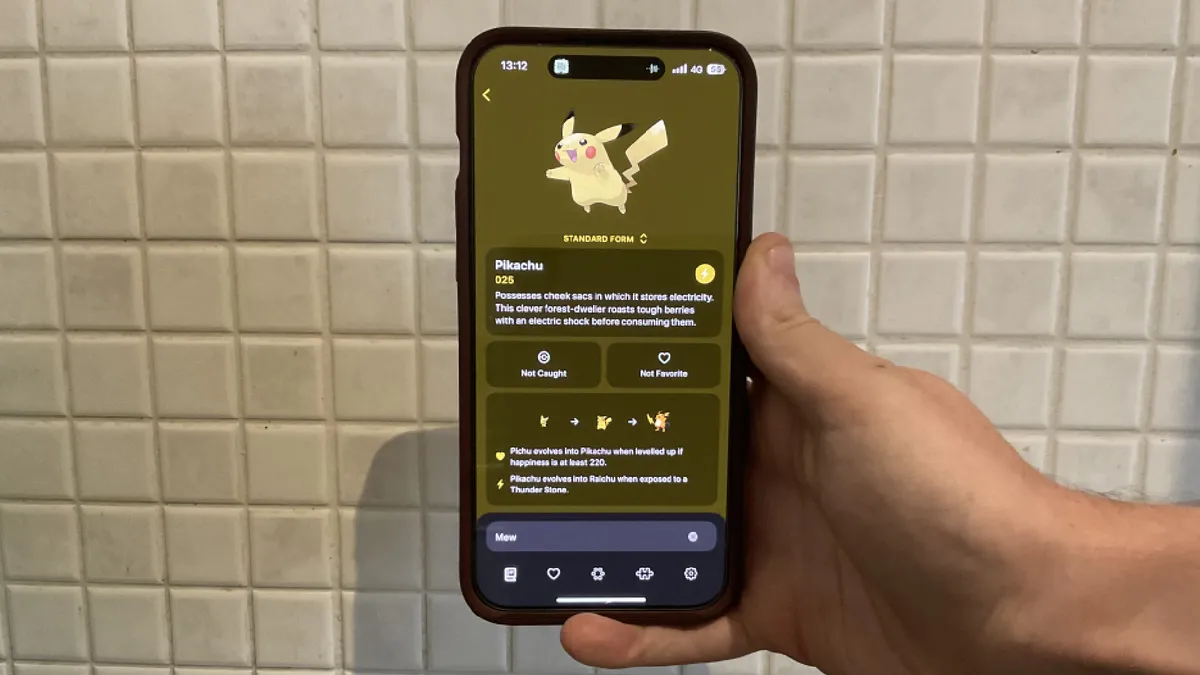
Interview Obscura developer releases a Pokédex iPhone app that looks so good, it blows the competition away.
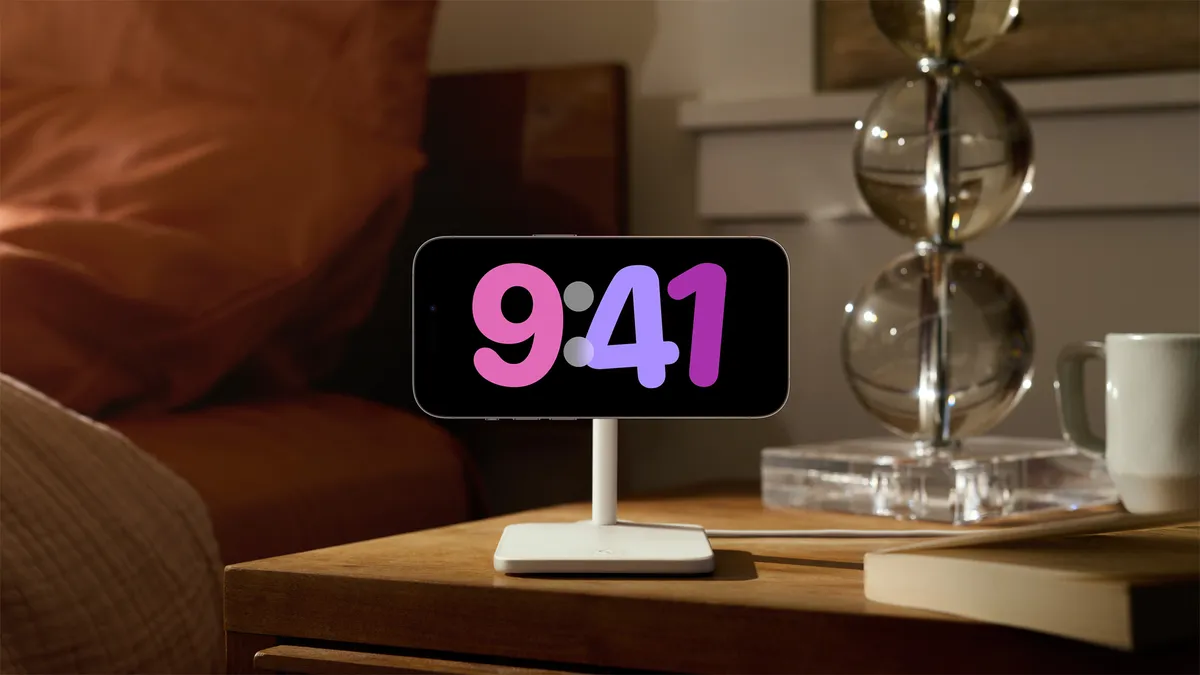
The best MagSafe charging stand is the perfect way to take advantage of StandBy mode in iOS 17. Here are our favorites.

It's inevitable that the iPad Air lineup will get a refreshed model and here's what we've been hearing so far.
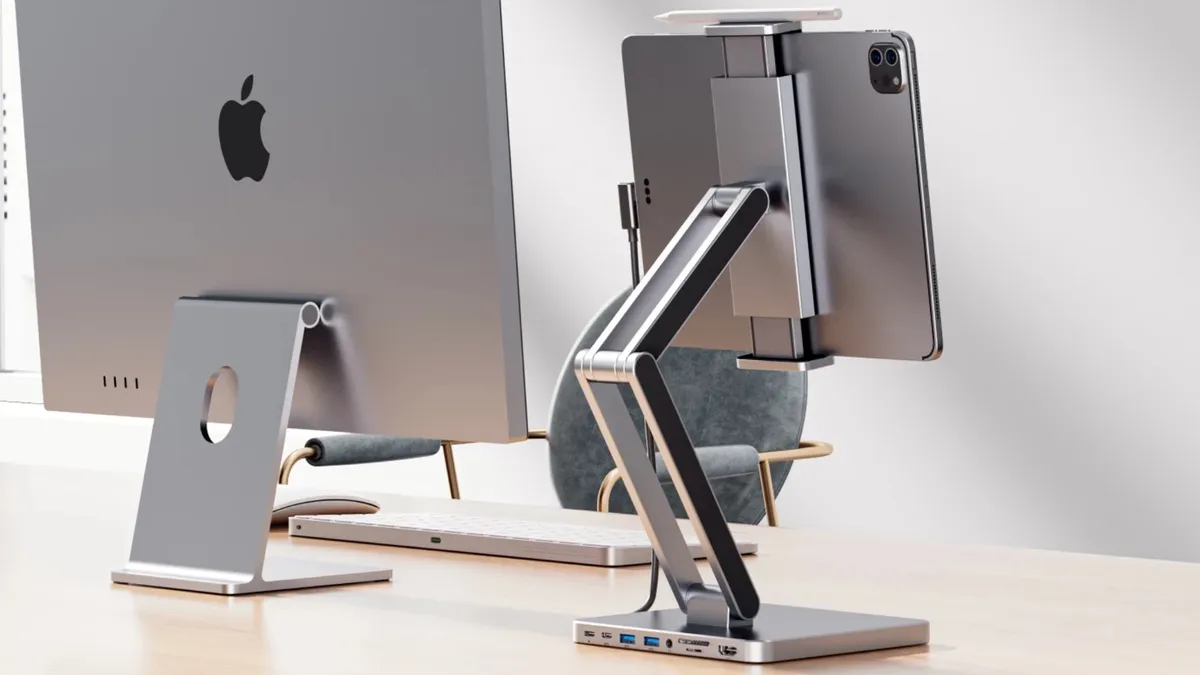
This new iPad stand is adjustable, has a USB-C hub included, and looks great to boot.
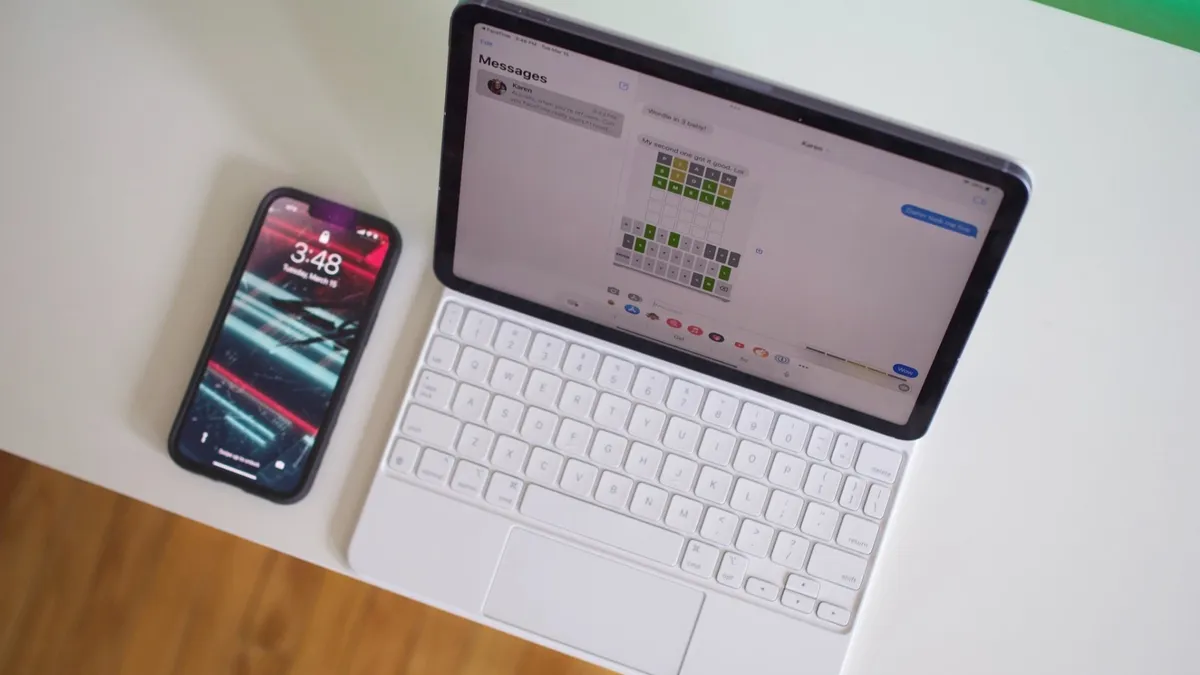
Rumors of a new iPad Air 6 with a mini-LED display were wrong, but we'll see a new 12.9-inch iPad instead, analyst says.
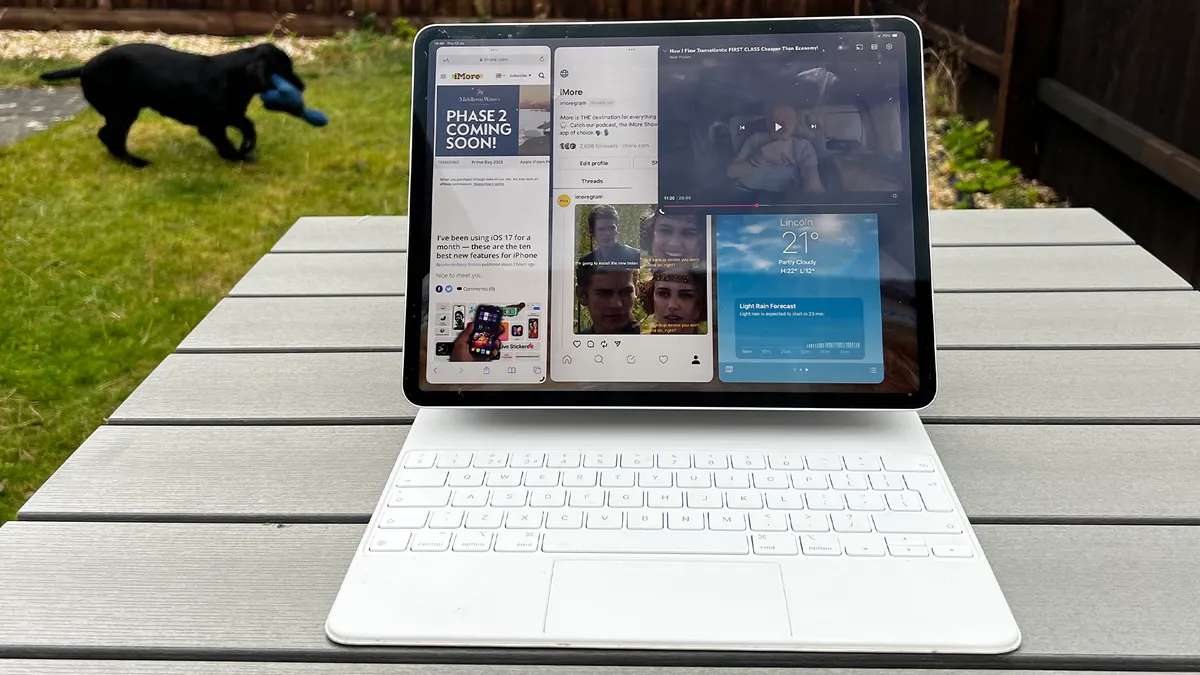
Apple is reportedly planning to bring its Calculator app to iPadOS 18, ending 14 years of wishing from users.
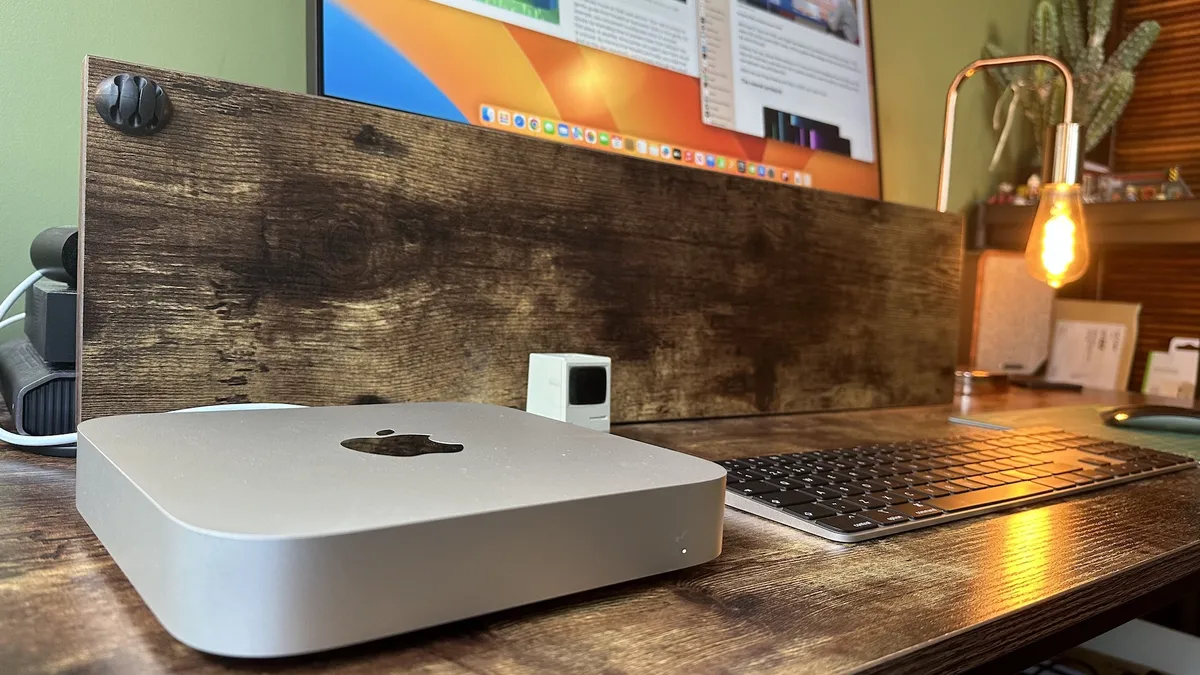
Apple isn't expected to update its Mac mini or Mac Pro lineups with M3 chips, leaving buyers to wait for M4 versions instead.

According to a new report, the upcoming macOS 15 update is set to include a revamped and smarter Calculator app that looks like the one on iOS.

With the advent of Apple silicon, gaming on Mac is better than ever. But what's the best gaming MacBook you can buy right now?
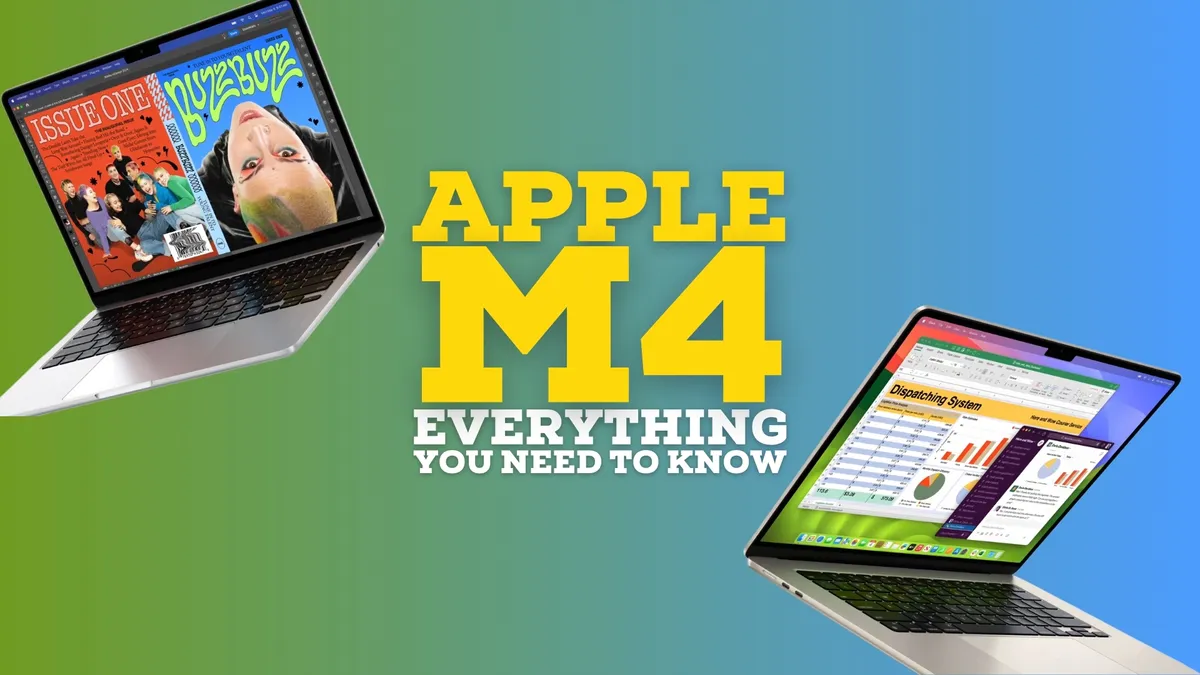
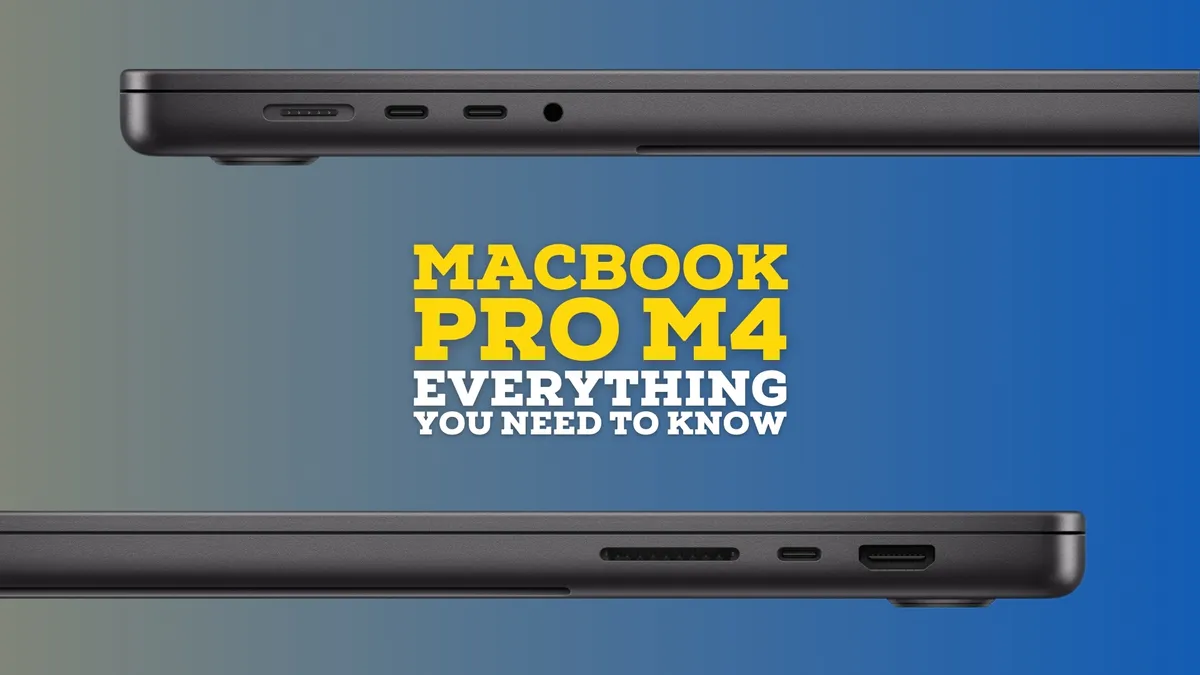
2024 could herald the first wave of M4 Macs, what do we know about the next generation of Apple silicon?
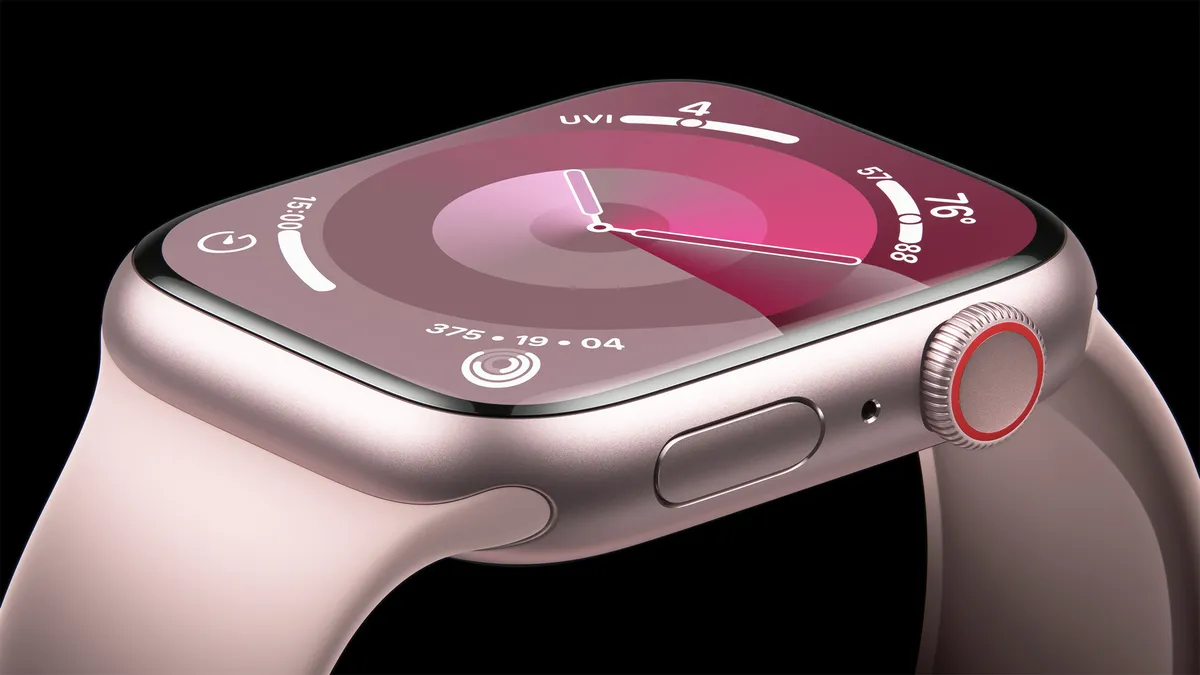
Apple makes some fantastic bands for the Apple Watch, that's for sure. But you can expand your band wardrobe with some incredible third-party options. Here are some of our favorites.
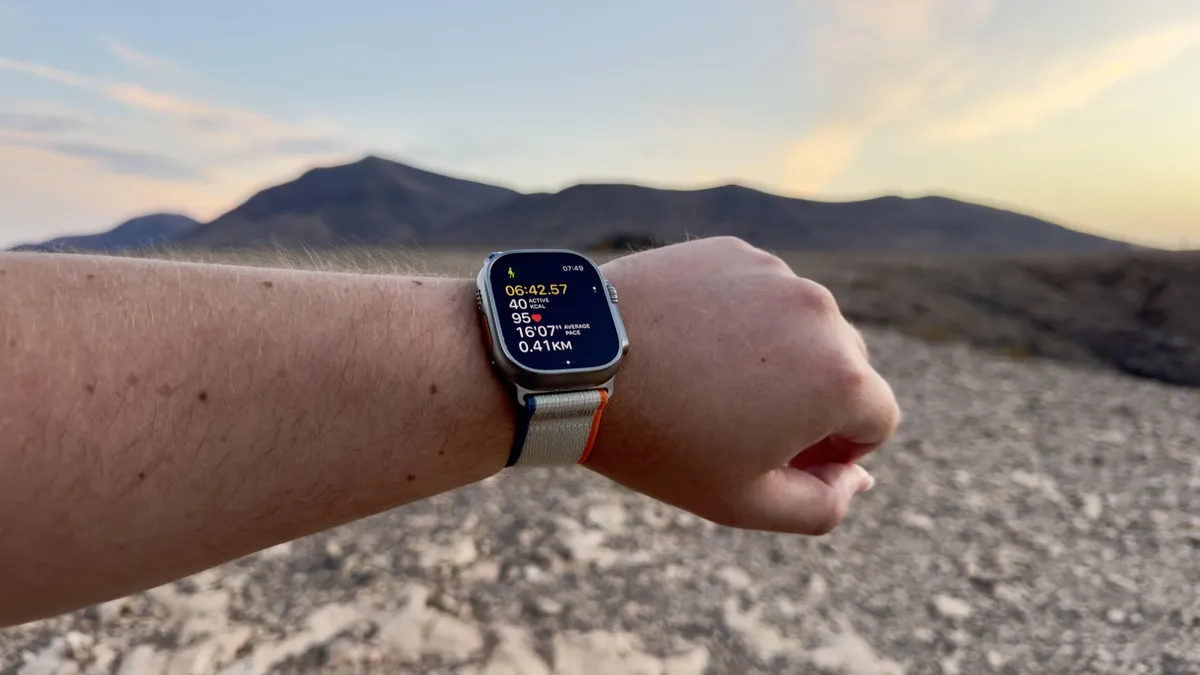
Apple Watch Ultra 2 is now available refurbished at the Apple store, which means you can get a restored Apple Watch with official parts for cheaper.
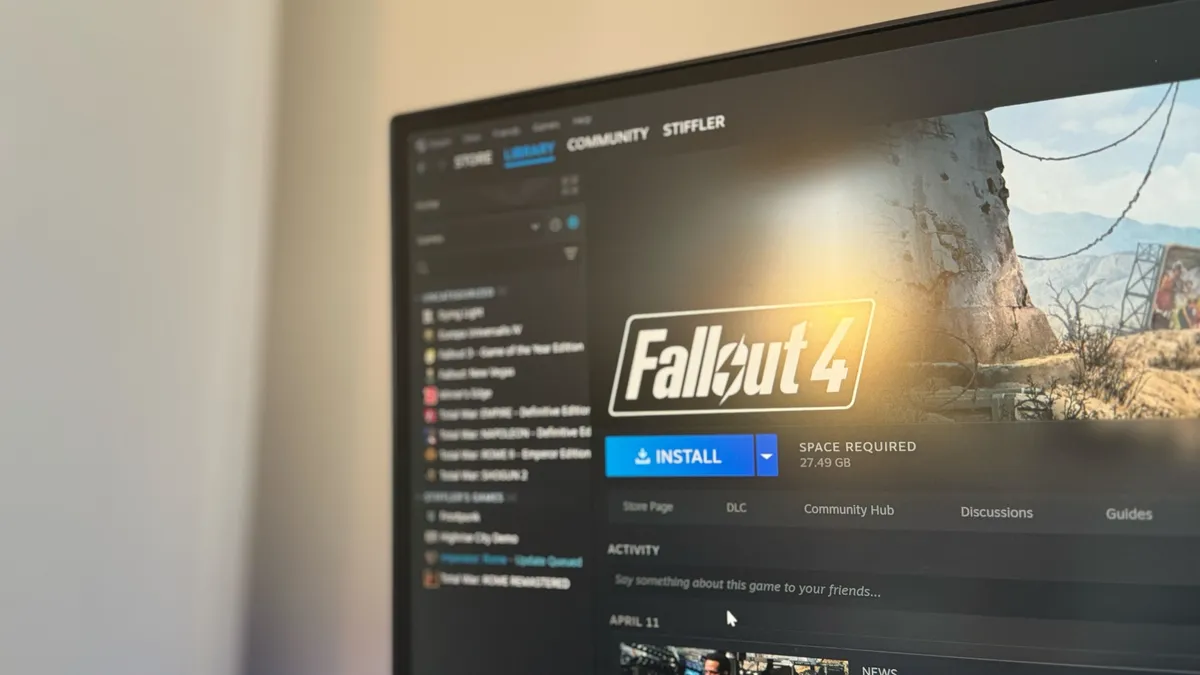
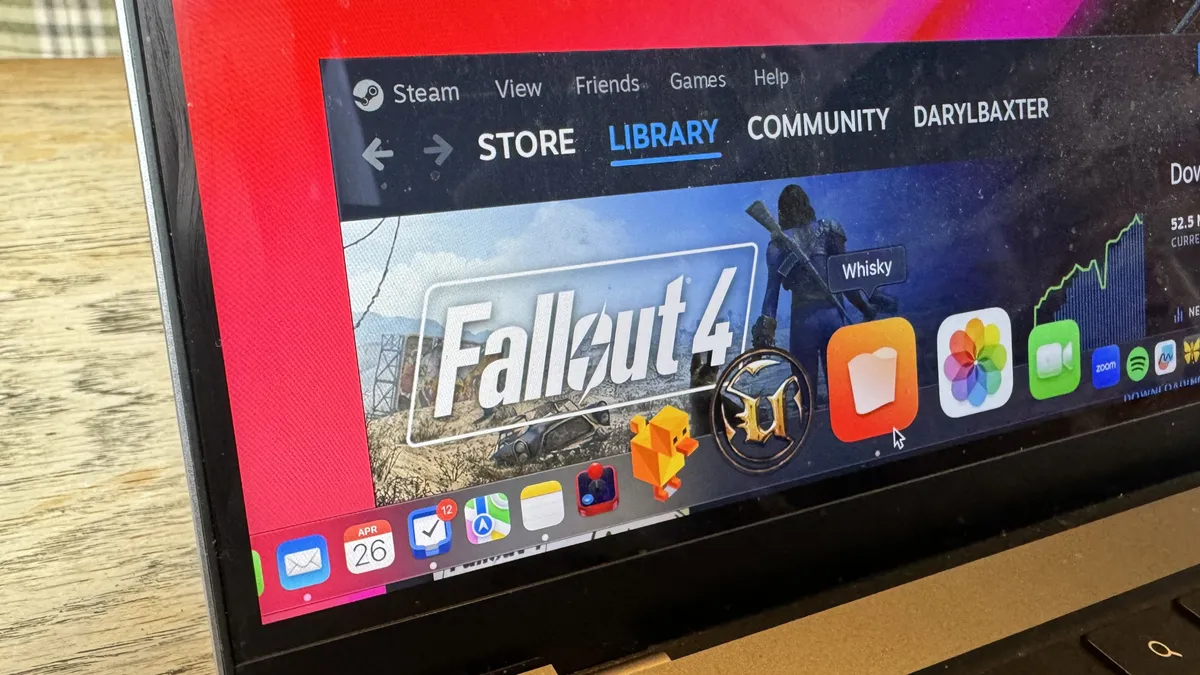
Fallout 4 may never have been ported to macOS, but there are multiple ways to play it on Mac.
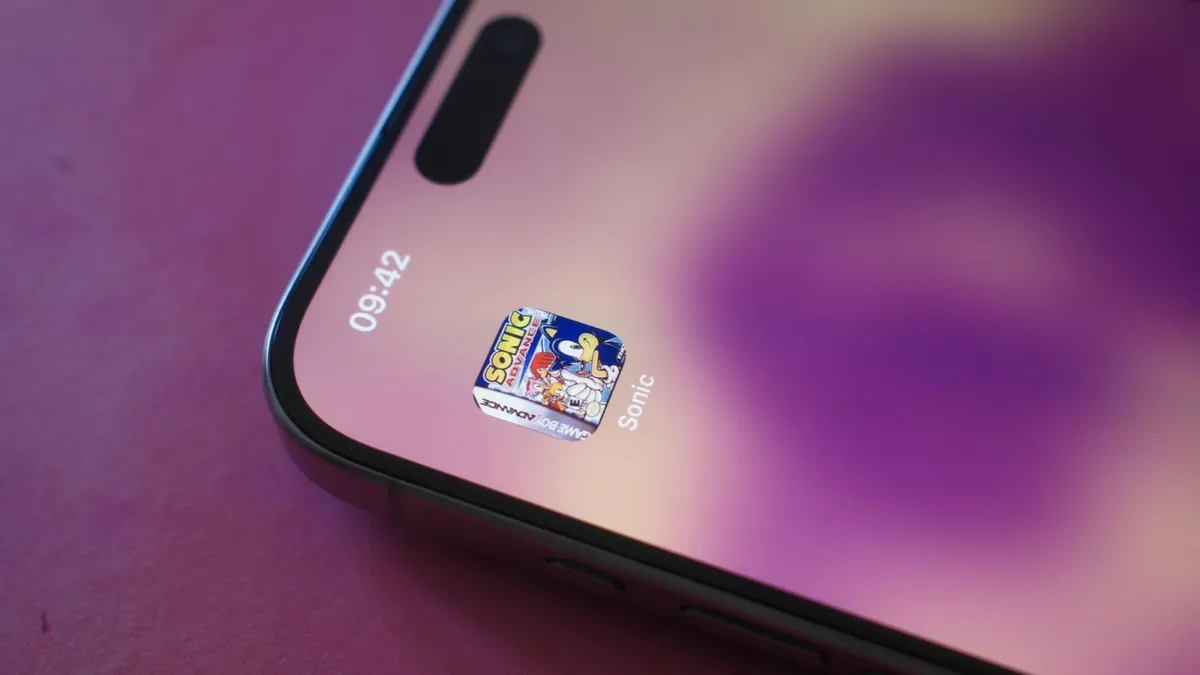
Quick Tips Thanks to this handy trick in Delta for iPhone, you can launch your retro games directly from the Home Screen.
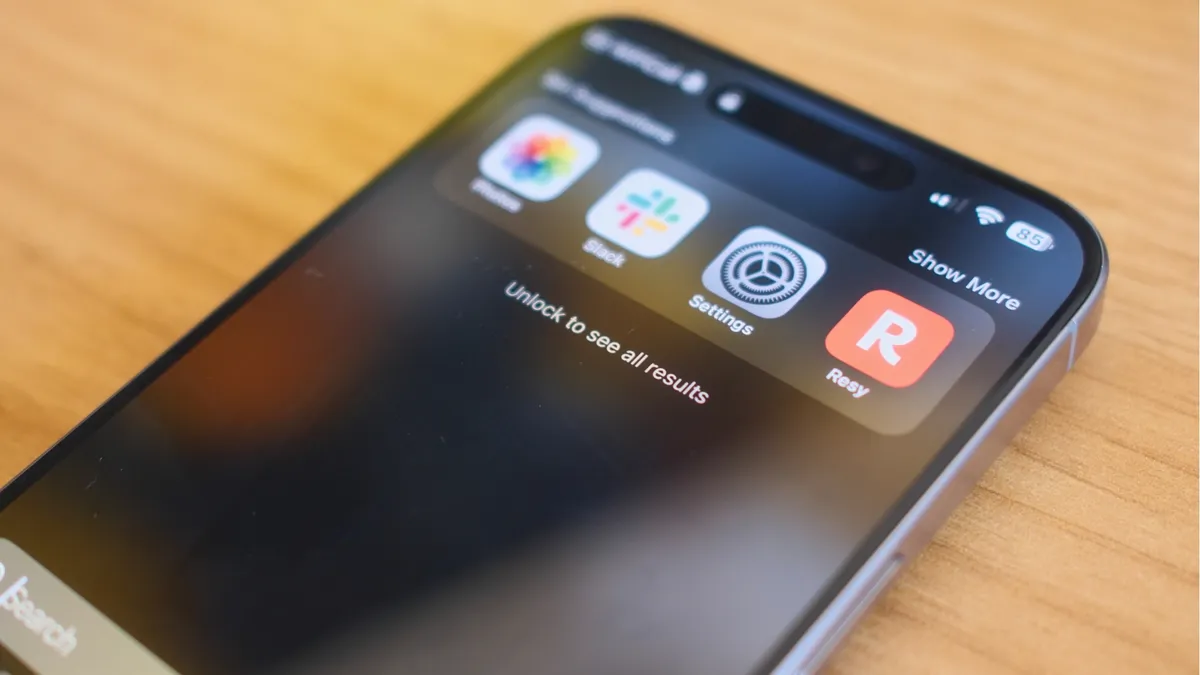
Quick Tips You can search using Spotlight directly from your iPhone's Lock Screen — I wish I'd known all this time.
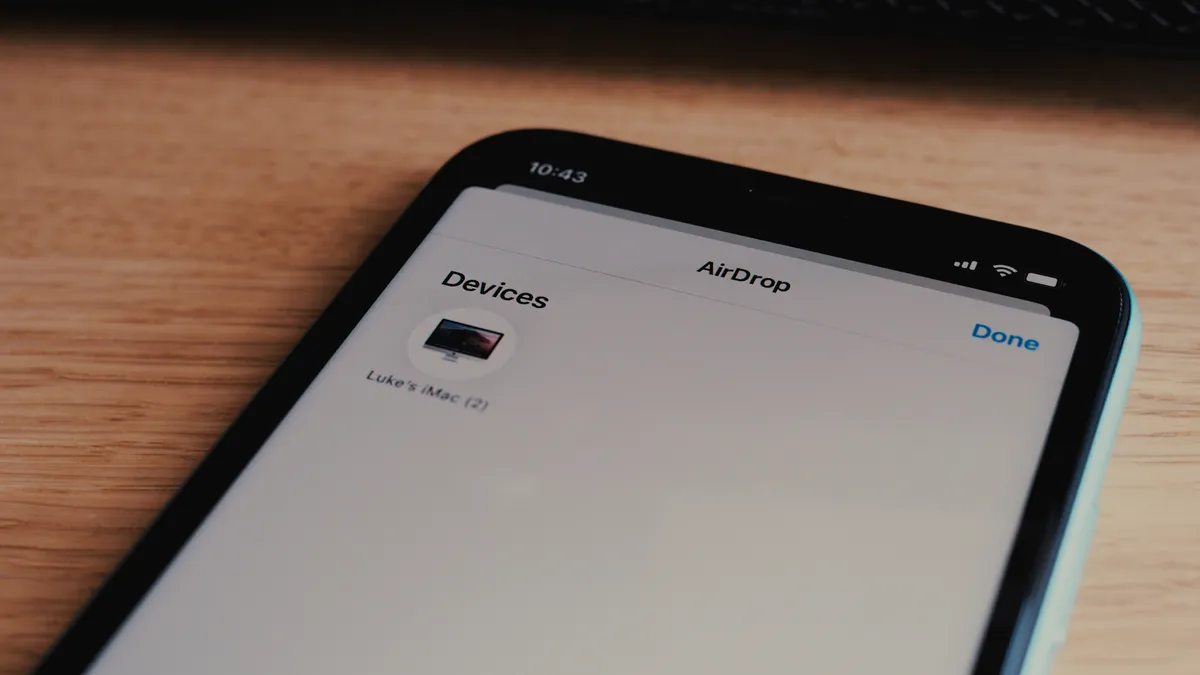
Is AirDrop not working on your iPhone? Here are a few things you can try to get Apple's file transfer feature to work again.
Now that Delta has finally launched on iPhone, some competitors are getting ready to hit the market, and my favorite one looks set to come soon.
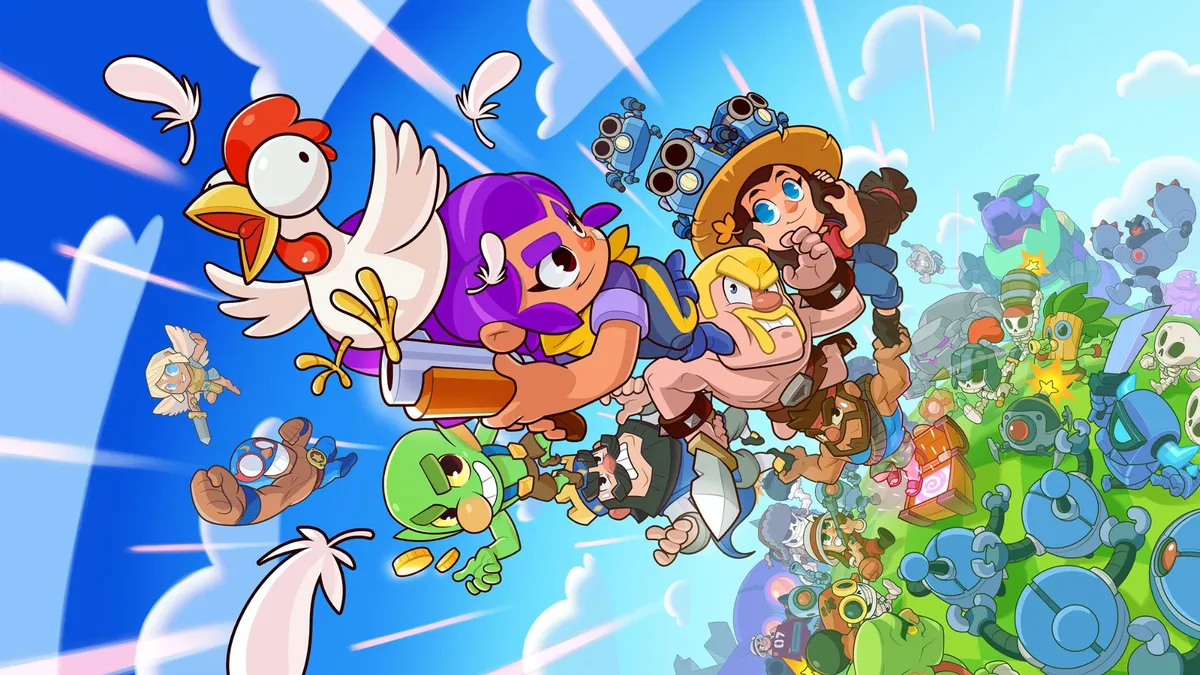
The team behind Clash of Clans has 'killed off' over ten titles in the last decade before they could launch — It is finally ready to release its next game
Fallout 4 may never have been ported to macOS, but there are multiple ways to play it on Mac.

The Marshall Major V look wicked and will last you forever, but their sound lets them down.

The Lofree Dot Foundation is a gorgeous mechanical keyboard that takes its looks from makeup. Our review:

The Satechi Thunderbolt 4 Slim Pro Hub is excellent — if all you need is more Thunderbolt ports for your Mac and practically nothing else.
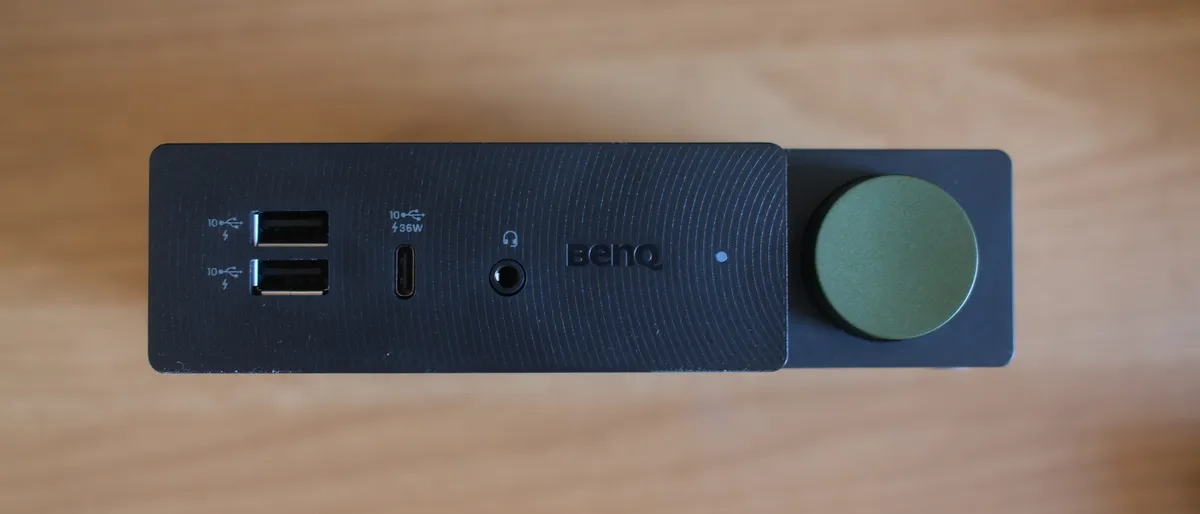
The BenQ beCreatus DP1310 is the perfect dock for Mac users who play games on console. With just one click you can jump between USB-C and HDMI 2.1.
President Biden has signed the TikTok ban into law, giving owner ByteDance 9 months to sell the company.

How do Apple Fitness Plus’ exercise bike classes compare to the real thing? We look at the benefits and disadvantages.
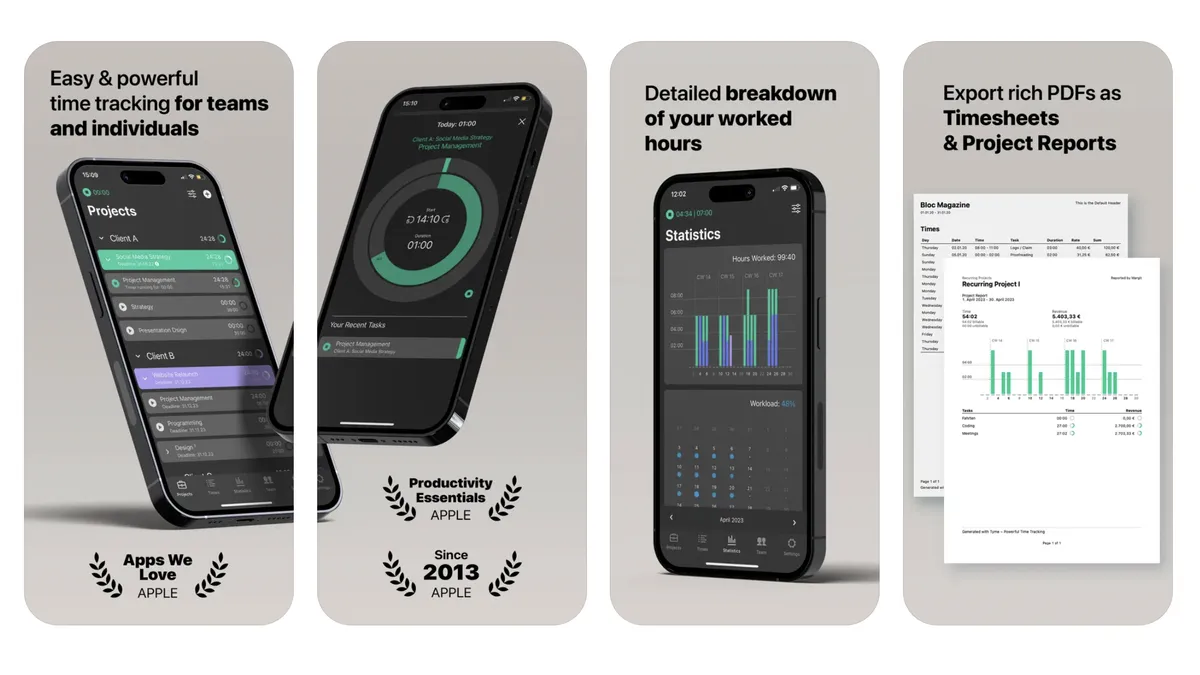
App of the day The Tyme 3 iPhone and Mac app is for individuals and teams, and it works seamlessly when you're on the move.
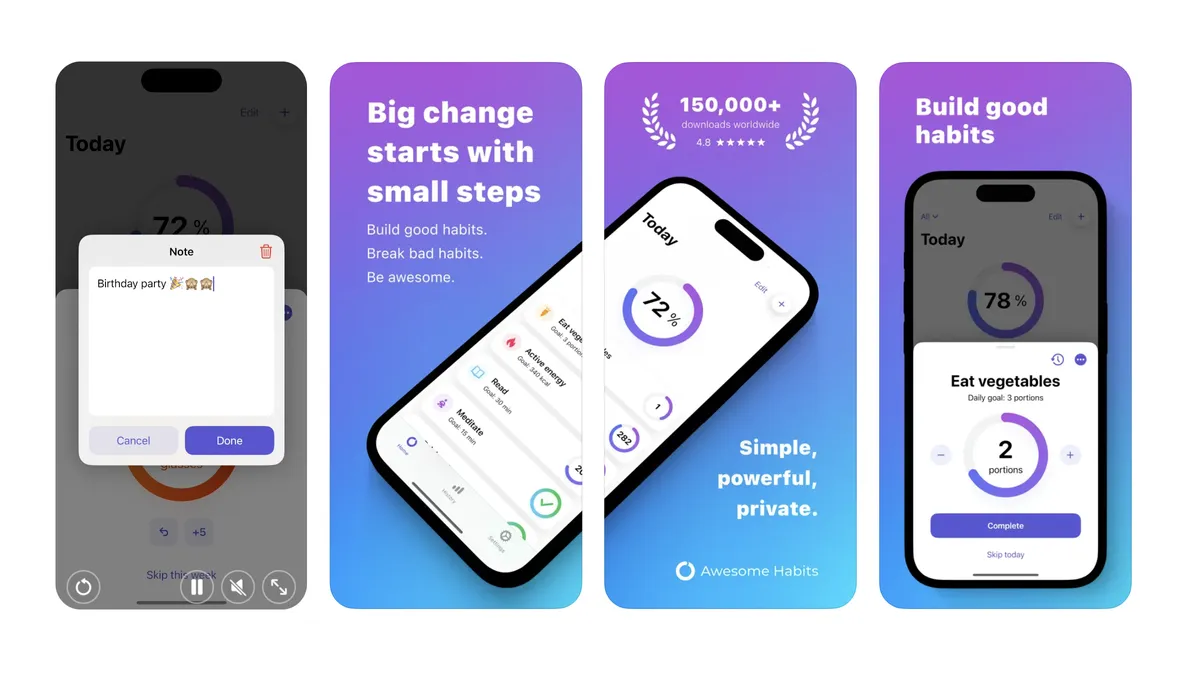
App of the day Awesome Habits isn't just another habit tracking app, it's perfect if you're overwhelmed by choice and want a straightforward option.