M4 MacBook Pro: Everything you need to know
Apple is planning a new M4 MacBook Pro that could come out in late 2024, here's everything we know so far.

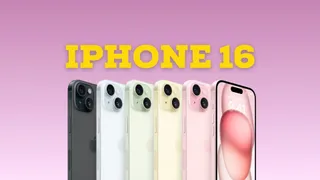
The iPhone 16 Pro is expected to come with a few changes compared to the model you're already carrying.
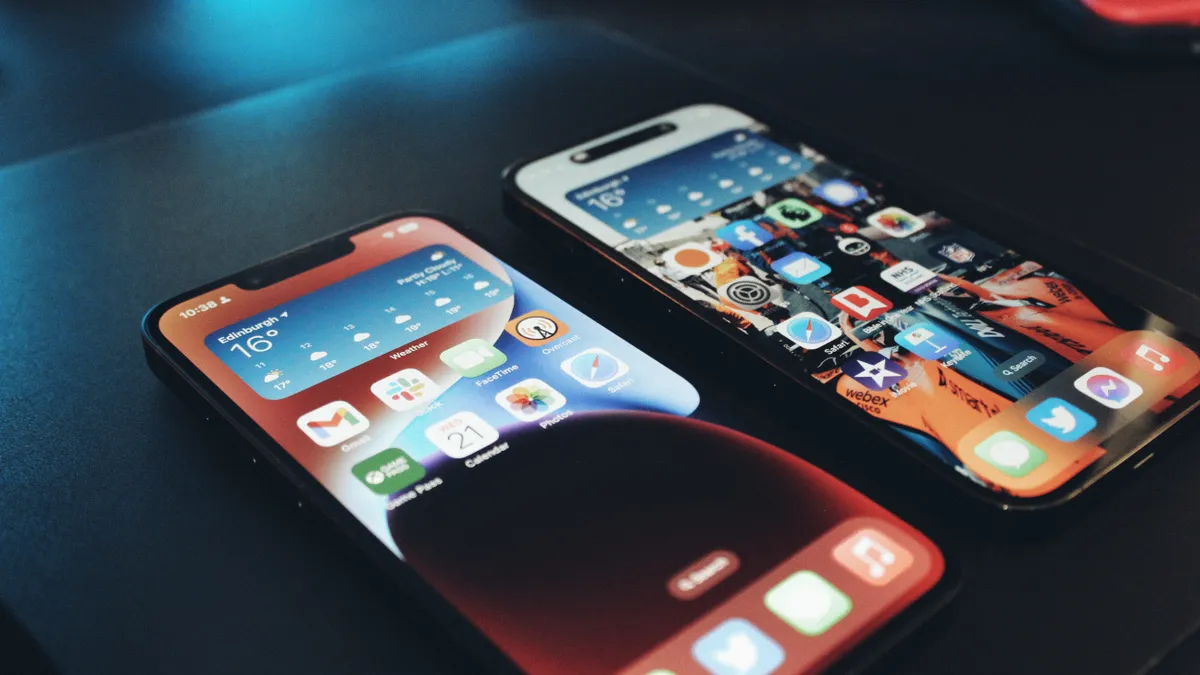
Someone found a way to get the EU's DMA features like third-party app stores and more, but the workaround probably isn't worth the hassle.

It's inevitable that the iPad Air lineup will get a refreshed model and here's what we've been hearing so far.
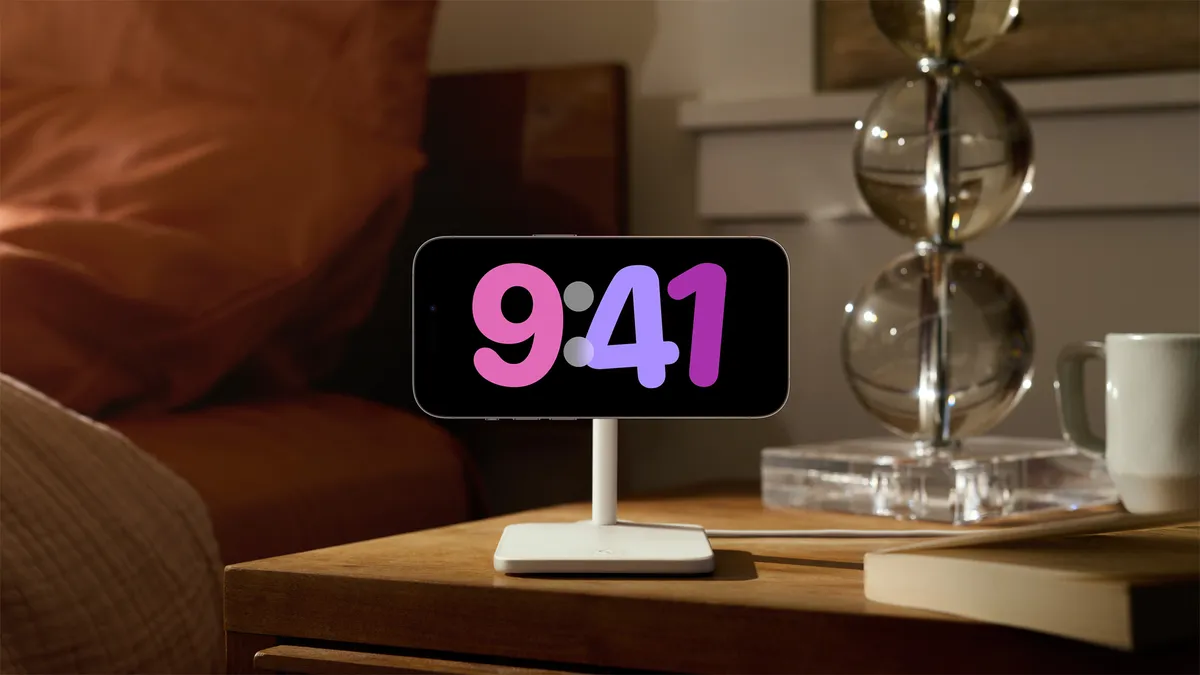
The best MagSafe charging stand is the perfect way to take advantage of StandBy mode in iOS 17. Here are our favorites.
The iPhone 16 Pro is expected to come with a few changes compared to the model you're already carrying.
Someone found a way to get the EU's DMA features like third-party app stores and more, but the workaround probably isn't worth the hassle.

Quick Tips Thanks to this handy trick in Delta for iPhone, you can launch your retro games directly from the Home Screen.
It's inevitable that the iPad Air lineup will get a refreshed model and here's what we've been hearing so far.
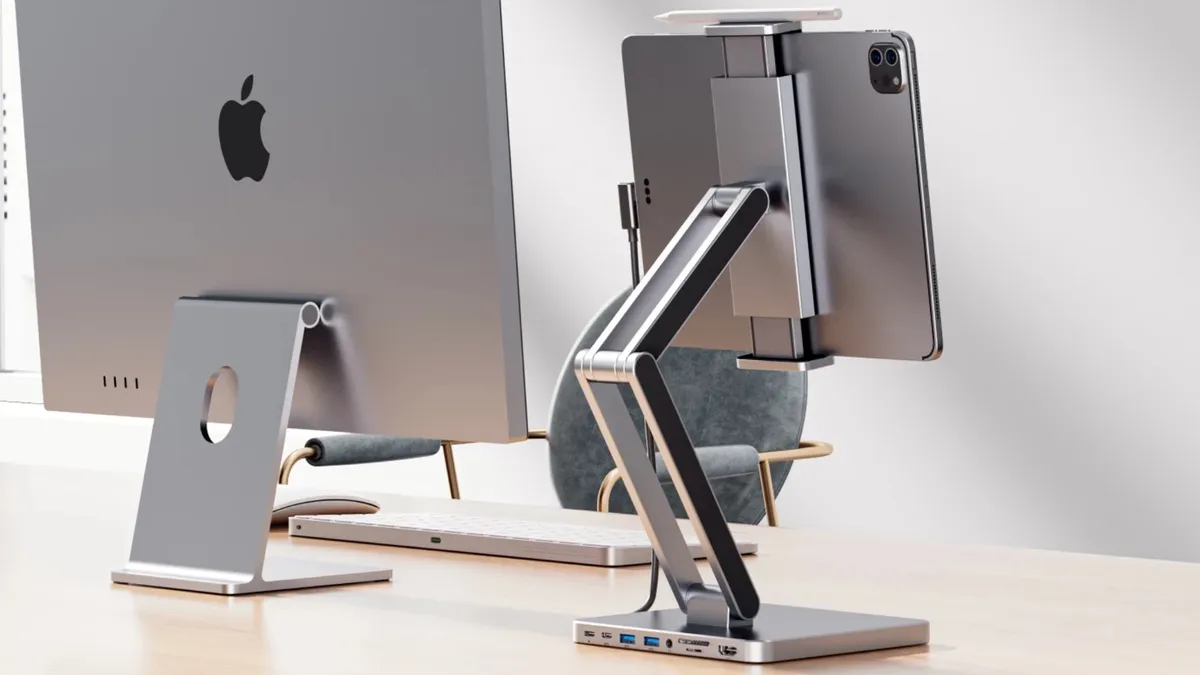
This new iPad stand is adjustable, has a USB-C hub included, and looks great to boot.
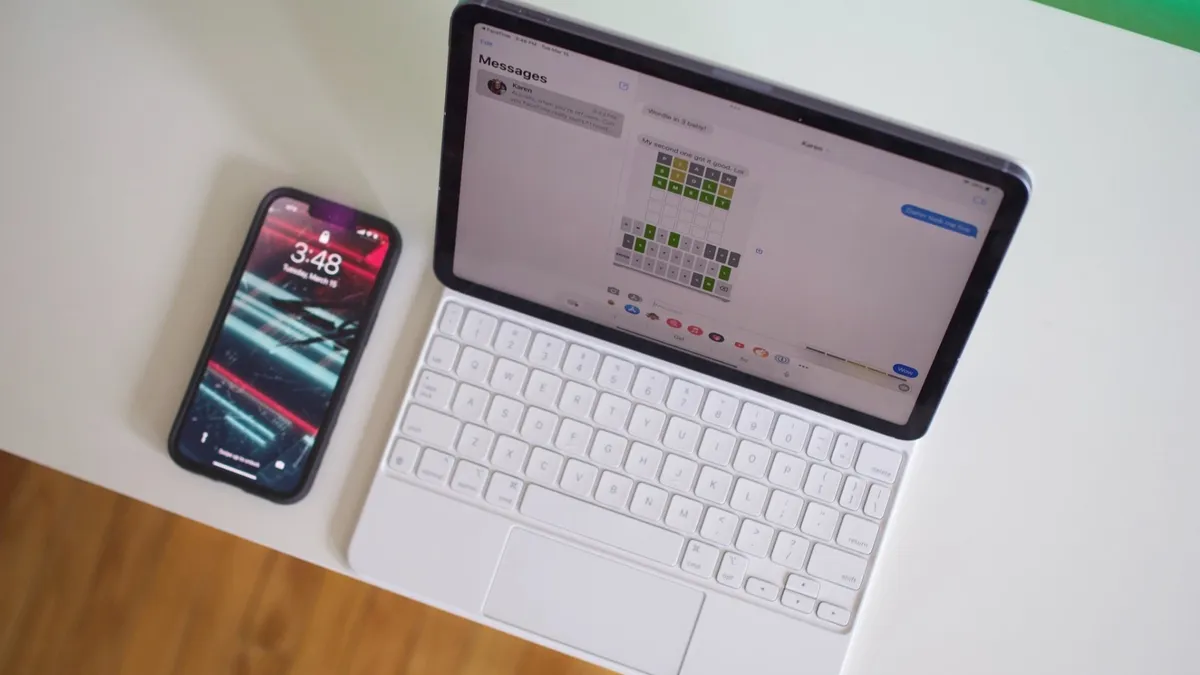
Rumors of a new iPad Air 6 with a mini-LED display were wrong, but we'll see a new 12.9-inch iPad instead, analyst says.

We're well overdue an update to Apple's stylus devices, but what could be in store for artists with an Apple Pencil 3?
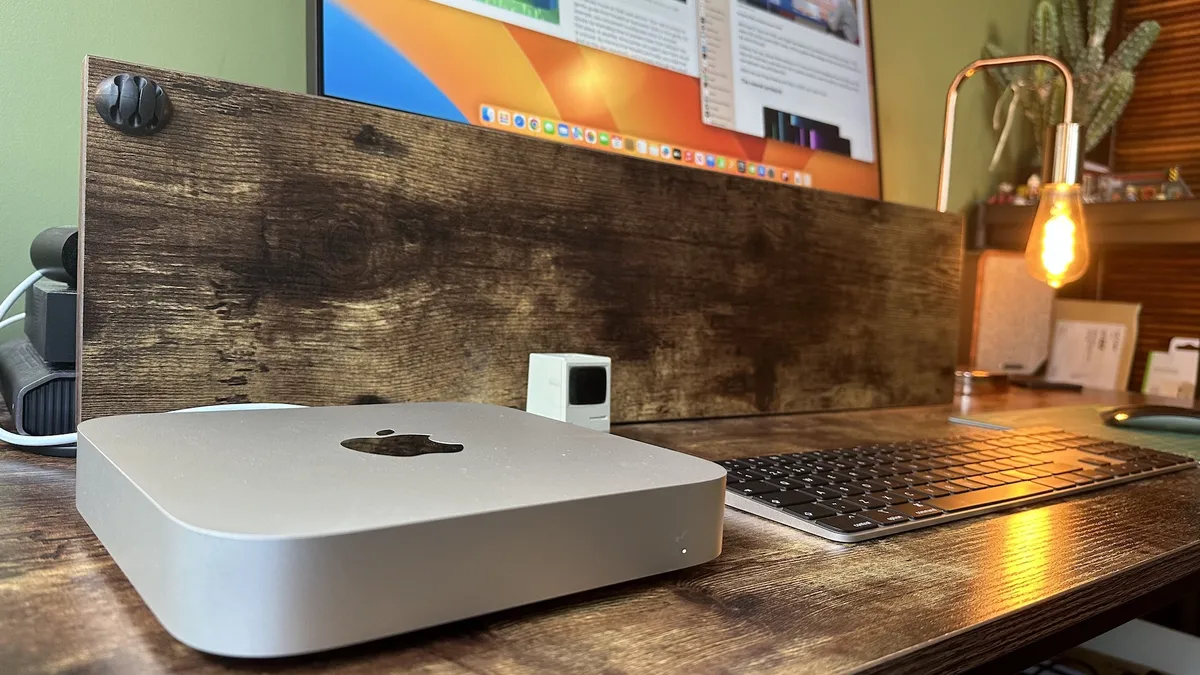
Apple isn't expected to update its Mac mini or Mac Pro lineups with M3 chips, leaving buyers to wait for M4 versions instead.

According to a new report, the upcoming macOS 15 update is set to include a revamped and smarter Calculator app that looks like the one on iOS.

With the advent of Apple silicon, gaming on Mac is better than ever. But what's the best gaming MacBook you can buy right now?
2024 could herald the first wave of M4 Macs, what do we know about the next generation of Apple silicon?
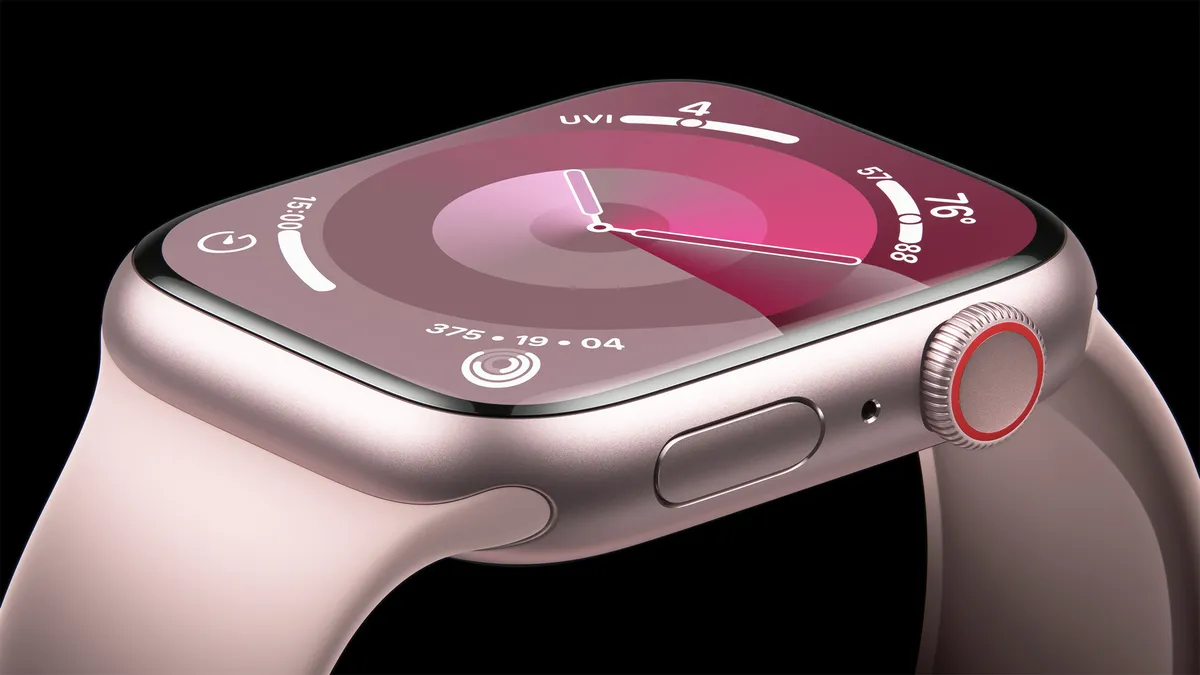
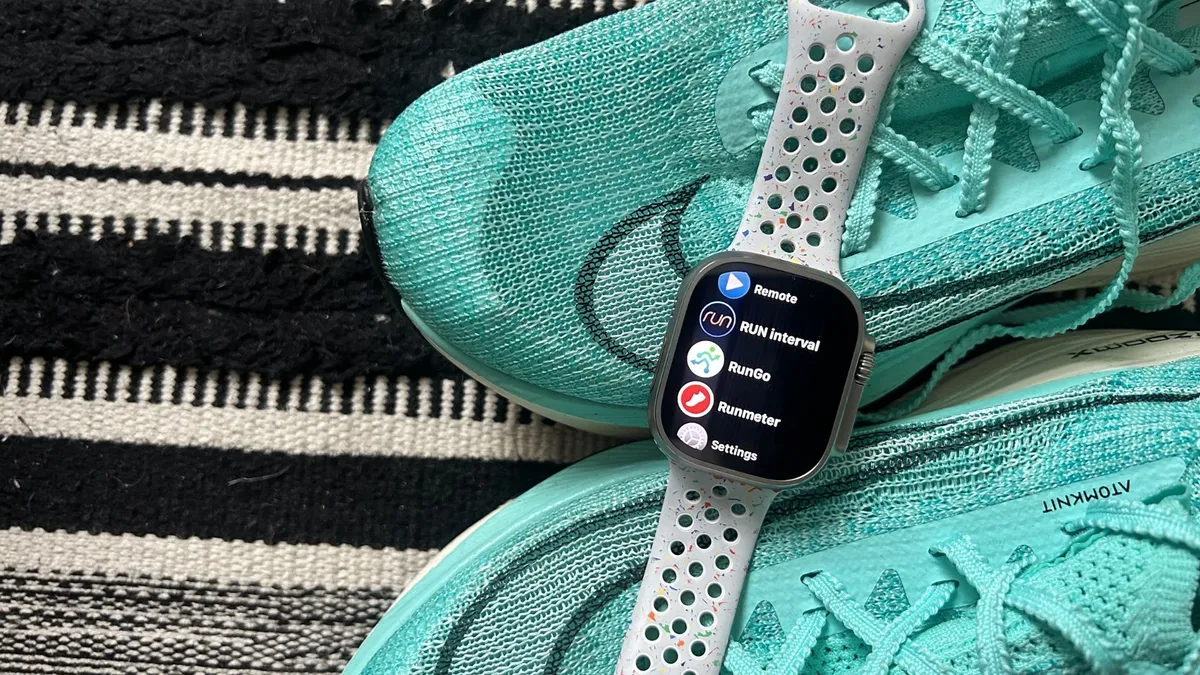
Apple makes some fantastic bands for the Apple Watch, that's for sure. But you can expand your band wardrobe with some incredible third-party options. Here are some of our favorites.
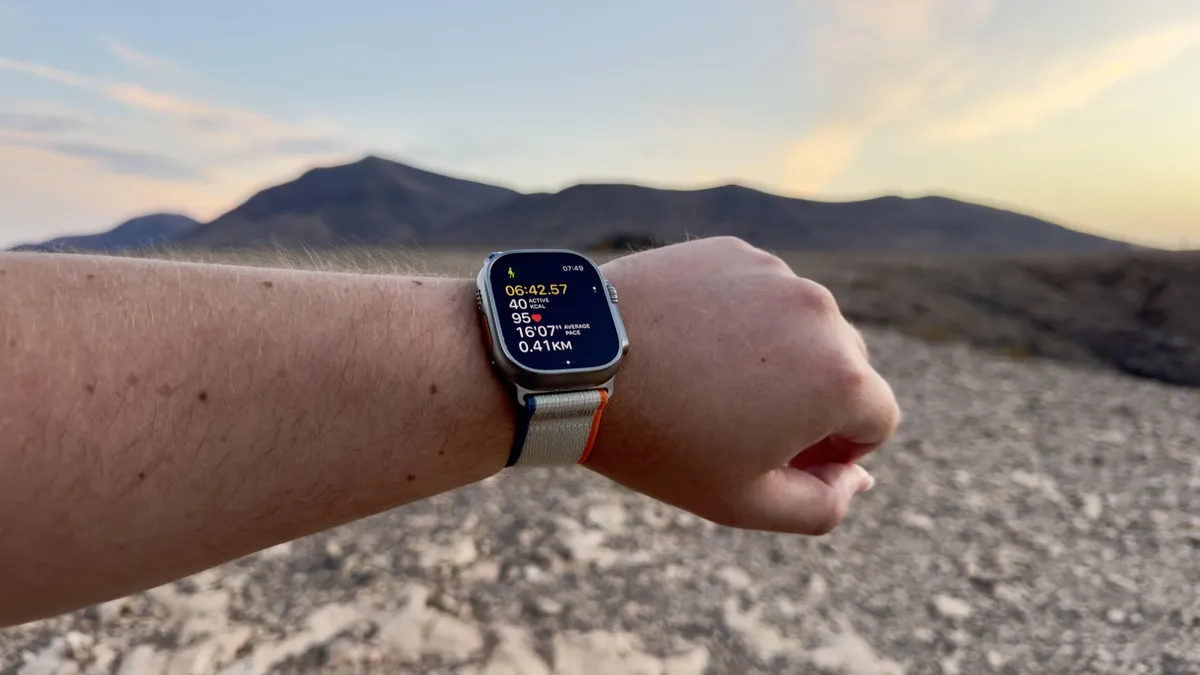
Apple Watch Ultra 2 is now available refurbished at the Apple store, which means you can get a restored Apple Watch with official parts for cheaper.
Quick Tips Thanks to this handy trick in Delta for iPhone, you can launch your retro games directly from the Home Screen.
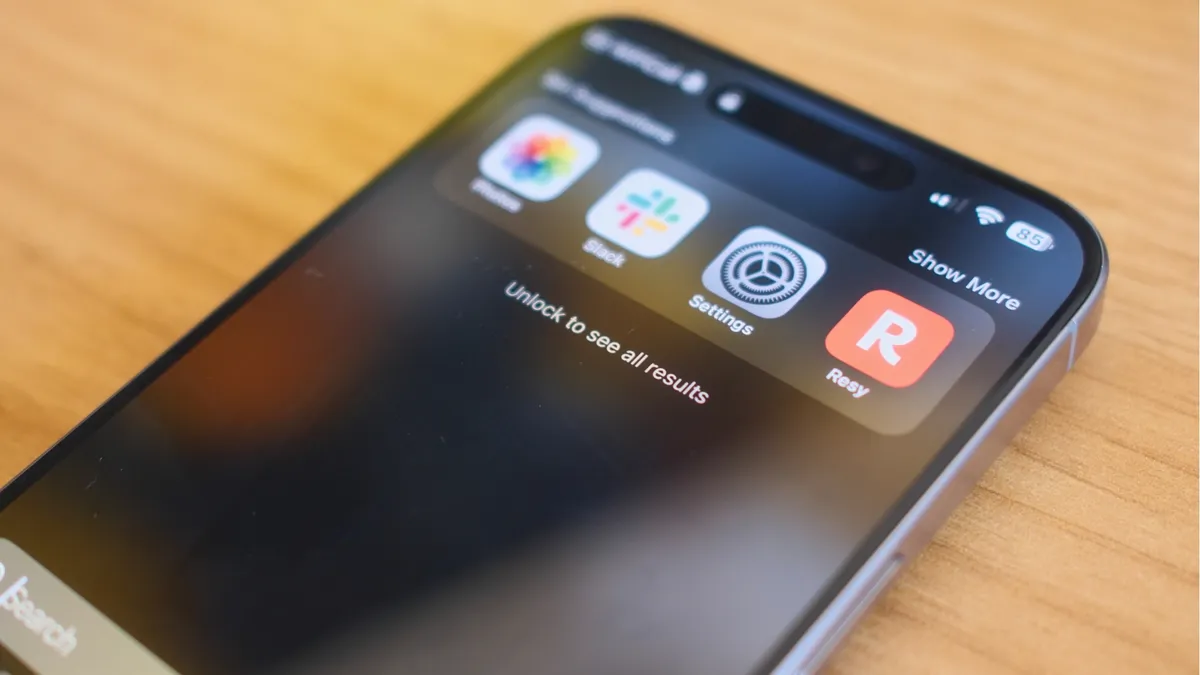
Quick Tips You can search using Spotlight directly from your iPhone's Lock Screen — I wish I'd known all this time.
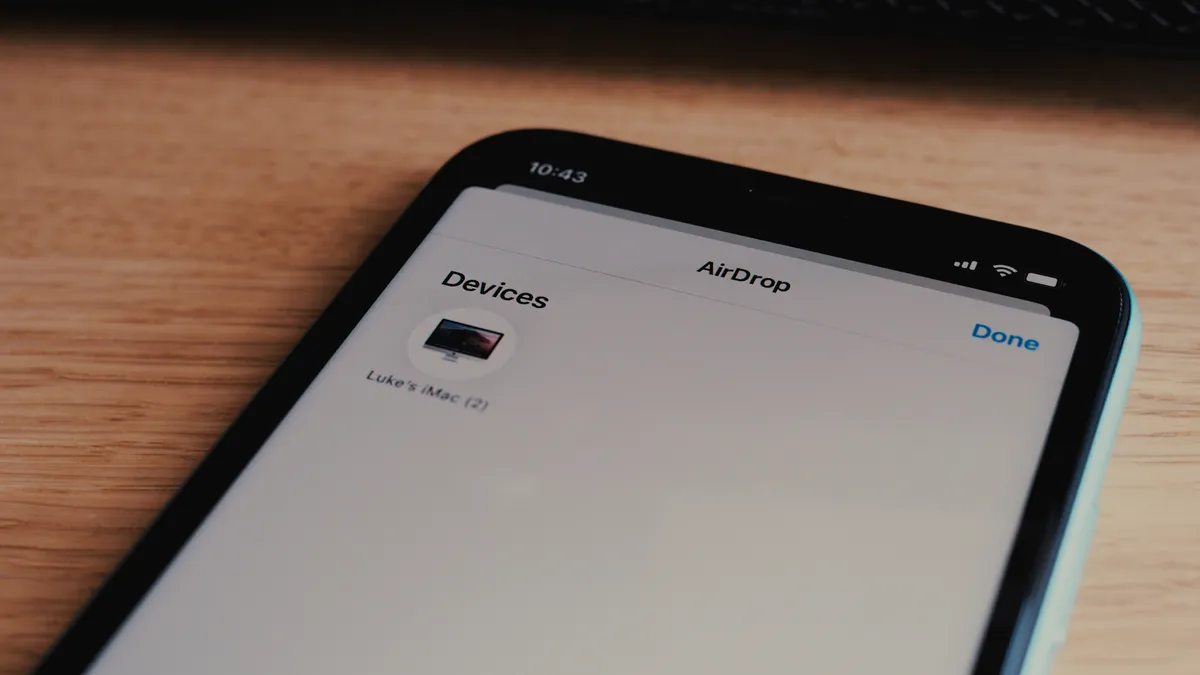
Is AirDrop not working on your iPhone? Here are a few things you can try to get Apple's file transfer feature to work again.

How to scan documents on iPhone so you never need a scanner again.
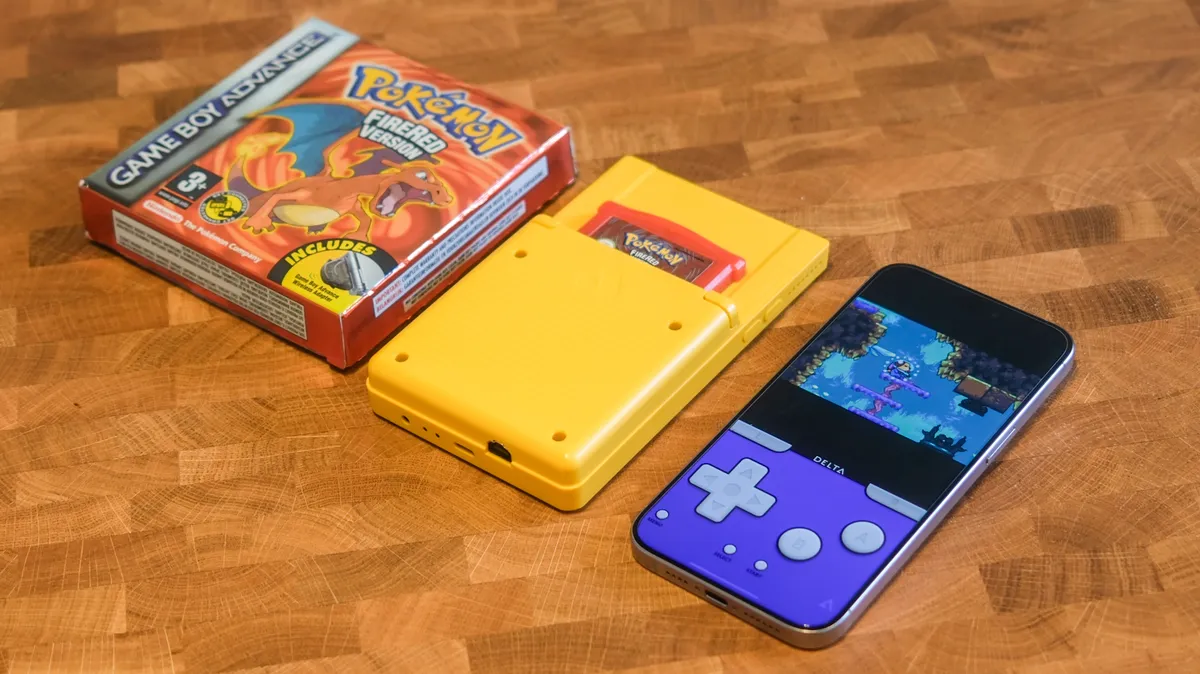
You can play retro games with Delta Game Emulator for iPhone. Here's everything you need to know to add games, play games, and use the app everyone's talking about.
With Apple allowing game emulation on its app store, users have had a great week of video games, despite developers worrying about Apple’s guidelines.
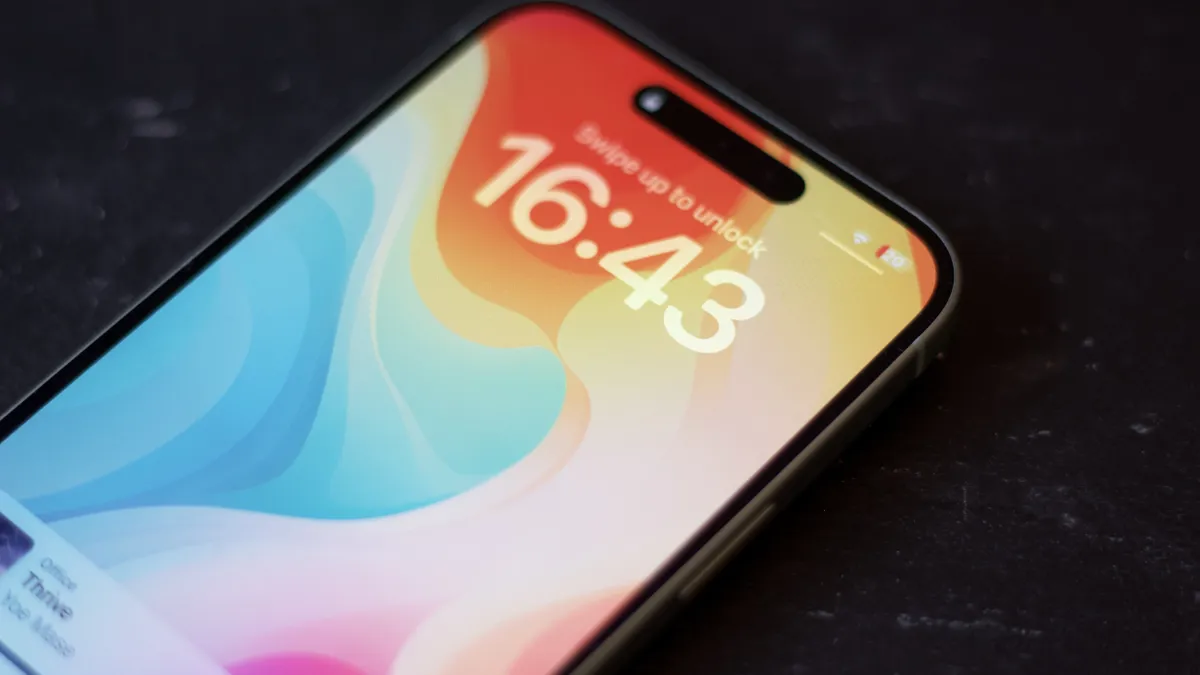
PPSSPP, a PSP emulator for iPhone, is currently in the works but Apple’s unclearness around its own rules leaves the developer unsure of if it will launch.

The Lofree Dot Foundation is a gorgeous mechanical keyboard that takes its looks from makeup. Our review:

The Satechi Thunderbolt 4 Slim Pro Hub is excellent — if all you need is more Thunderbolt ports for your Mac and practically nothing else.
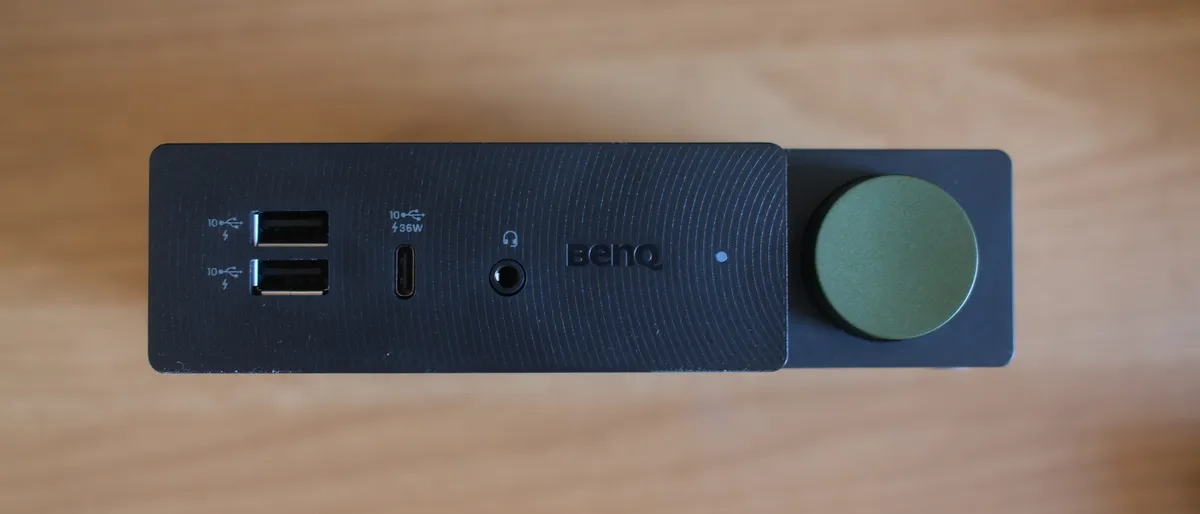
The BenQ beCreatus DP1310 is the perfect dock for Mac users who play games on console. With just one click you can jump between USB-C and HDMI 2.1.

Stage View adds previews to apps and windows in the Stage Manager sidebar. Is it worth your cash?

President Biden has signed the TikTok ban into law, giving owner ByteDance 9 months to sell the company.

How do Apple Fitness Plus’ exercise bike classes compare to the real thing? We look at the benefits and disadvantages.
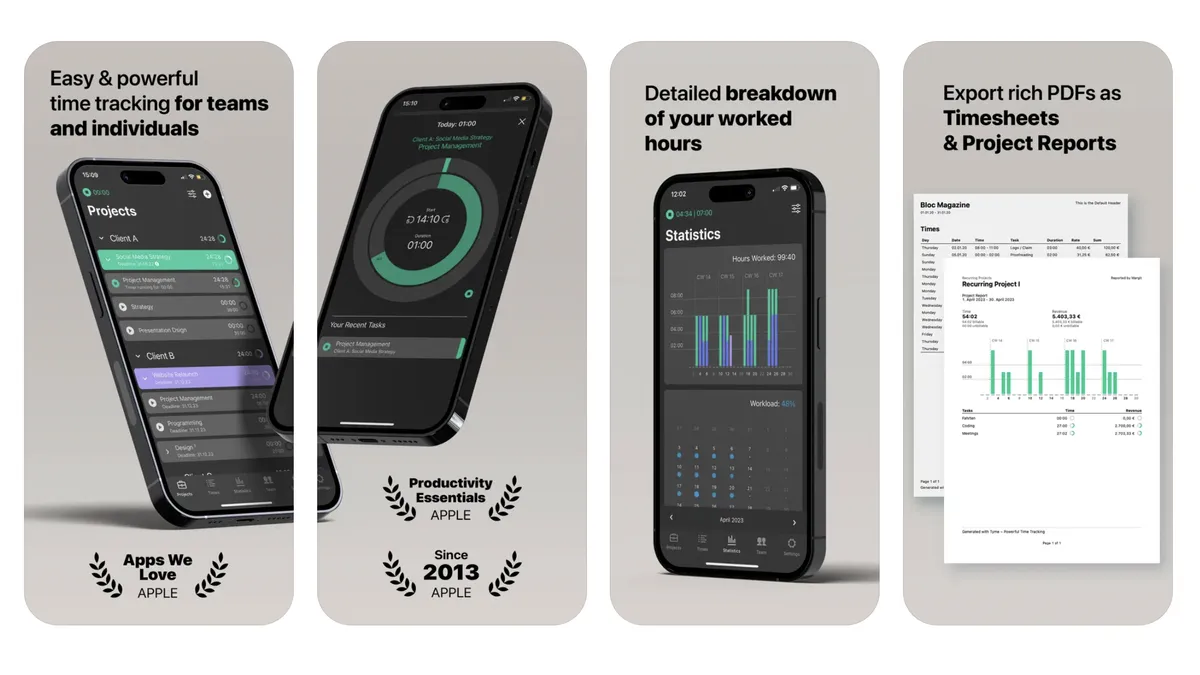
App of the day The Tyme 3 iPhone and Mac app is for individuals and teams, and it works seamlessly when you're on the move.
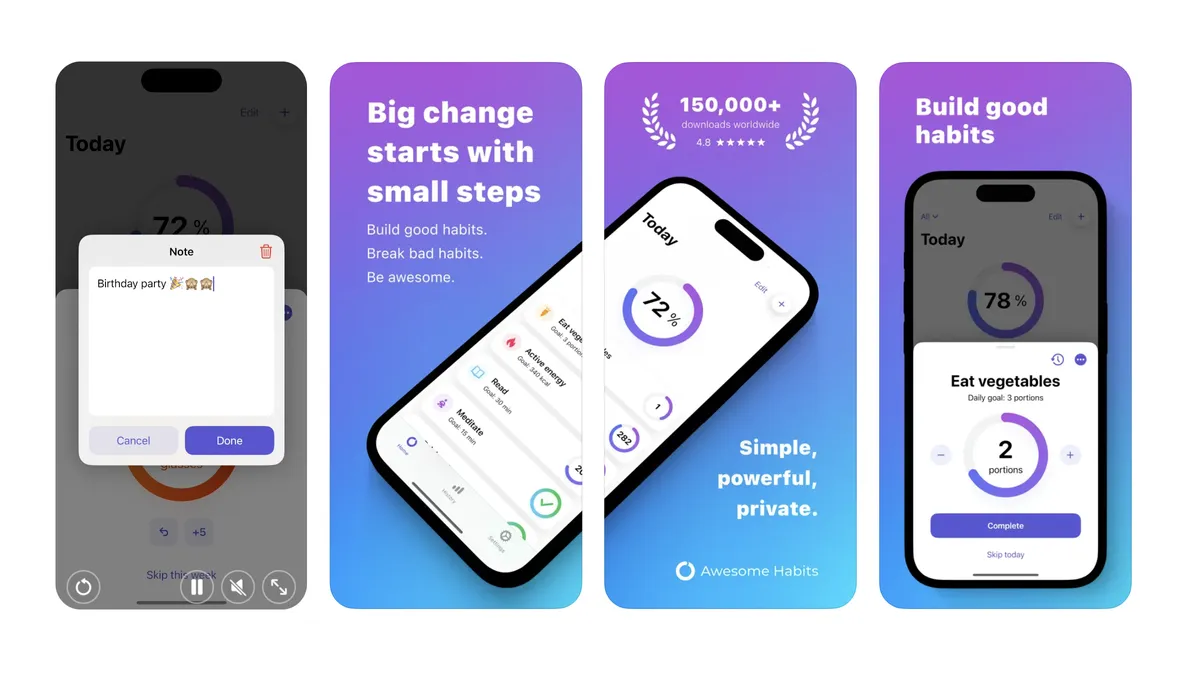
App of the day Awesome Habits isn't just another habit tracking app, it's perfect if you're overwhelmed by choice and want a straightforward option.