Apple's iPad event deleted an entire highway and a ton of houses all in the name of aesthetics
Apple's big iPad event earlier this week included an overhead shot of San Francisco, but it was all a lie thanks to the magic of editing.



Apple's iPad Pro crush video is being widely criticised online after the event, with fans not happy about the damage to items.

A new version of Matter has been released, version 1,3, adding support for EV chargers, kitchen appliances, and more.
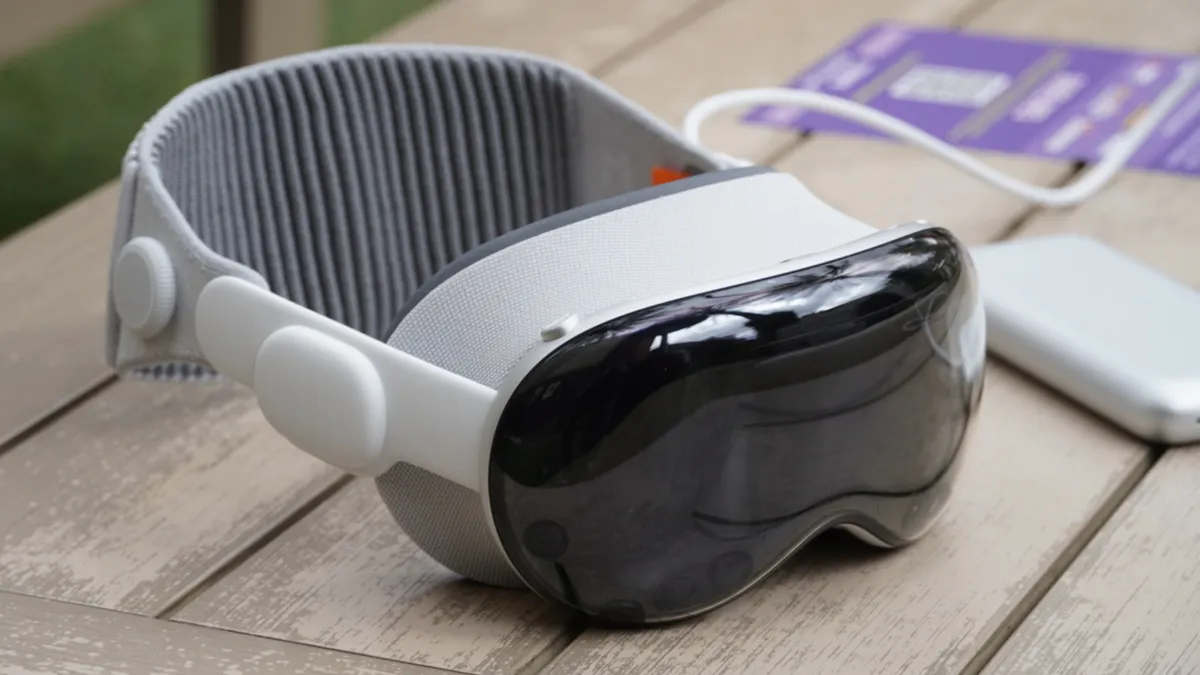
The Apple Vision Pro might not be as big a deal as it was a few months ago but this Disney Plus 'What If...?' announcement highlights what it does best.
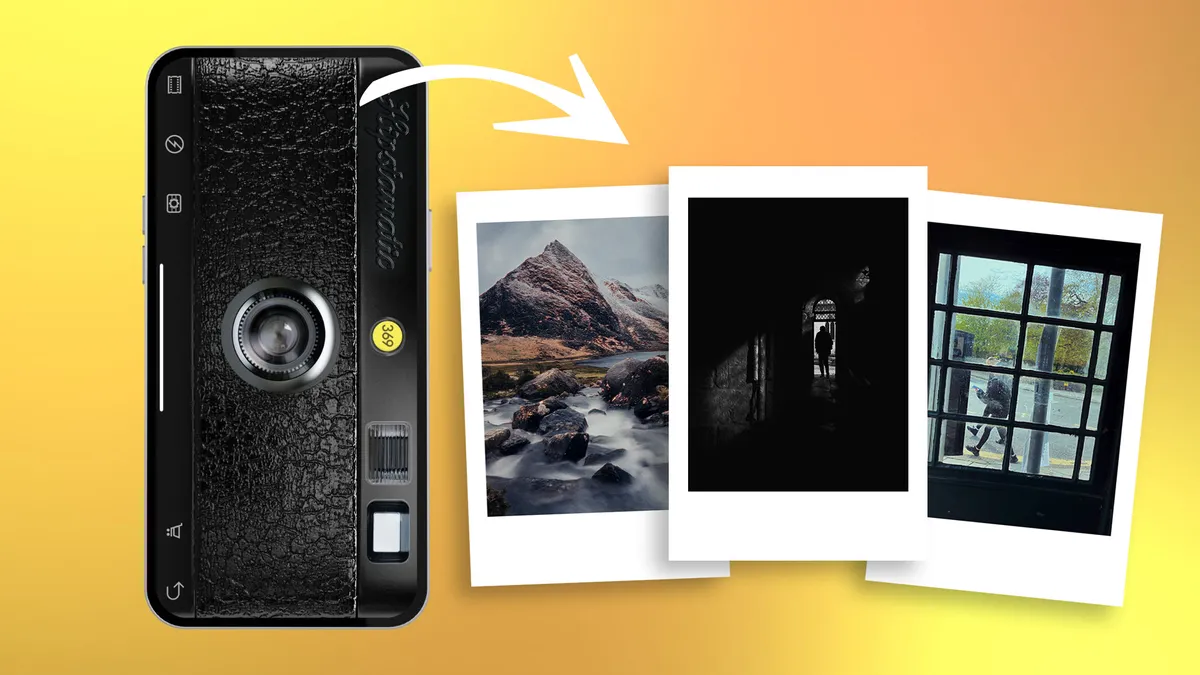
Turn back the clock and give your iPhone photos a retro film-era vibe using a variety of vintage apps.

iPhone users can now access their own version of Android’s rather excellent Circle to Search feature.
A new version of Matter has been released, version 1,3, adding support for EV chargers, kitchen appliances, and more.

Learn to attach an iPhone-compatible filter holder and use physical ND and polarizing filters to enhance your iPhone photography.

Protect your investment from the start.

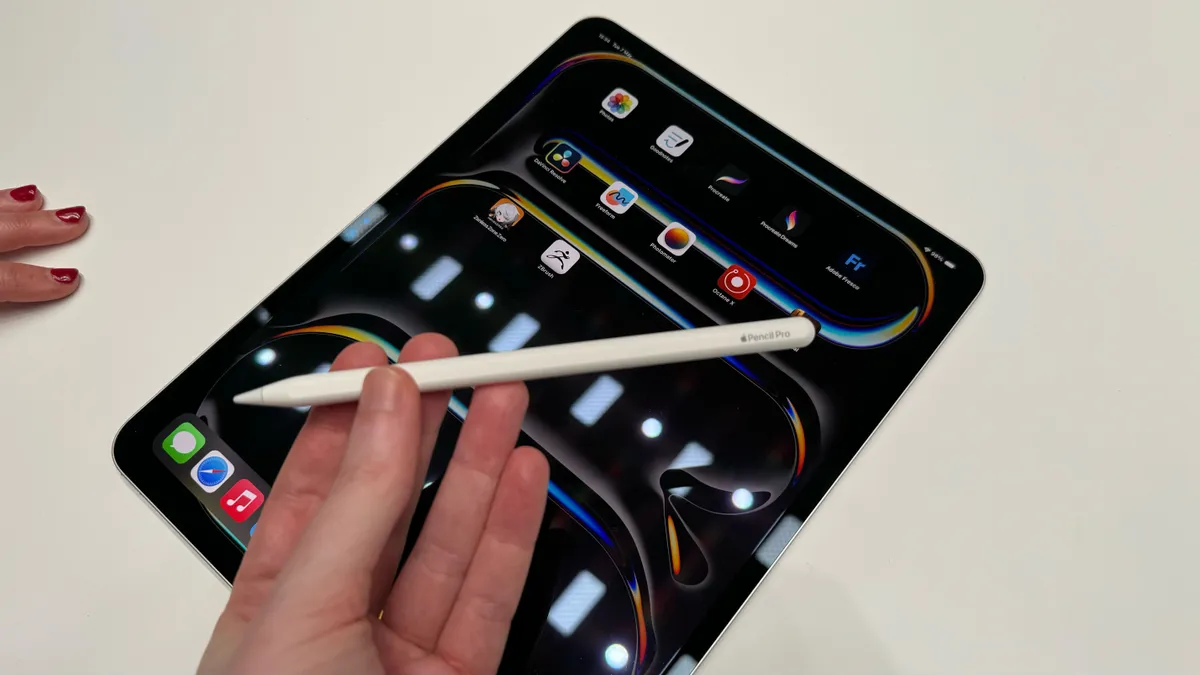
Keep your iPad Pro pristine from the start
Apple's iPad Pro crush video is being widely criticised online after the event, with fans not happy about the damage to items.

The best iPad for students is packed with features for all your education needs, and can be easily carried from class to class.
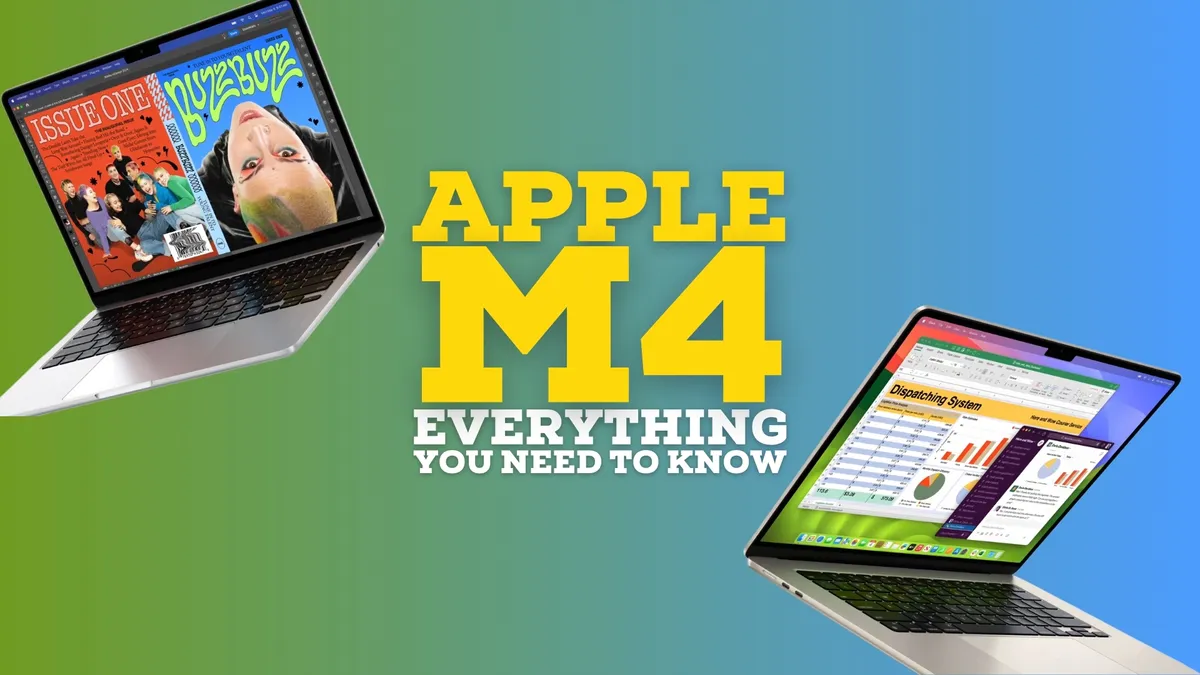
2024 heralds the first wave of M4 iPads but there's no sign just yet of MacBooks following suit. Here's everything we know so far.
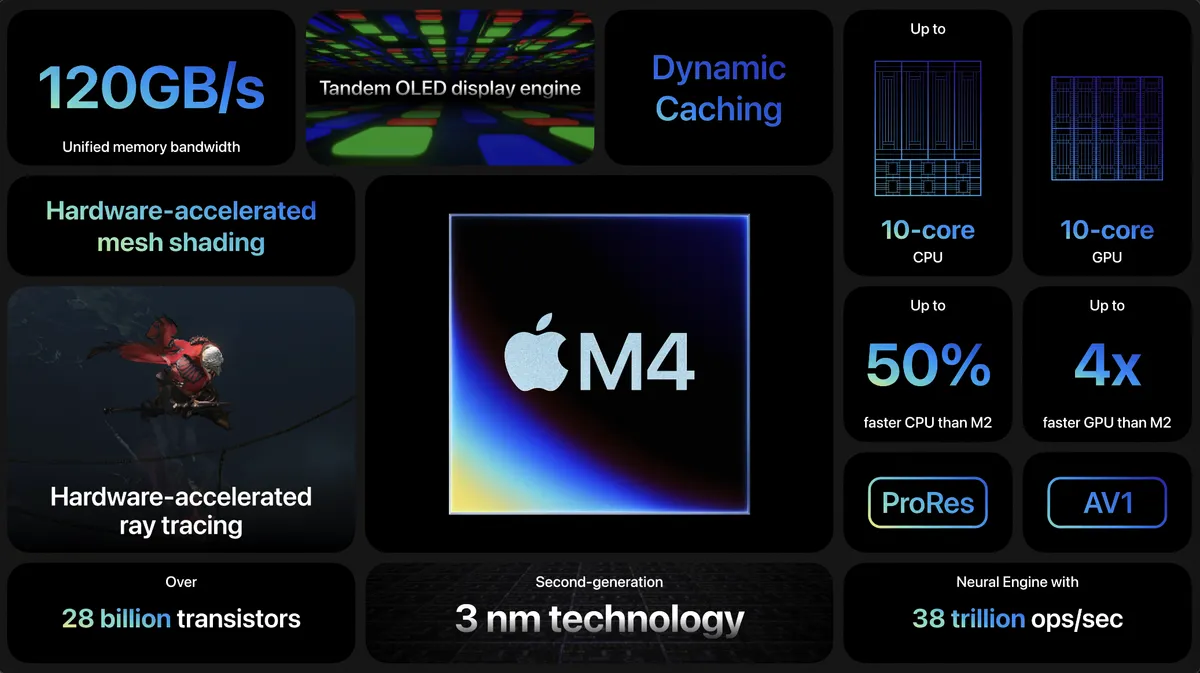
Apple's new M4 Apple silicon processor is here, and it arrives in the iPad Pro.
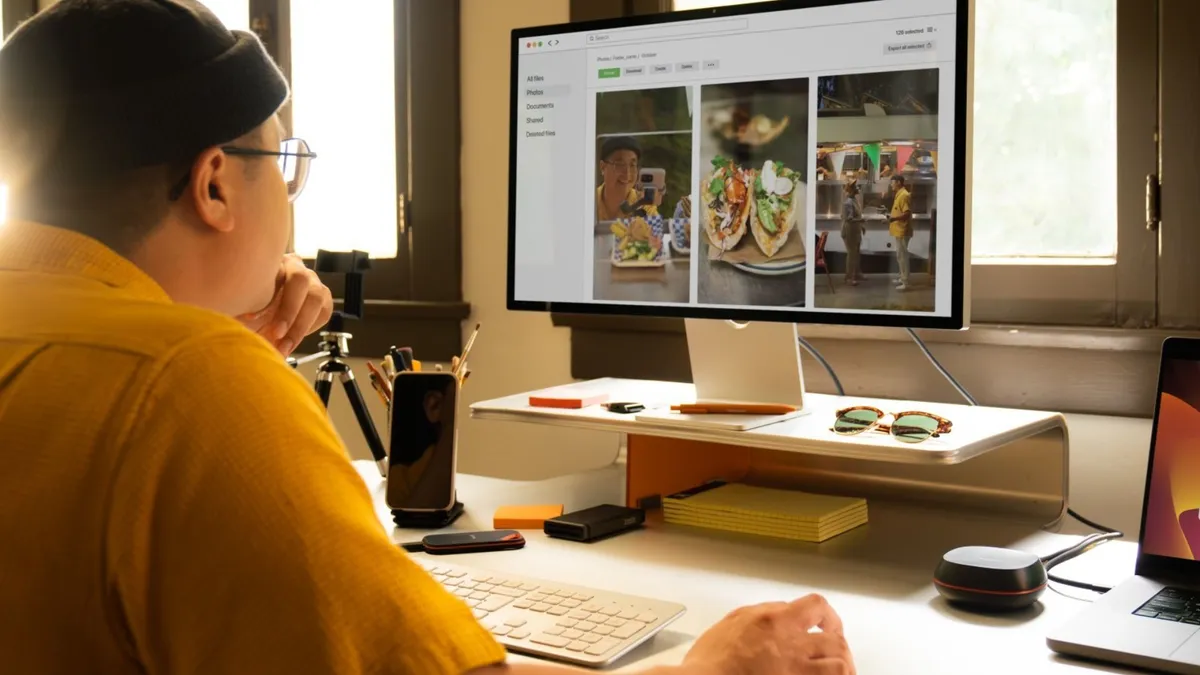
SanDisk's Desk Drive brings all the storage for an almost unbeatable price.
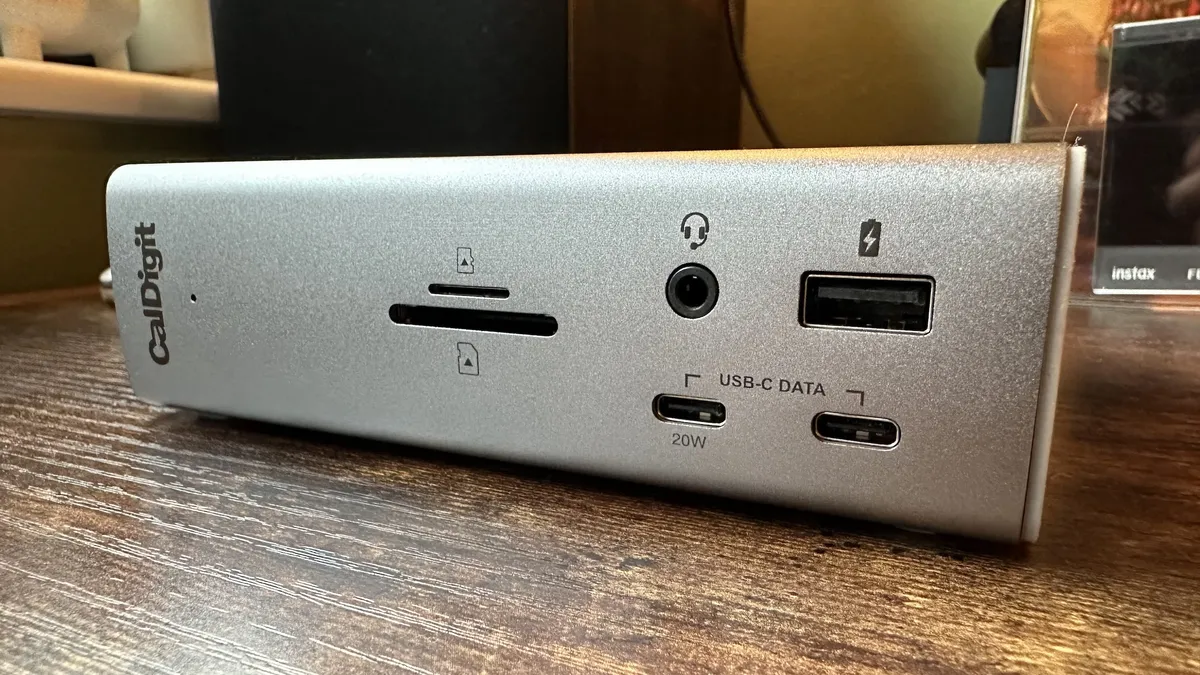
Need to connect multiple devices to your MacBook Pro? Get yourself one of these docking stations.
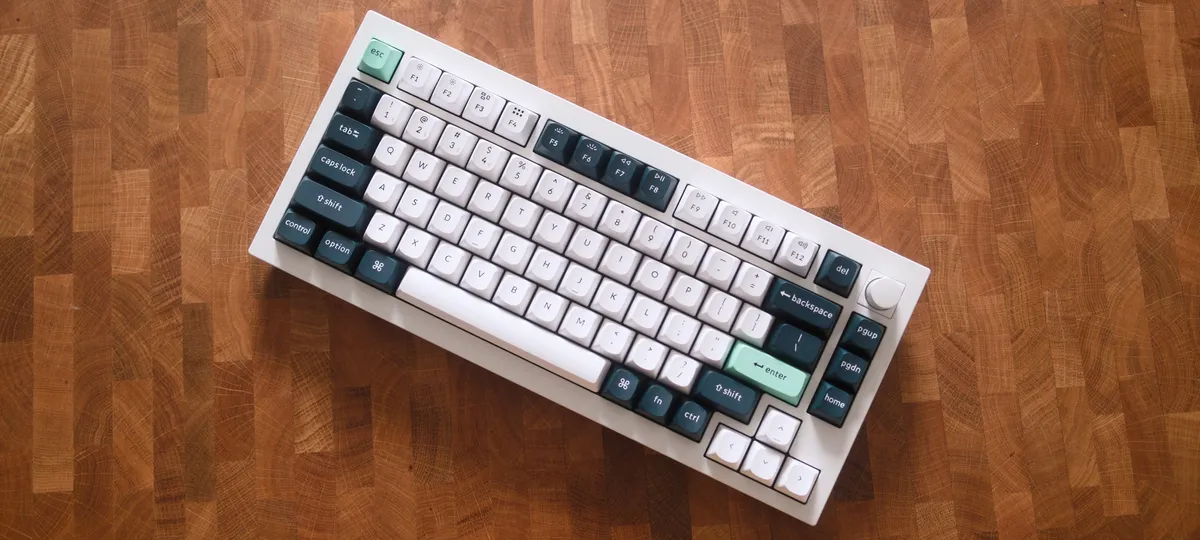
The Keychron Q1 HE adds magnetic hall effect switches to the tried and tested Q1 form factor. But is it good enough to replace the mechanical keyboard on your desk?
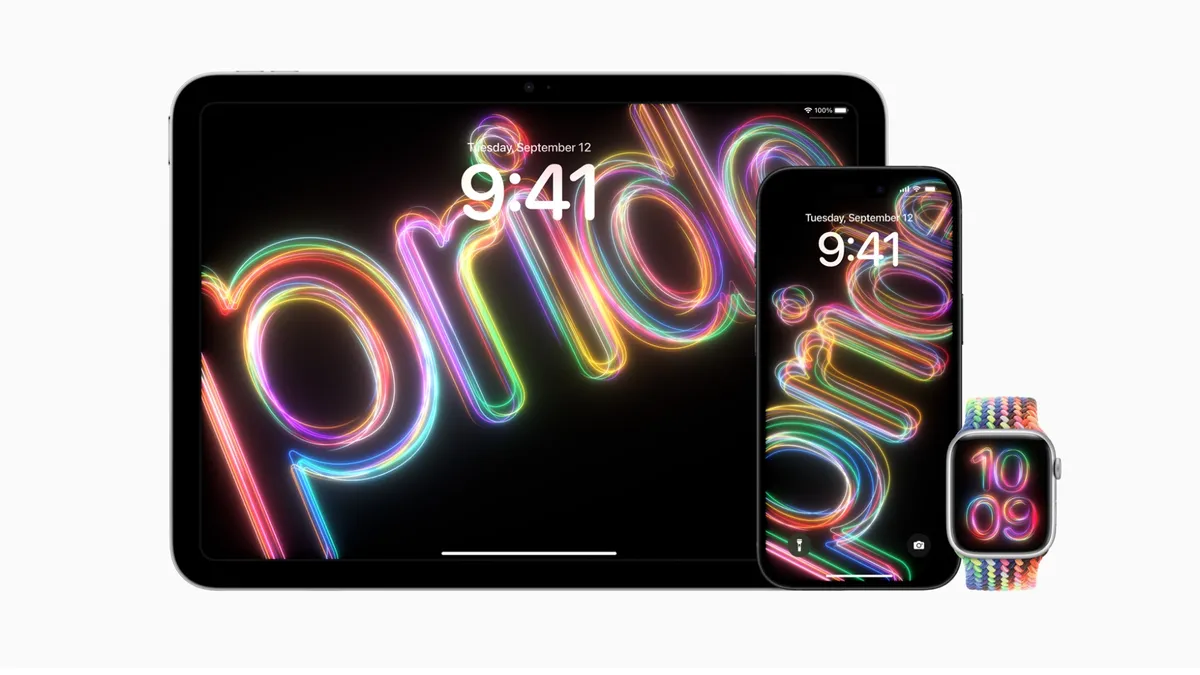
Apple has today announced its 2024 Pride Collection including a stunning new Apple Watch band.
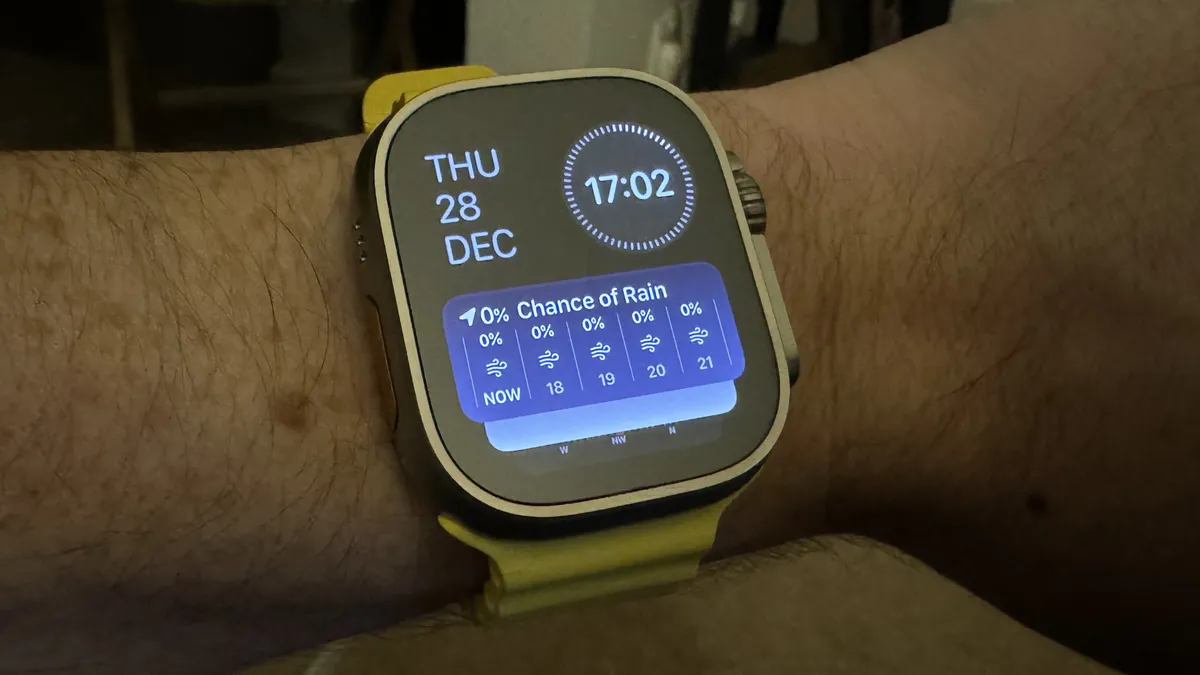
A new rumour says the upcoming Apple Watch X will opt for a thinner motherboard, which will leave extra room inside for additional hardware.
Turn back the clock and give your iPhone photos a retro film-era vibe using a variety of vintage apps.
iPhone users can now access their own version of Android’s rather excellent Circle to Search feature.
Learn to attach an iPhone-compatible filter holder and use physical ND and polarizing filters to enhance your iPhone photography.
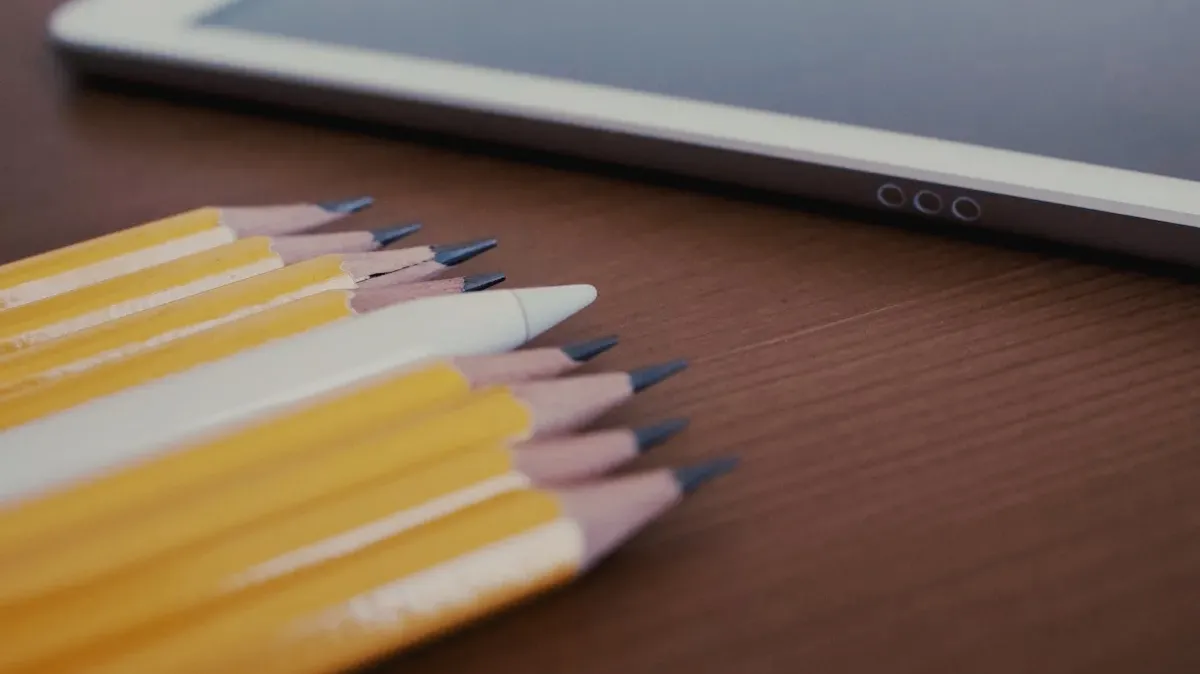
The iPad Quick Notes feature is one of the coolest hidden tricks of the Apple Pencil. Here’s how to use it.
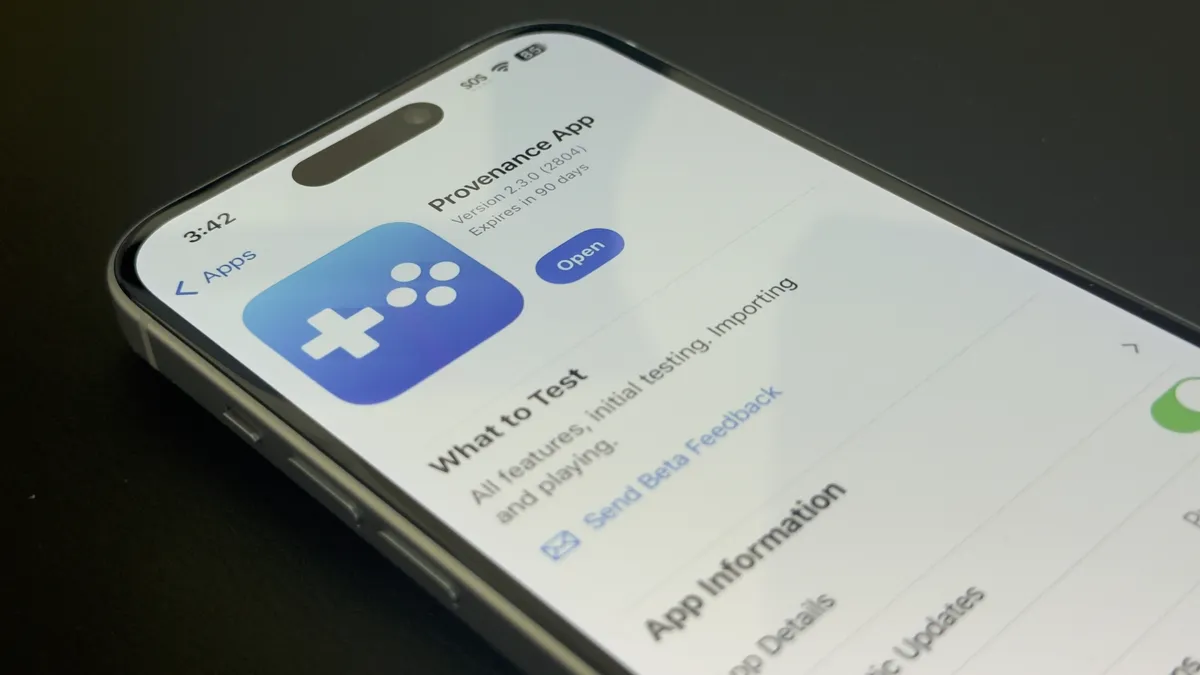
Game emulator fans have a new beta to download on the iPhone and iPad, and there's an Apple TV version on the way as well.

The new chip in the iPad Pro looks like it could offer a phenomenal boost in processing power, but I’m more excited about gaming on that excellent display.
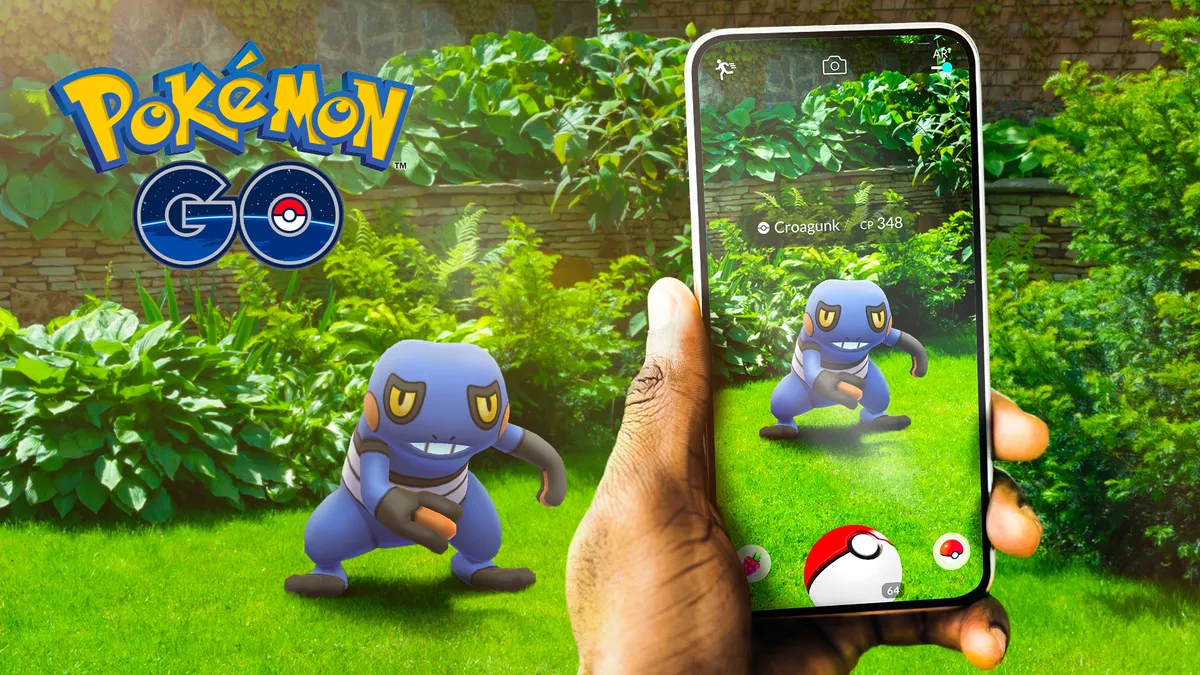
Prices for Pokémon GO’s in-game currency have risen in Turkey to stop IP spoofers and Turkish players aren’t happy with the change.
The Keychron Q1 HE adds magnetic hall effect switches to the tried and tested Q1 form factor. But is it good enough to replace the mechanical keyboard on your desk?
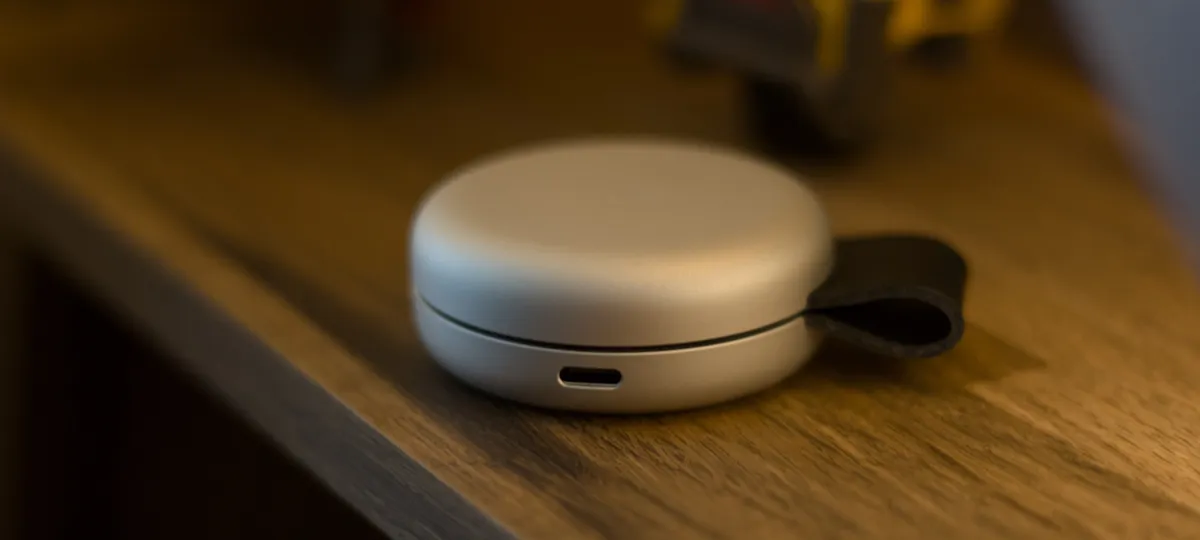
The Twelve South ButterFly is the world's smallest 2-in-1 MagSafe charger, but is it any good?

Too pricey to compete with its peers, and not quite as good as its remarkable LCD stablemates, the Dough Spectrum Black 27-inch OLED monitor is a good screen that’s still difficult to recommend.

Secretlab's combo of monitor arm and laptop mount means Mac users can finally take its desks more seriously.
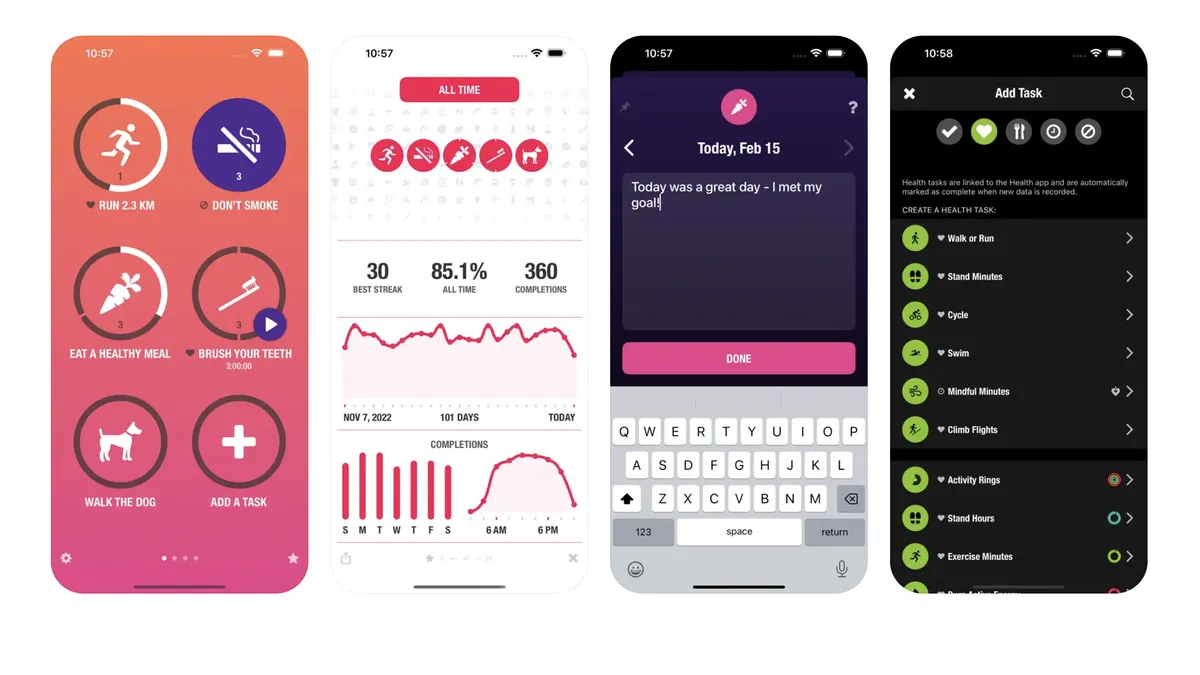
App of the day Streaks is a simple and effective habit-tracking app for people who love setting goals and hate losing daily streaks.
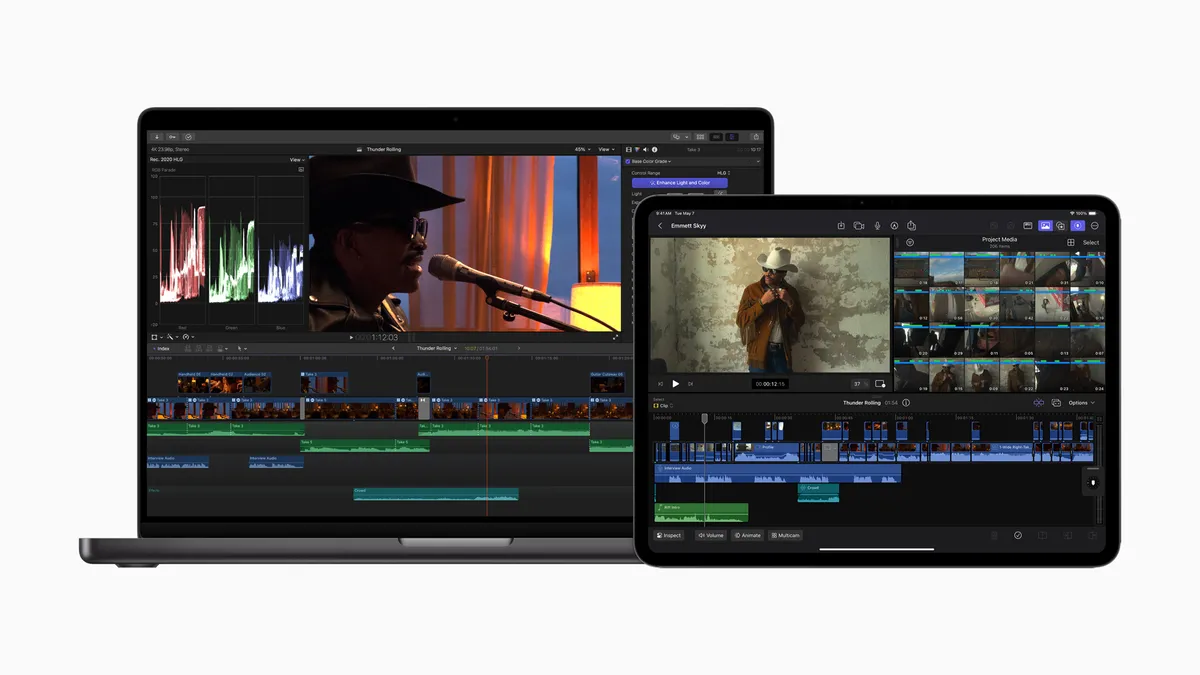
Final Cut gets an AI-powered sequel for iPad that takes advantage of the M4.
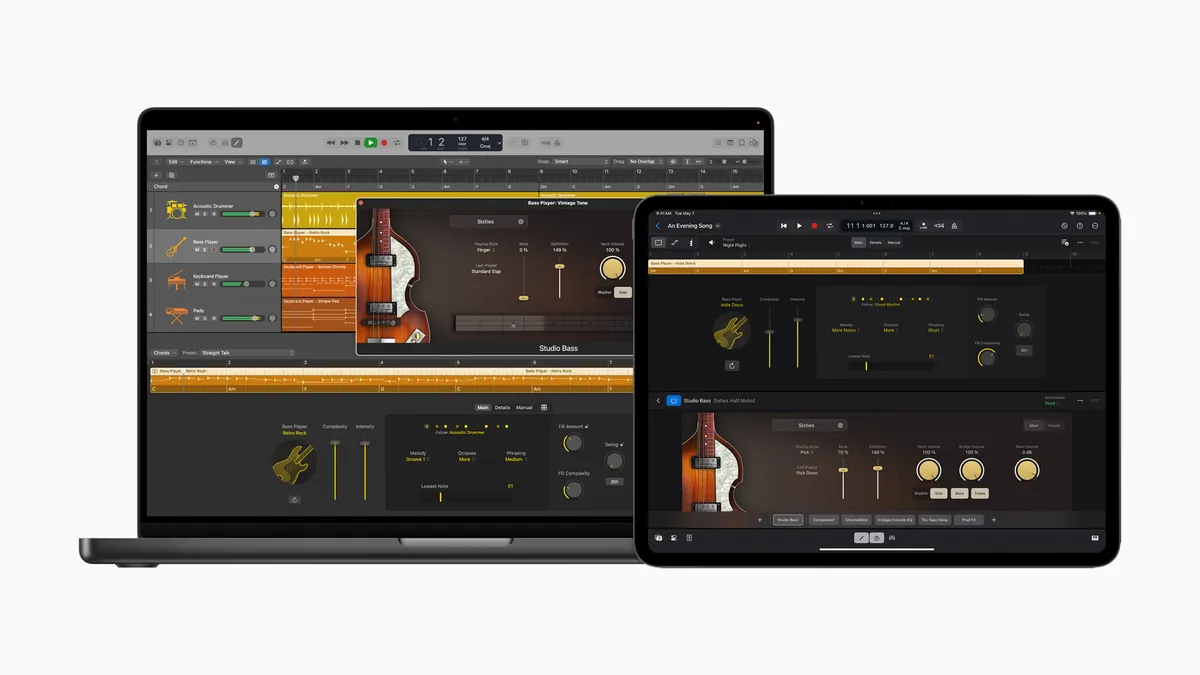
Apple's 'Let Loose' event reveals big upgrades for the company's DAW on iPad and Mac.
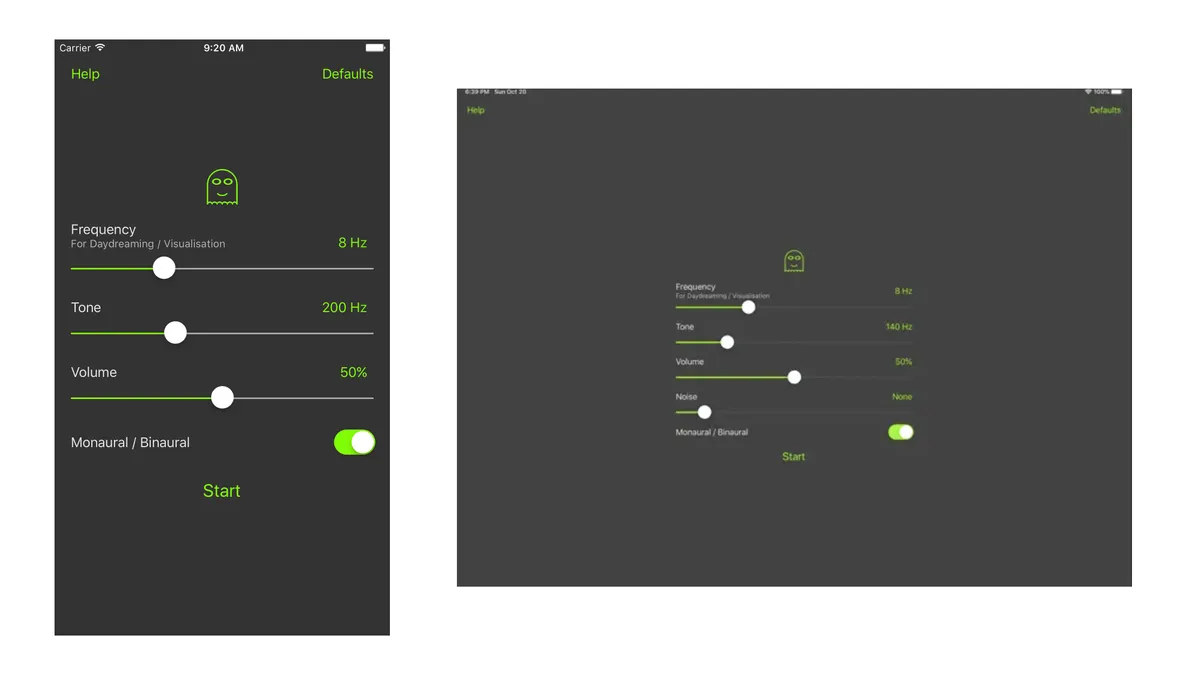
App of the day Oooo Brainwaves is a simple and free binaural beats app to help with mental health and focus.